IEM Credential Browser
IEM Credentials Browser
- Viewing Credentials
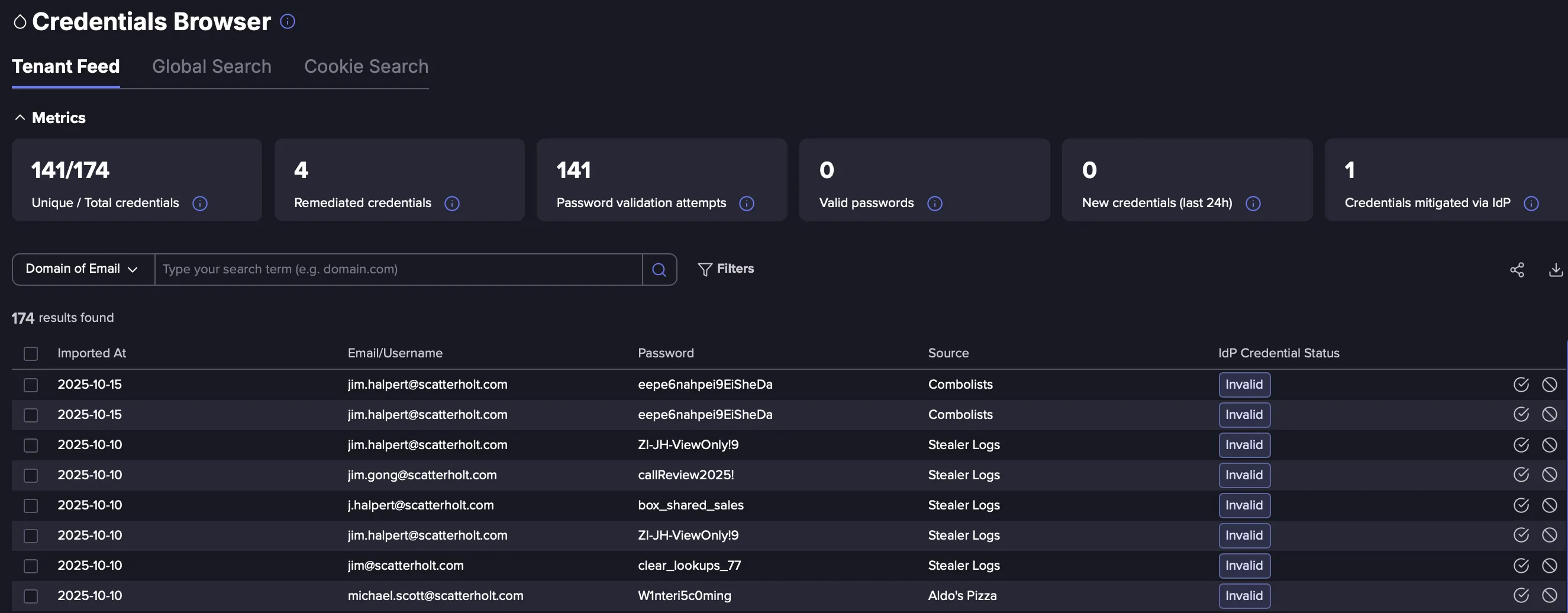
- The Credential Browser shows the associated leaked credentials from the Dark Web. Each credential is shown as an individual entry showing the same identities multiple times with different passwords. This page is the jumping off point for credential validation, remediation actions, and the Identity Profile.
- Validation & remediation
- Each row has the IdP Credential Status. This column shows the results of the IdP password validation attempt. If a password comes back true other entries for that Identity will be marked as false.
- For an Identity press validate to confirm the password. If it is returned true, Flare will offer the remediation options. If false, nothing will happen.
- Automated Validation and Remediation can be set up in the Integrations hub.
- Alternatively pressing on an Identity presents the validation option within the Overview tab.
- Metrics Overview
- Unique/Total - credentials show the credential count that Flare has found
- Remediated credentials - are credentials where a user has selected the remediated button
- Password validation attempts - this is the total number of password validation attempts Flare has performed against the IdP. For a detailed list of these select the integration in the Integration Hub and press Audit Logs
- Valid Passwords - this field is the count of confirmed passwords from password validation
- Credentials Mitigated via IdP - shows the count of Identities that have had remediation actions performed via the IdP
For more information check out the Credential Browser page
IdP Status Values
The following table highlights the associated status values with the IdP Status column:
IdP Status | Meaning | Considerations |
|---|---|---|
Valid | Password is valid | Remediate the exposure |
Invalid | Password is invalid | No action needed |
Not Found | User is not a member of the domain | |
Throttled | The password validation daily limit has been reached | Wait until tomorrow to validate the user again |
Mitigated | The Identity has been mitigated with your selected remediation action | |
Unknown | An unknown error has occurred please contact Flare | |
Failed | An error has occurred preventing validation | Check the IdP integration for errors |
Bulk Password Validation
Flare offers the ability to select multiple credentials and validate them automatically.
- Go to Configure
- Go to Integration Hub
- Select the associated IdP
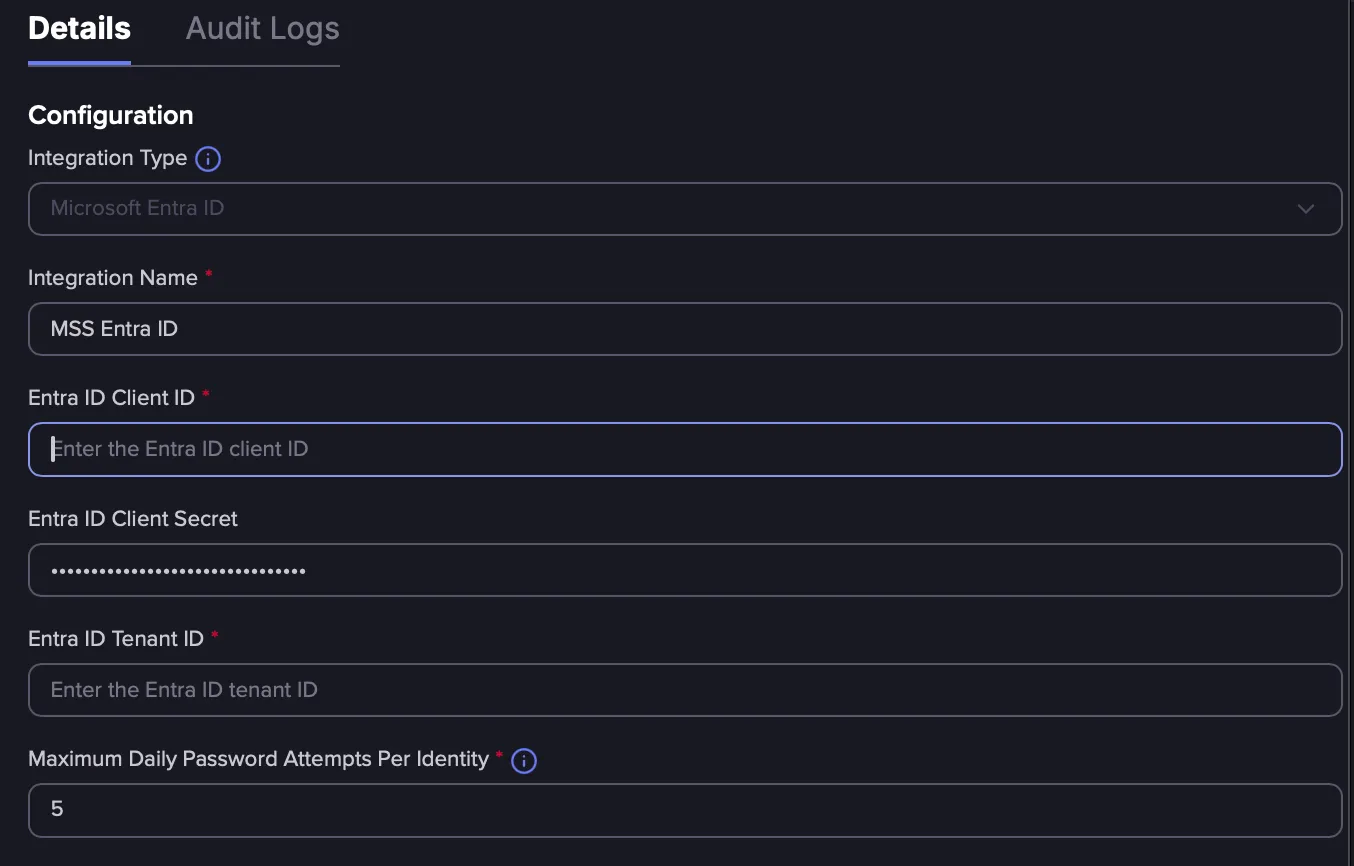
- Within the integration evaluate the "Maximum Daily Password Attempts Per Identity
- This value should correspond with your company's smart lockout policy
- It is recommended to make this half the value of your lockout policy
- This will limit each identity to the associated number of validation attempts to prevent account lockouts
- Within the Credential Browser check on the credentials you want to validate
- A validate button will appear. Press the button to validate the associated credentials
- It is recommend to filter credentials that have not been validated by pressing the filter button to queue up passwords to validate
Please note the following considerations when utilizing this feature:
- if a credential has been validated it will not be re-evaluated
- If an identity reaches its password attempt limit it will not be able to validate anymore credentials until the next day. The status will show as throttled
- Password validation attempts are capped at 1000 passwords per use
- If an identity is not apart of your domain, the status will change to not found
- Password validation attempts can be viewed within the Integration Hub -> Audit Log
Within the IdP Sign in logs Flare validation attempts will have the following user-agent: flare.systems-CredentialValidation/1.0