Intelligence Browser
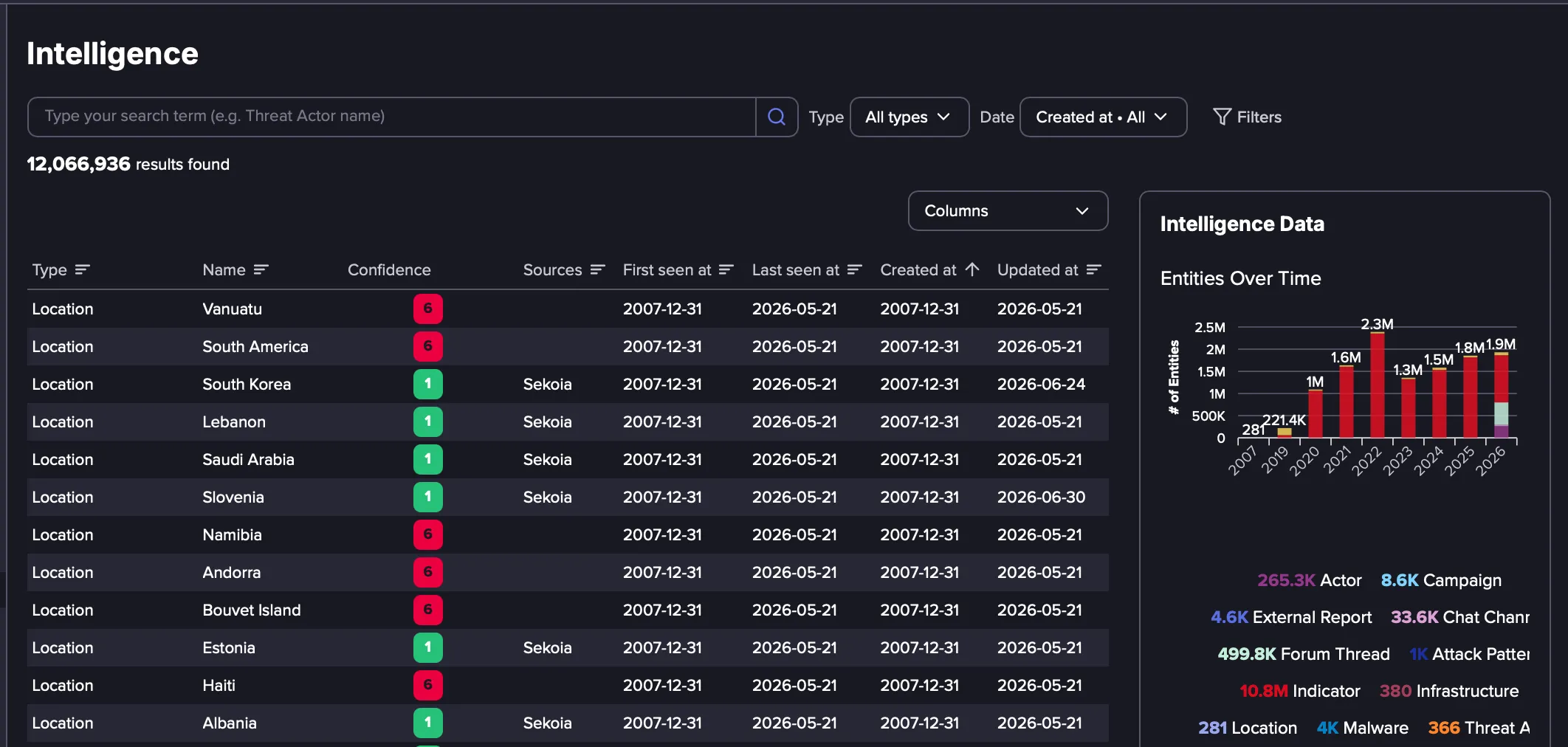
The Intelligence Browser is the primary research surface of the CTI Module. It lets you inspect threat intelligence directly in Flare, including IOCs such as malicious IPs, URLs, and file hashes, along with threat actor profiles, campaigns, intrusion sets, and TTPs.
Rather than pivoting between separate tools, you research threats from a single destination that draws on multiple intelligence providers. When you encounter an indicator, you can immediately understand who is behind it, whether the actor is credible, what campaign it is connected to, which TTPs are in play, and what other indicators to look for.
Intelligence is sourced from two providers simultaneously:
- Flare's Catalog: Built from Flare's collection of dark web forums and Telegram channels
- External Feeds: From a global CTI provider with extensive coverage across adversary groups, malware families, and active campaigns
A single search returns results from both sources in a unified view.
Access to this feature requires an add-on. Please reach out to your CSM for more information.
Key features
- Multi-provider entity exploration: Browse threat actors, campaigns, intrusion sets, malware families, and IOCs from both Flare's intelligence catalogue and external feeds in a single unified view. You do not need to run separate queries per provider.
- Actor profiling: When you open an actor profile, you get:
- A credibility assessment
- Behavioral patterns and known activity
- TTPs mapped to MITRE ATT&CK
- Entity relationships showing how this actor connects to campaigns, infrastructure, and known IOCs
Credibility assessment is important because not all dark web activity is genuine. The Intelligence Browser helps you distinguish signal from noise before you act on it.
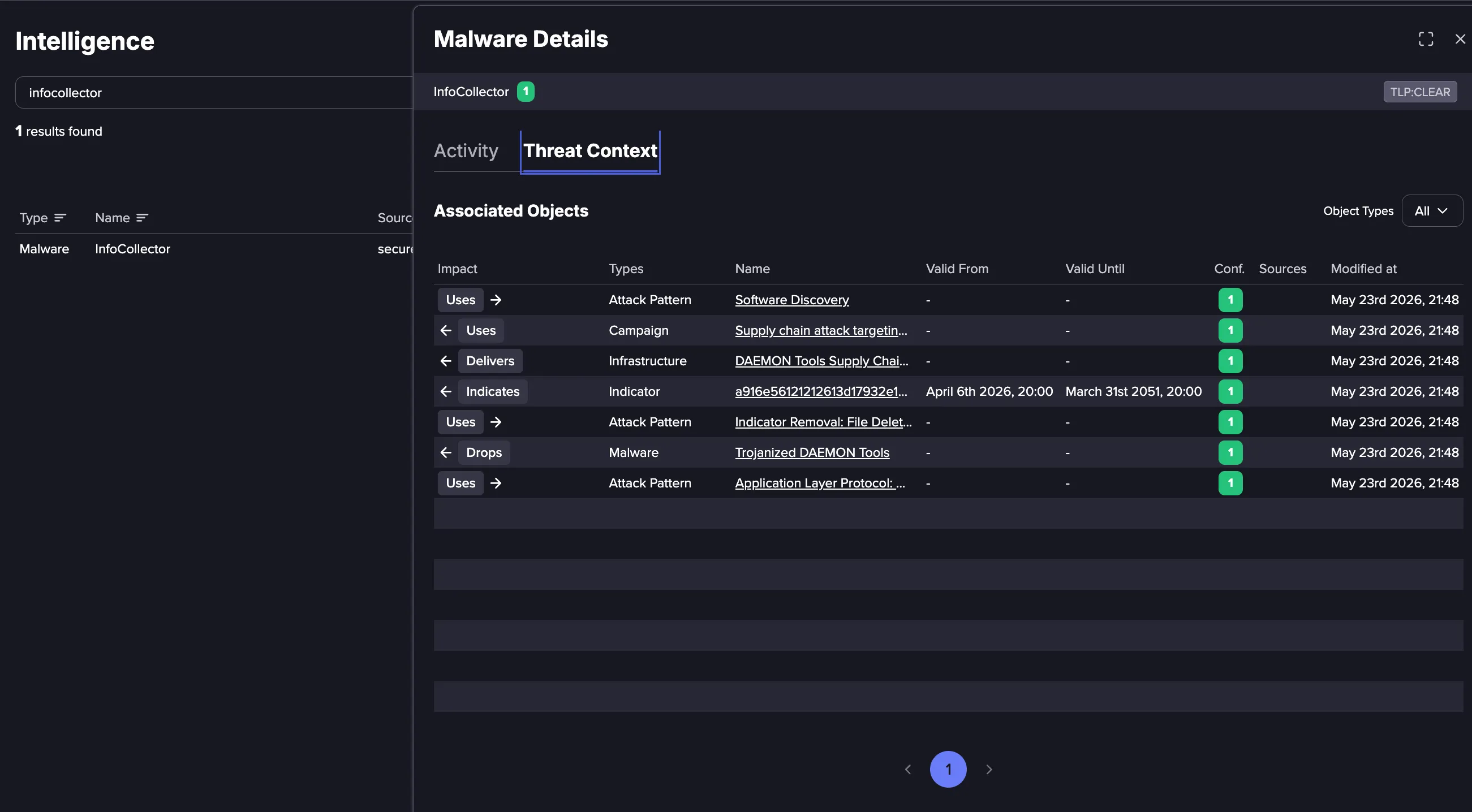
- Threat Context: Indicators in the Intelligence Browser are not standalone data points. Associations between objects are listed and classified in the Threat Context tab. Here you can see information to help you contextualize and prioritize high-risk indicators. For example, Threat Context shows you what malware may be indicated by a IP or file hash, or what campaigns have been attributed to a specific threat actor.
- Forum and channel intelligence: The Intelligence Browser includes deep analysis of dark web forum thread activity. This includes thread context, entity relationships, and links to emerging threats observed in those communities. It connects observed activity to known actors and indicators rather than returning surface-level keyword matches.
How to use the Intelligence Browser
Click through the following product tour to learn how to use the Intelligence Browser.
Search the catalogue
Enter an IOC (domain, IP, URL, file hash), a threat actor name, a campaign name, or a TTP in the search bar. The search runs against both Flare and partner intelligence simultaneously.
Drill into an entity
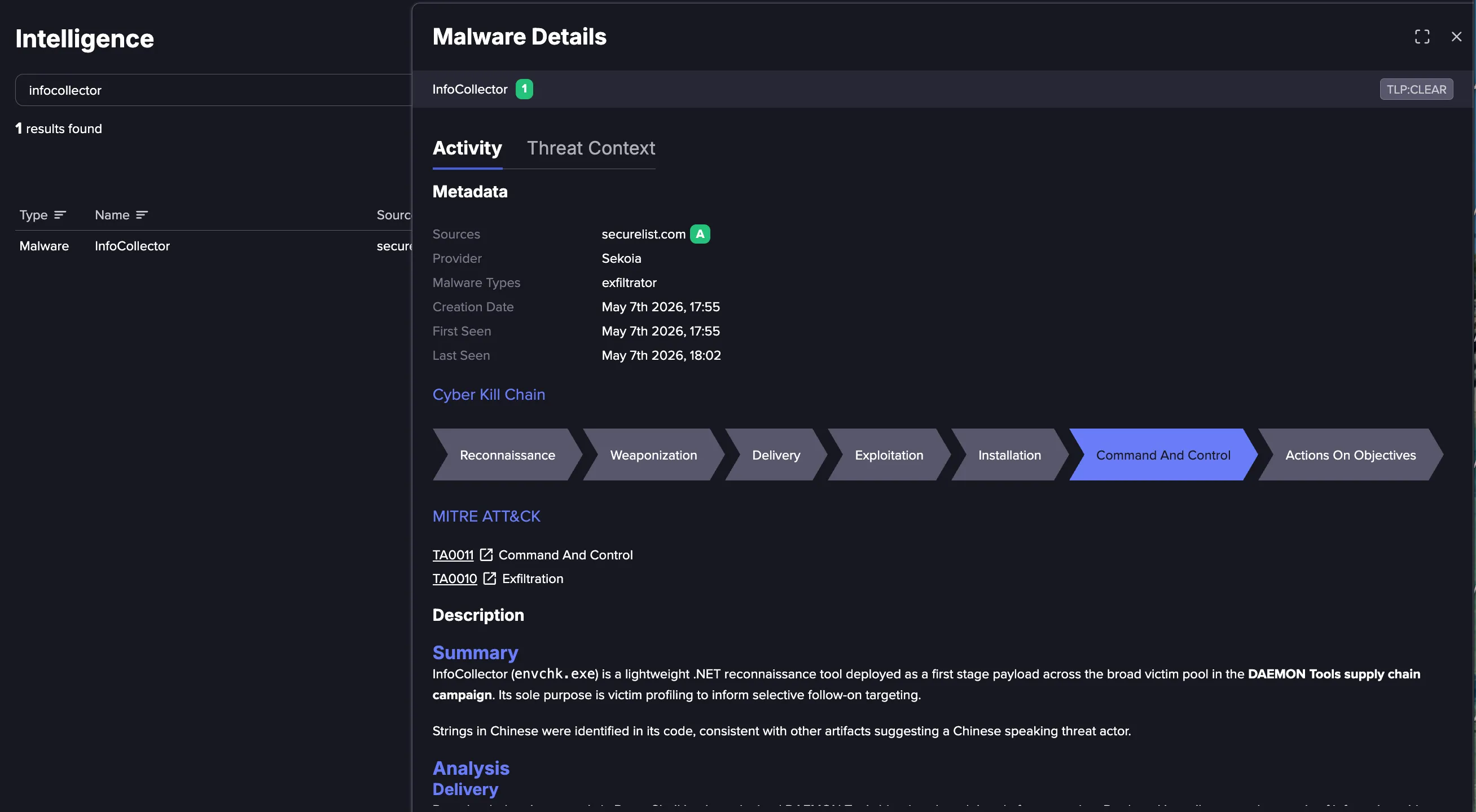
From your search results, open the entity profile that is most relevant to see detailed information. For a threat actor, for example, this shows credibility, behavioral history, and TTPs mapped to MITRE ATT&CK. For a campaign, it shows the associated actors, malware, and timeline. For a malware family, you can see its metadata, its place on the cyber kill chain, its techniques mapped to MITRE ATT&CK, and a written analysis of how it operates.
Explore relationships
Each entity is connected to related entities. For a threat actor, for example, you can navigate to the campaigns they have run, the infrastructure they use, the IOCs they have generated, and the dark web forums where they operate. For a malware family, you'll see the campaigns that deliver it, the infrastructure it relies on, the attack patterns it uses, and the indicators that detect it. This gives you the full picture of a threat from a single starting point.
Continue investigation in Threat Flow
Once you have completed your research, use Threat FlowThreat Flow to package your findings into a structured intelligence report. Threat Flow uses the same intelligence catalog to generate reports, therefore, entities you research in the Intelligence Browser can become the subject of a Threat Flow report.
Searching and Filtering
Search across all Intelligence Objects and focus the results to what matters to your investigation.
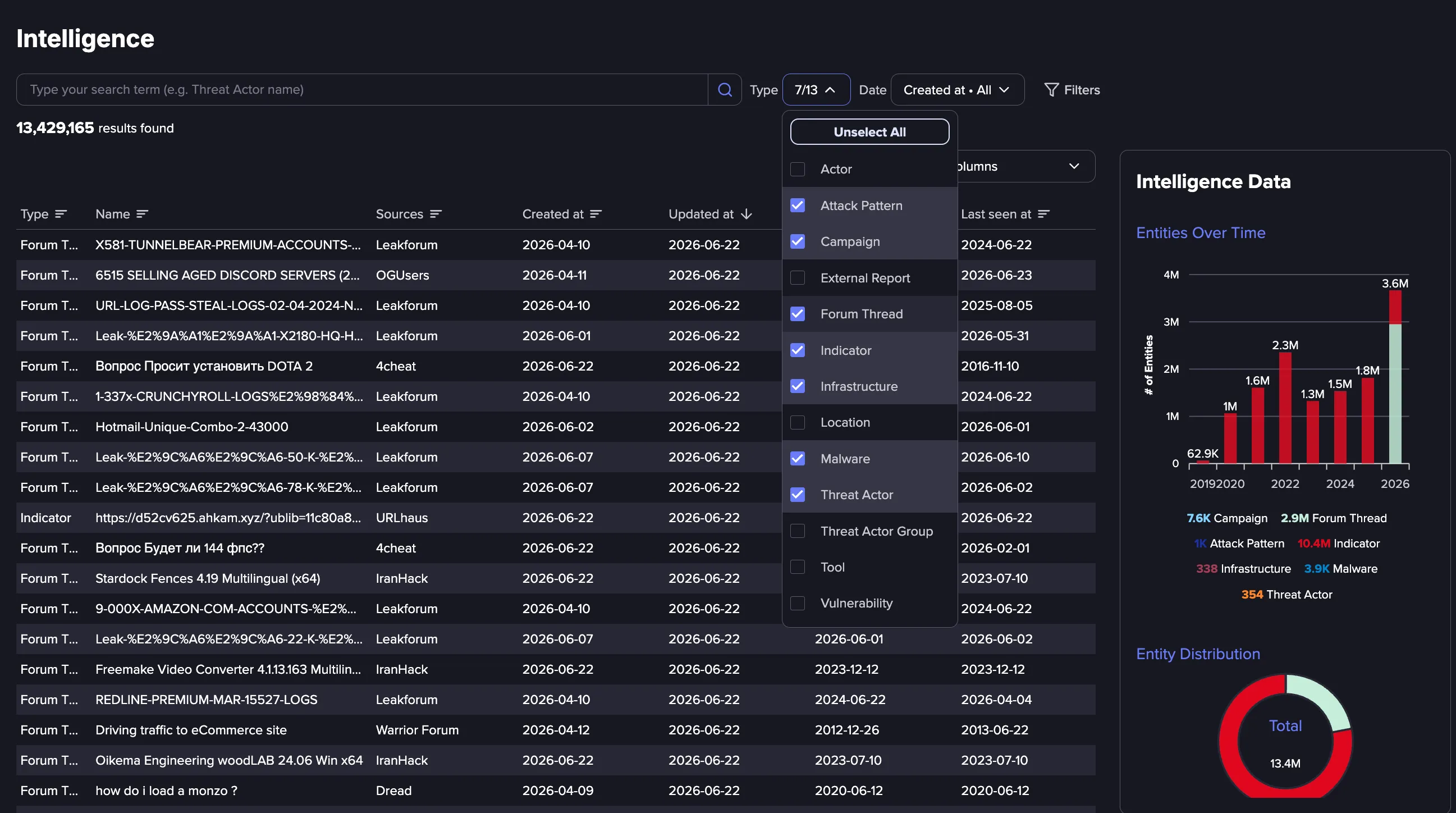
- Search: Enter a term in the search bar, such as a threat actor name, a campaign, a domain, an IP, a URL, or a file hash. Select the following options for quick filtering:
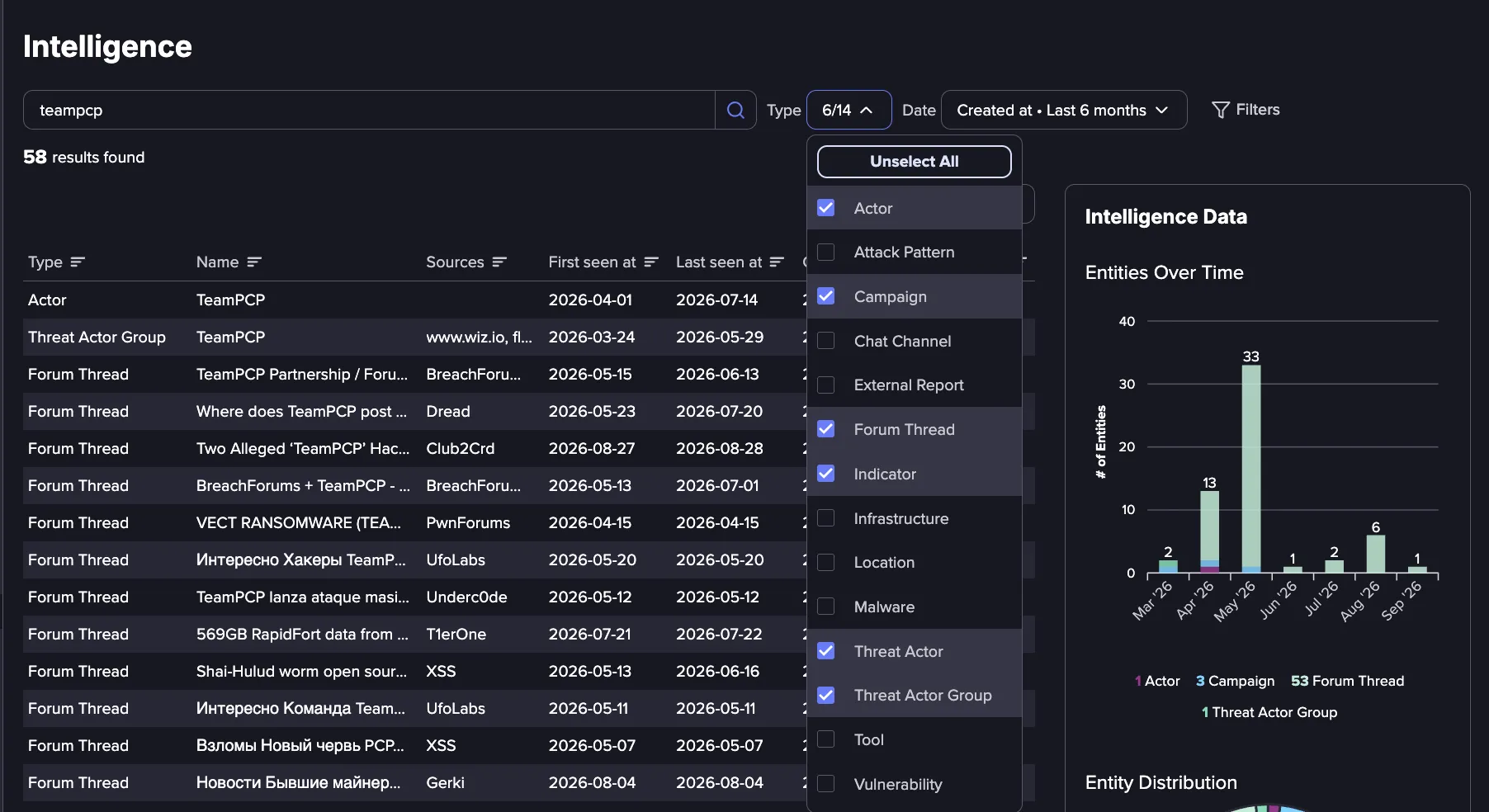
- Type: Select one or more types to limit results to a single Intelligence Object type, or leave it set to All Types.
- Date: Select a date range to filter by when objects were created, updated, or seen.
- Filter: Select Filters for more detailed filtering options.
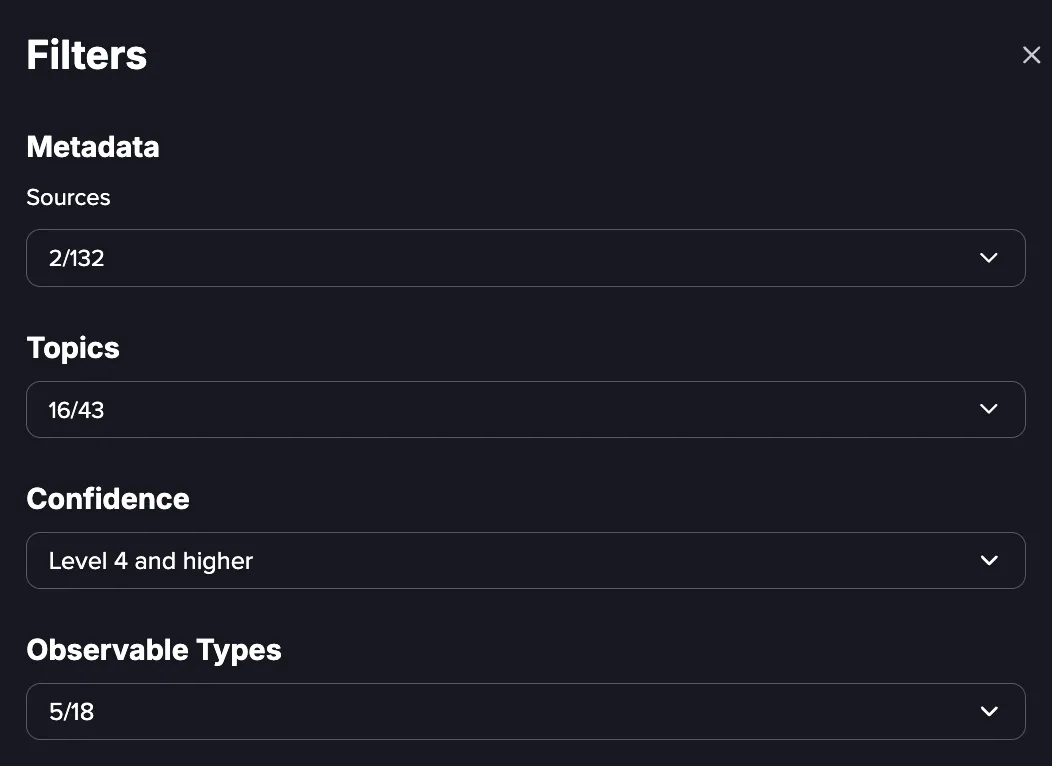
- Sources: View objects only from specific intelligence sources. You can select to view intelligence from chats, communities, or both.
- Topics: View objects associated with one or more topics, such as the tools and capabilities involved, the type of malicious activity, or the actor's motivation. Search within the list, select individual topics, or choose Select All. A count next to each topic shows how many matching objects are available, and each topic can be expanded for more specific subtopics.
- Confidence: Show only objects at or above a chosen Confidence Score. See Object Confidence Score for more on how this score works.
- Observable Types: When filtering to Indicators, drill down to a specific IOC type, such as IP addresses, domains, or file hashes. This lets you pull a targeted list, for example just IP addresses to update firewall rules, or just file hashes to update EDR and email gateway policies. This filtering is also available through the Entities API.
Object Confidence Score
Each Intelligence Object is assigned a Confidence Score that reflects how strongly the intelligence is supported by evidence. You can use this score to gauge how much weight to give an object, for example to focus on high-confidence indicators before applying them to detection or blocking. The Confidence Score can be surfaced in two ways in the Intelligence Browser:
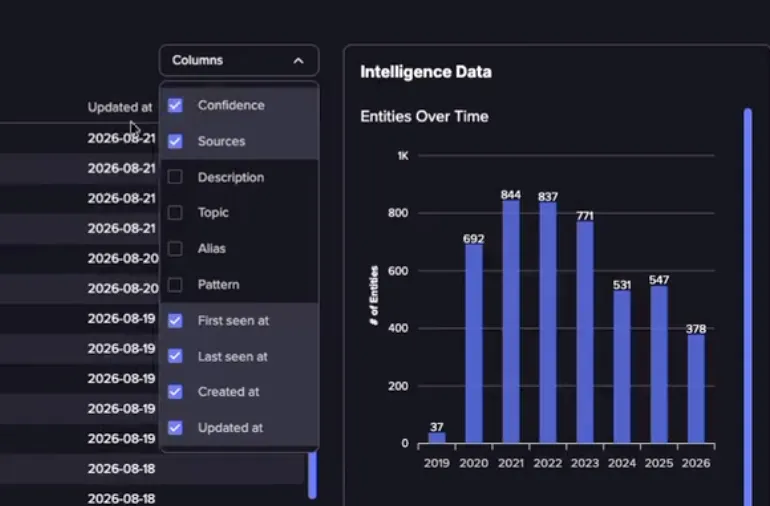
- As a column: Add Confidence to the results table to see each object's score alongside its type, name, and sources.
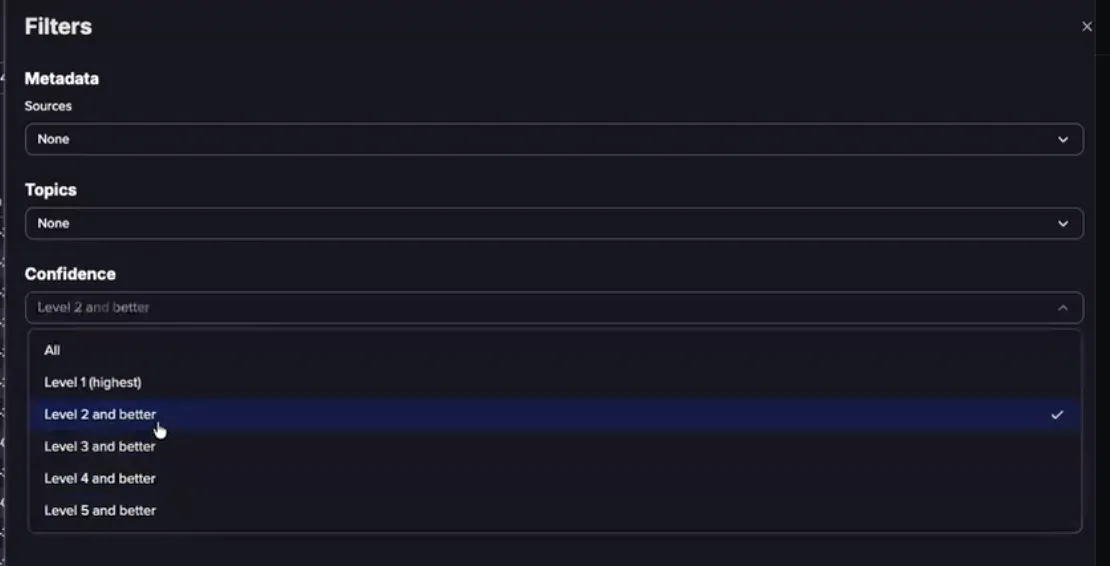
- As a filter: Filter by Confidence to narrow results to objects at or above a chosen score.
Show the Confidence Score as a Column
1. In the Intelligence Browser, open the Columns menu. 2. Select Confidence to add it to the results table.
Filter by Confidence Score
1. Click Filters to add filtering. 2. Select the Confidence filter. 3. Choose the score you want to filter by. Results update to show only objects that match.
How is Confidence Score Assigned
The score is provided by Sekoia and follows a standard method for grading intelligence. Note that lower numbers mean higher confidence: a score of 1 is the strongest, and 6 means the information cannot be judged.
Score | Meaning |
|---|---|
1 | Confirmed by other independent sources, and consistent with what is already known |
2 | Probably true. Not confirmed, but logical and consistent with other information |
3 | Possibly true. Not confirmed, and only partly consistent with other information |
4 | Doubtful. Not confirmed, possible but not logical, with no other supporting information |
5 | Improbable. Not confirmed, not logical, and contradicted by other information |
6 | Truth cannot be judged. No basis exists for evaluating the information |
Reliability Rating
Alongside confidence in the information, an intelligence source can also have a reliability rating from A (completely reliable) to F (reliability cannot be judged) assigned by Sekoia.
Rating | Meaning |
|---|---|
A | Completely reliable. No doubt about authenticity or competency, with a history of complete reliability |
B | Usually reliable. Minor doubt, with a history of valid information most of the time |
C | Fairly reliable. Some doubt, but has provided valid information in the past |
D | Not usually reliable. Significant doubt, but has provided valid information in the past |
E | Unreliable. Lacking in authenticity and competency, with a history of invalid information |
F | Reliability cannot be judged. No basis exists for evaluating the source |
Together, these two scoring standards let you weigh both how sound a piece of intelligence is and how dependable its source is.
For the full definitions of both the confidence and reliability scales, see Sekoia's Data Model documentation.
Intelligence Objects
The Intelligence Browser contains the following entity types. Each has its own detail view with sources, metadata, and relationships. You can filter by one entity type or stack multiple filters. Results aggregate in a single query across all sources.
Entity Type | Description |
|---|---|
Actor | Individual surfaced from Flare's data, and not yet mapped or attributed. |
Attack Pattern | Techniques mapped to the cyber kill chain and MITRE ATT&CK tactics, with provider metadata and full descriptions of how adversaries operate. |
Campaign | Coordinated, time-bounded threat activity that ties actors, malware, and TTPs together under a single named operation. |
Chat Channels | Messaging channels and groups tracked with their posts, participants, and the linked actors and indicators surfaced inside. |
External Reports | Collections of threat intelligence focused on one or more topics, such as a description of a threat actor, malware, or attack technique, including context and related details. |
Forum Thread | Dark web forum posts with full thread context, including author, timestamps, and the linked actors and indicators discussed inside. |
Indicator | Atomic IOCs such as domains, URLs, IPs, and file hashes, each tied back to the actor, malware, or campaign that produced them. |
Infrastructure | The systems adversaries rely on, including command and control servers, hosting, ASNs, and supporting assets behind active operations. |
Location | Geographic references such as countries, regions, or cities, used to tie threat activity to where it originates or targets. |
Malware | Named malware families with their capabilities, samples, and the campaigns and actors known to operate them. |
Threat Actor Threat Actor Groups | Named individuals, groups, or organizations believed to be operating with malicious intent, with attributed campaigns, TTPs, and tracked aliases. |
Tool | Legitimate software that can be used by threat actors to perform attacks. |
Vulnerability | CVEs with exploitability context, including which actors are weaponizing them and which malware families leverage them in the wild. |