Severity Rules
Event severity is a classification that helps you evaluate and respond to exposures and threats. It gives you a quick assessment on how serious a given Event is, based on contextual sensitivity and threat indicators. Each Event in your Tenant is assigned one of five severity levels, ranked from Info to Critical, using a framework developed by Flare to provide a standardized risk indicator across all teams monitoring threats.
Severity Rules are the building blocks behind the severity assigned to an Event. Each rule pairs a saved query with a severity, and when an Event matches a rule, the rule is applied and contributes to the Event's final severity.
There are two types of Severity Rules:
Flare Severity Rules
Added and maintained centrally by Flare. These rules provide coverage out of the box, so every organization can benefit from them. Flare Rules cannot be edited, but they can be turned on or off, and the severity level can be changed.
Custom Severity Rules
Created in your Tenant and maintained by your organization to cover your context. For example, flagging Events that mention a specific internal codename. These rules apply only in the Tenant where they were created.
Important to note
Changes to a Flare or Custom Severity Rule are not applied retroactively. Creating or modifying a rule affects only the Events that arrive after the change. The severity already assigned to past Events is not recalculated to reflect the new rule.
Flare Severity Rules
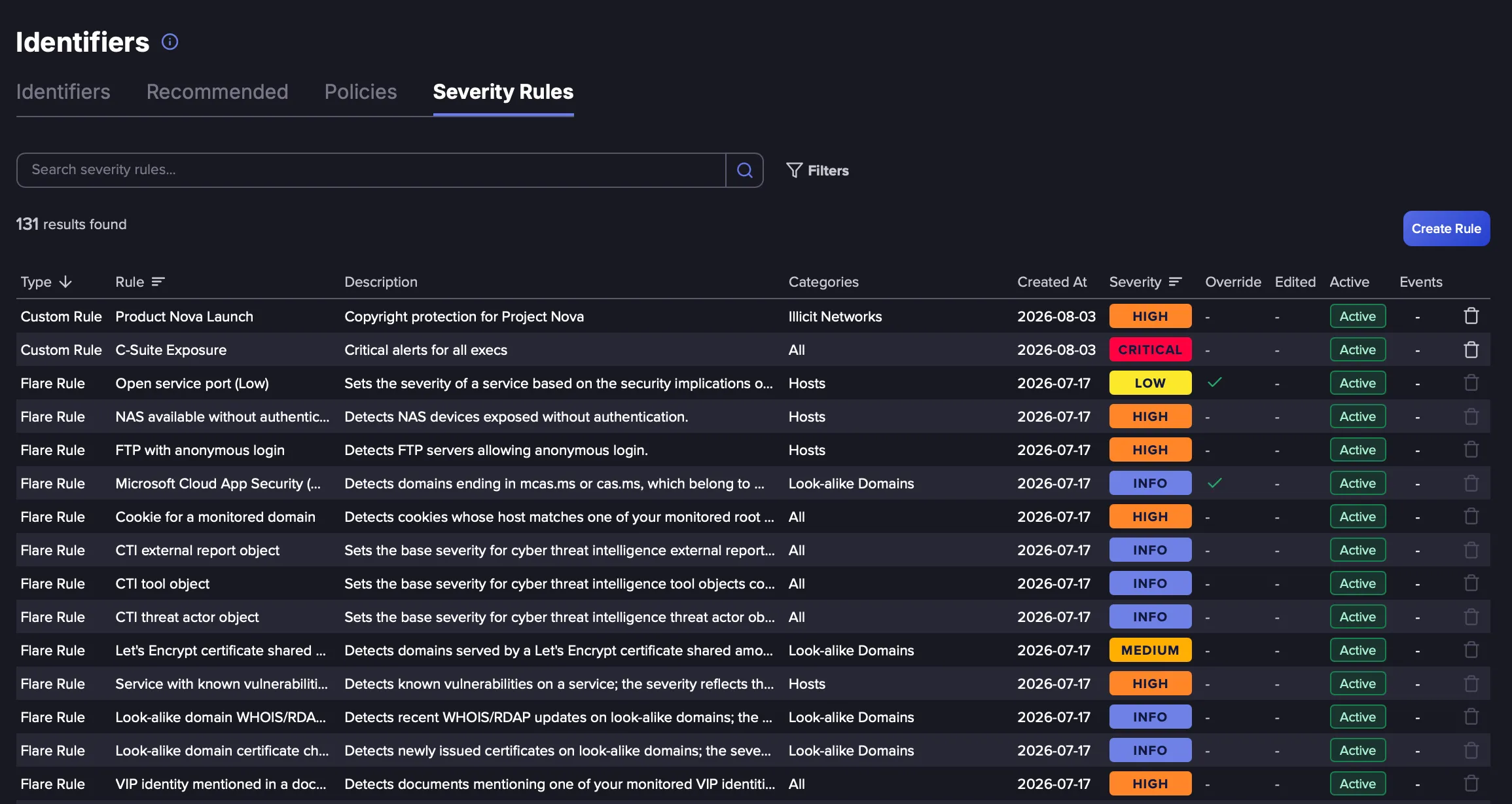
These rules are available on all Tenants and are maintained centrally by Flare. While these rules can't be edited, they can be turned on/off, and the severity level can be changed. Follow these steps to view and manage the Flare Severity Rules:
Navigate to the Identifiers page from the navigation menu on the left.
Click on the Severity Rules tab. Flare Rules are labeled Flare in the Type column.
Click on a rule to view its details.
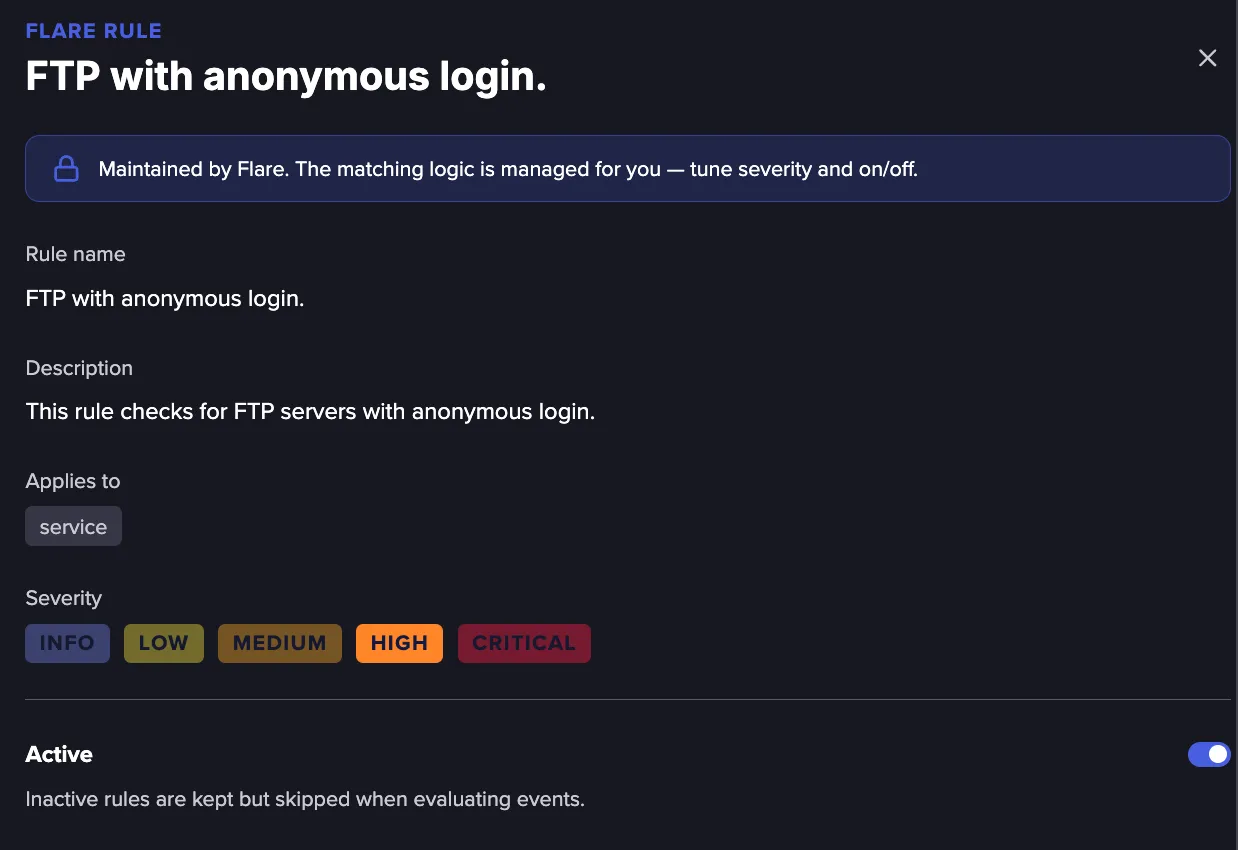
You can make the following changes to a Flare Severity Rule:
- Change the severity level by selecting the required value.
- Activate or deactivate the rule using the Active toggle.
Click Save to apply your changes.
Changing a Flare Rule
You can diverge from a Flare Rule's default behavior by:
- Changing the default severity of a Flare Rule.
- Disabling the Flare Rule and creating a Custom Rule in its place.
Any changes apply to your Tenant only, without affecting the rules for any other Tenant. To restore the Flare default, activate the disabled Flare Rule and remove the Custom Rule, with no lasting side effects on future Events. Events that were assigned a severity before the change are not re-evaluated.
Custom Severity Rules
Custom Severity Rules can be created for each individual Tenant and determine the severity for the Events in that Tenant only. Follow these steps to create a Custom Severity Rule:
Navigate to the Identifiers page from the navigation menu on the left.
Select the Severity Rules tab, then select Create Rule.
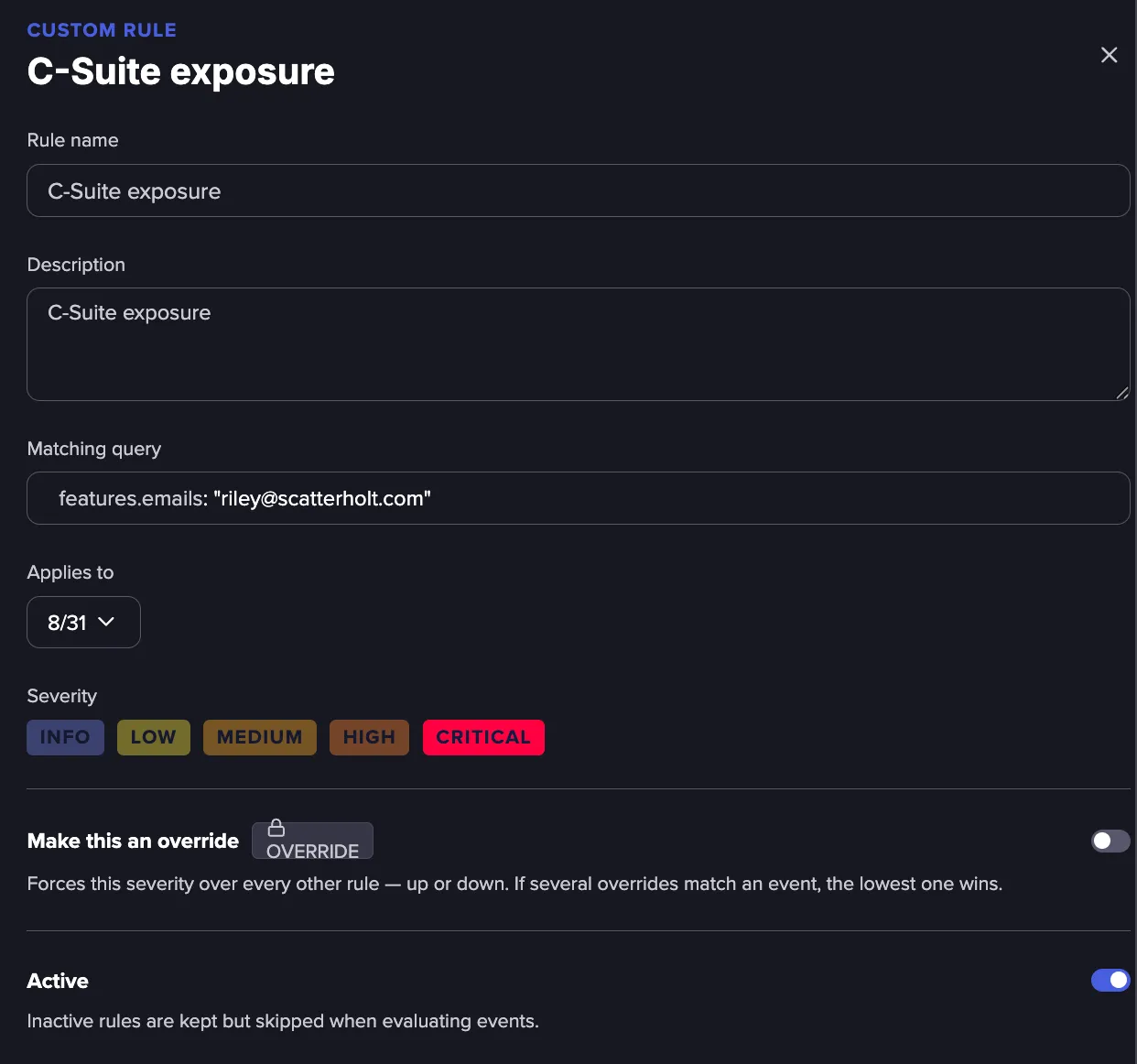
Enter a name and description, then add a query using Lucene syntax to match the relevant Events. For additional guidance on writing queries, see Queriesb and Building advanced queries.building
Select one or more Event categories and assign the severity level to apply to all matched Events.
To give the rule precedence over any other rule that matches the same Event, enable the Make this an override toggle. For more information, see How severity is calculated.l
Use the Active toggle to activate or deactivate the rule.
Click Save to apply your changes.
How Severity is Calculated
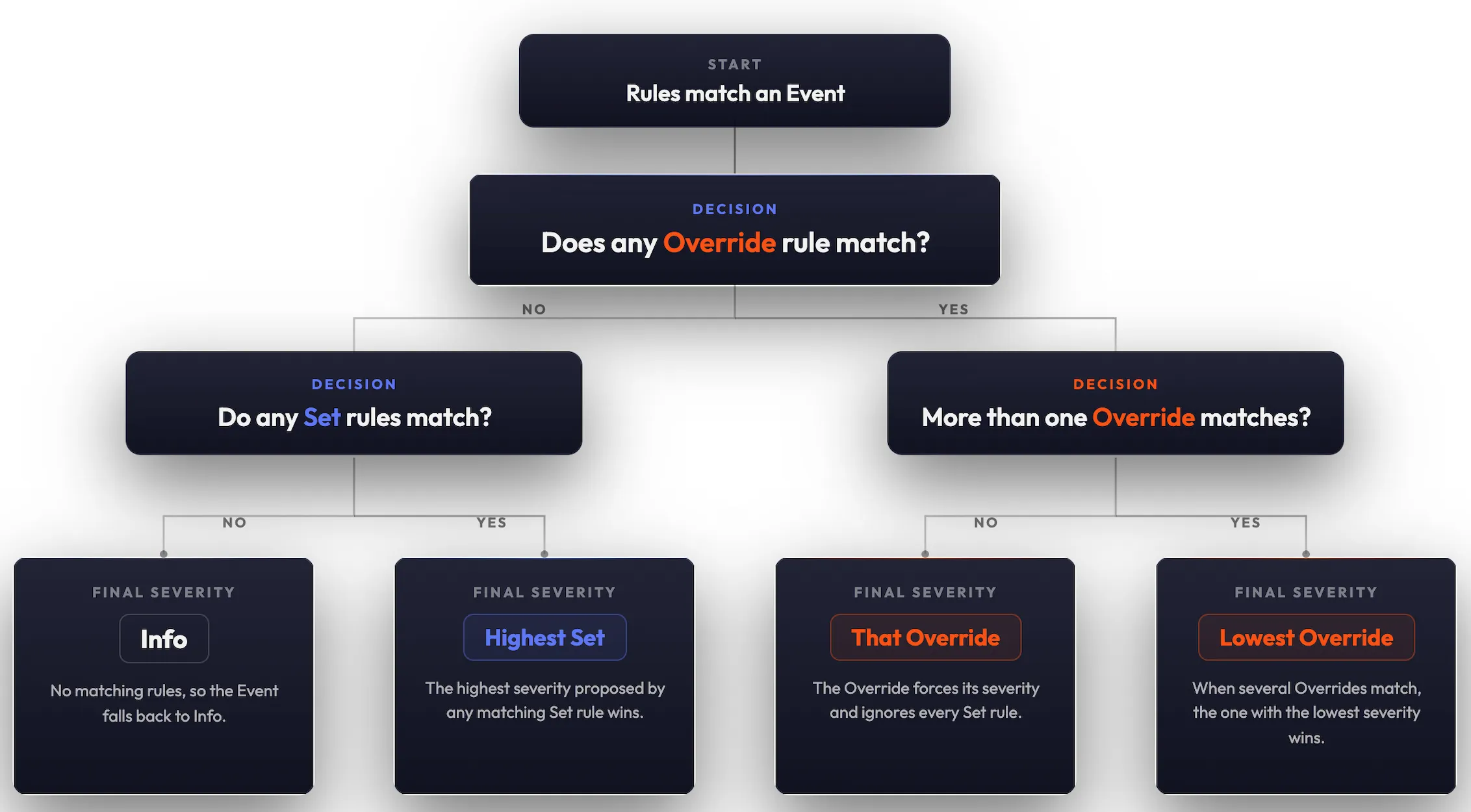
When an Event is matched to your Identifiers, it is checked against every Flare Severity Rule and any Custom Severity Rules you have defined. Every active rule that matches is considered to determine the Event's final severity.
To understand how the final severity is decided, it is important to know that every rule behaves in one of two ways, depending on the override toggle.
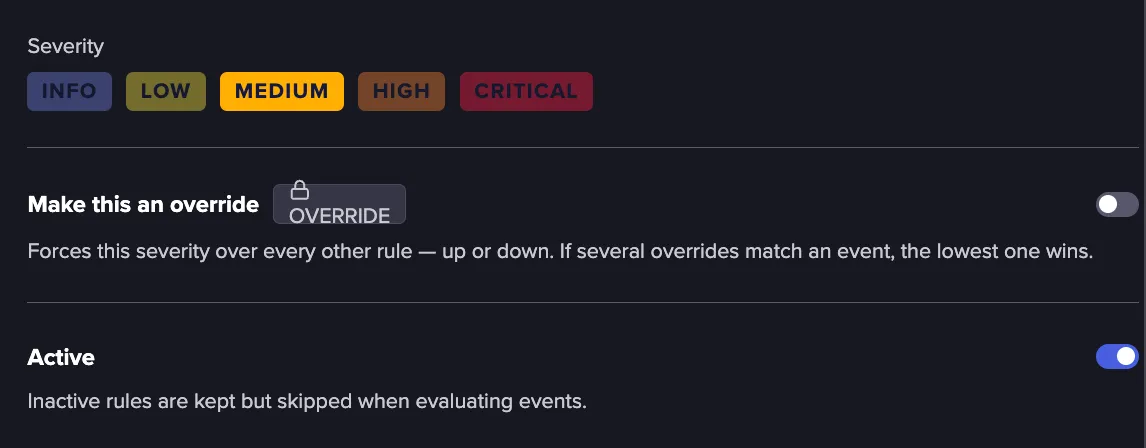
- A Set rule is a rule with the override option disabled. It proposes a severity, which is applied directly when it is the only rule that matches. When other rules also match, its severity is weighed against theirs to decide the final result.
- An Override rule is a rule with the override option enabled. It forces its severity over any Set rules that match the same Event.
How a tie is settled
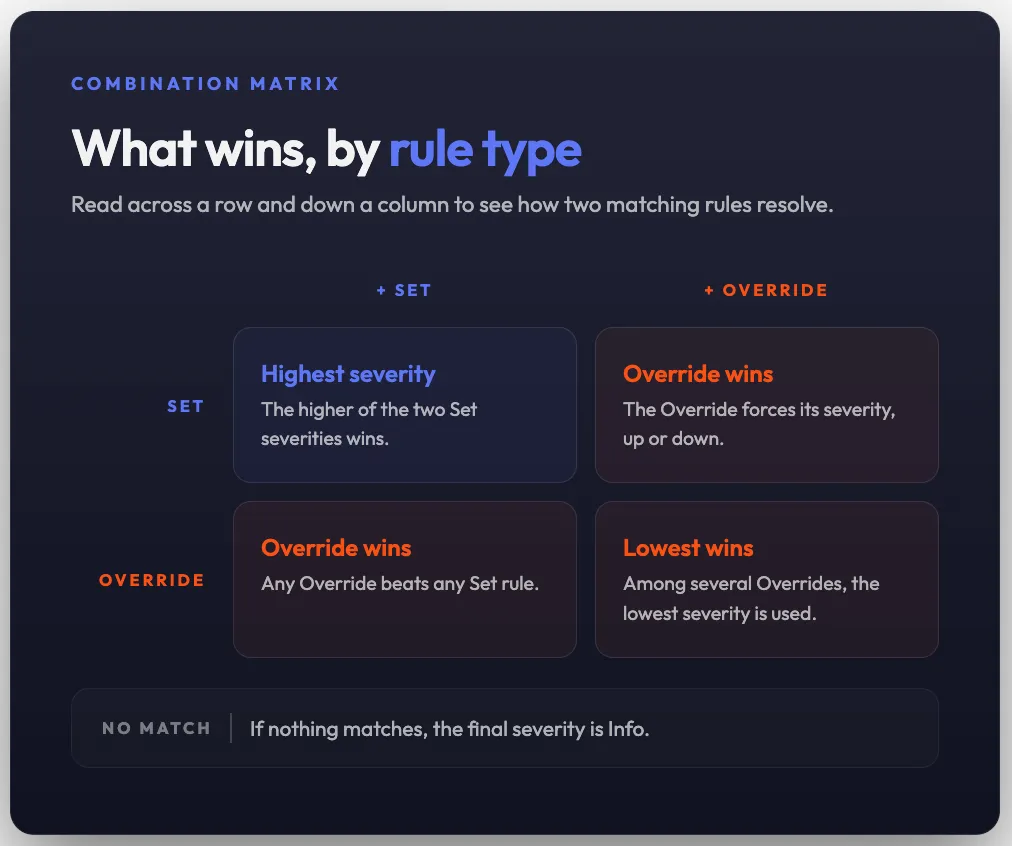
- If there are multiple Set rules, but no Override rule, the Event takes the highest severity proposed by the Set rules.
- If an Override rule matches, it wins, forcing its severity and ignoring any Set rules.
- If several Override rules match, the one with lowest severity wins.
- If there are no matching rules, the final severity is Info.
Example of multiple matching rules
Here is an example showing what happens when an Event matches multiple rules:
Match 1 | Match 2 | Final severity | Why |
|---|---|---|---|
Set High | Set Medium | High | The Set rule with the highest severity wins |
Set High | Override Low | Low | An Override always wins over a Set rule |
Set Medium | Override Critical | Critical | An Override can raise severity as well as lower it |
Override Medium | Override Critical | Medium | When several Overrides match, the lowest one wins |
The reason for every rule that was applied to an Event is shown in the Event details, so you can see exactly why an Event received its severity level.
FAQs