SSO and Authentication
Flare supports SP-initiated Single Sign-On (SSO) through Google or a SAML provider, such as Microsoft Azure Active Directory or Okta.
- Google: If your organization uses Google as its identity provider, no additional configuration is required. Selecting Google from the providers list is all you need to allow members to sign in with their Google accounts. Note that the Google account email must match the member's email address in Flare.
- SAML: If your organization uses a SAML-supporting identity provider, such as Microsoft Azure AD, you will need to provide the following configuration values:
- Metadata URL: Points to the metadata configuration of your SAML provider.
- Mapping Email: Maps Flare's email attribute to the corresponding attribute in your SAML identity provider. For help obtaining these values from the Azure portal, refer to SSO SAML ConfigurationSSO SAML Configuration.
Configuration Modes
SSO can be configured in two modes:
- Enabled: SSO is available but not required. Members can still choose to sign in with their Flare password.
- Mandatory: Members must sign in using SSO. Password authentication is disabled, and API access is limited to API keys only.
Additionally, SSO can be configured at the organization level or at the individual tenant level, making it easy to manage multiple tenants with different identity providers.
Note:
- SSO can only be configured by administrators.
- IdP-initiated SSO is currently not supported.
Configuring SSO at the Organization Level
Follow these steps to configure SSO at the organization level:
- Navigate to the SSO configuration page.
- Open the Team page.
- Click Edit on the right panel.
- Under SSO Configuration, select your desired identity provider.
Configuring SSO at the Tenant Level
To configured SSO through SAML, see
Testing and Enabling SSO
Follow these steps to test and enable SSO:
Browse to the Flare Team page and check the Enable option. Do not make it mandatory for now.
Log out from Flare.
Attempt to log back in by choosing Log in with SSO. You should get redirected to your identity provider for authentication. In the case where you are already connected, you should be instantly redirected to Flare's home page. If you were not connected, your identity provider will ask for your credentials
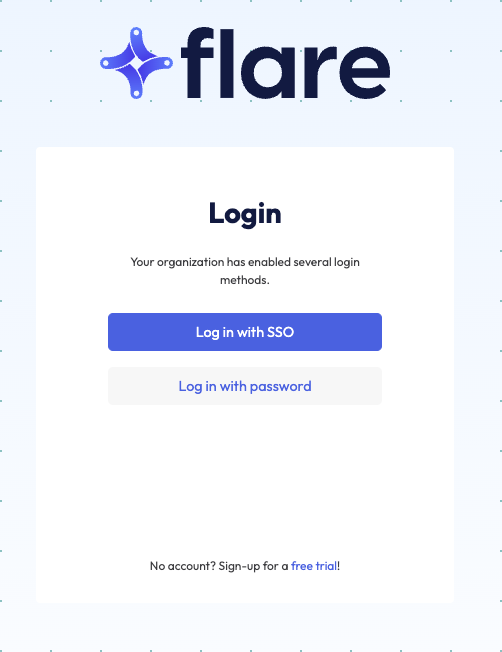
If successful, you can browse back to the Team page and set SSO as Mandatory. From this point on, users in your organization will only be able to log in with that method, and password authentication will be disabled.