Sentinel Integration
This guide replaces the previous Azure Sentinel Integration. The new Codeless Connector Framework (CCF) integration offers a streamlined, "click-to-deploy" experience available directly within the Microsoft Sentinel Content Hub. This update significantly reduces the manual configuration required to ingest Flare events into Azure.
The CCF enables partners and developers to create robust, custom connectors for seamless data ingestion into Microsoft Sentinel.
Please note, if you currently are using the Flare connector this will create a second table within Sentinel. It is recommended to sunset the older connector and migrate to this one.
Azure Sentinel Setup
Install Flare via the Content Hub
The first step is to install the Flare Solution and deploy the Codeless Connector. This connector automatically receives Flare events and transforms them into queryable logs within Sentinel.
- Navigate to Microsoft Sentinel > Content management > Content Hub.
- Search for “Flare” in the search bar.
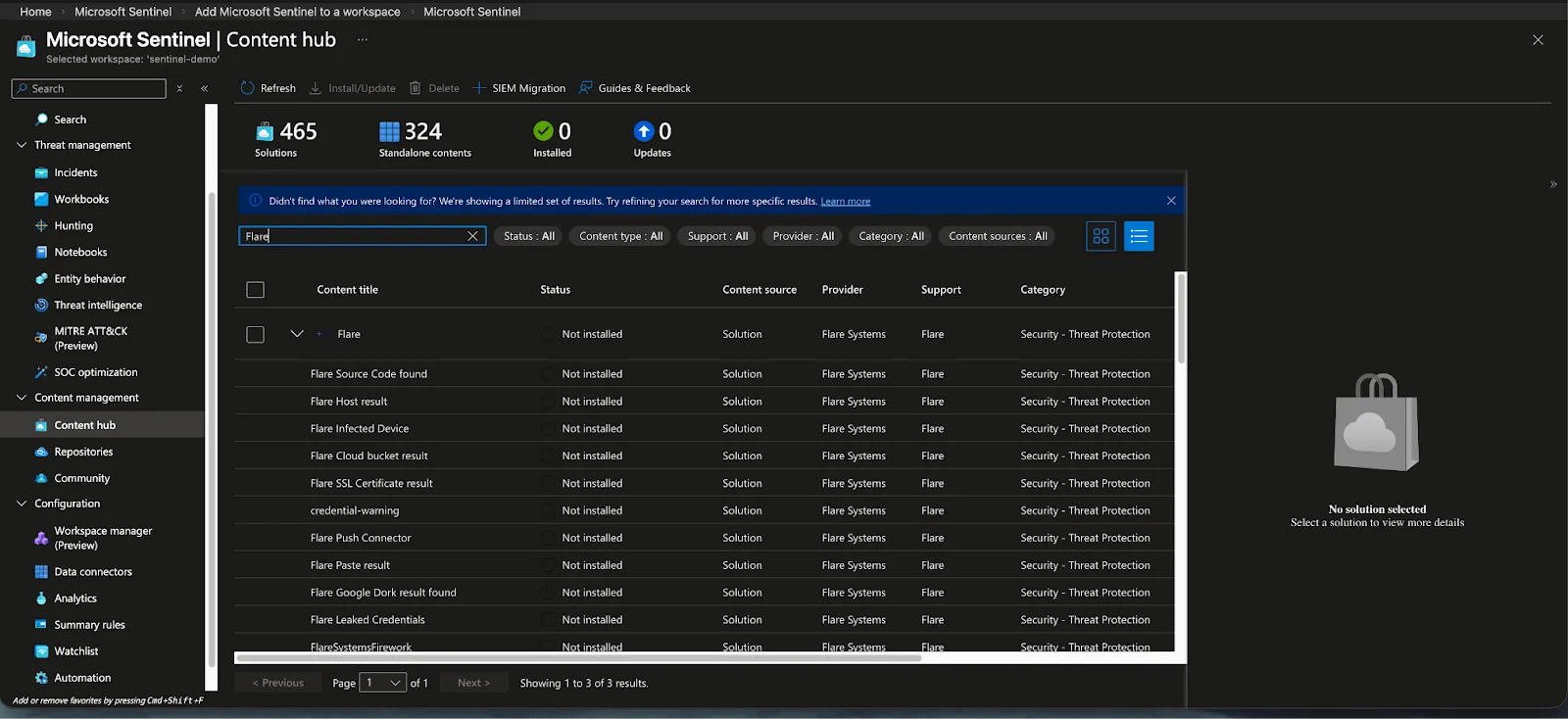
- Select the Flare solution and click Install. Deployment typically takes a few seconds.
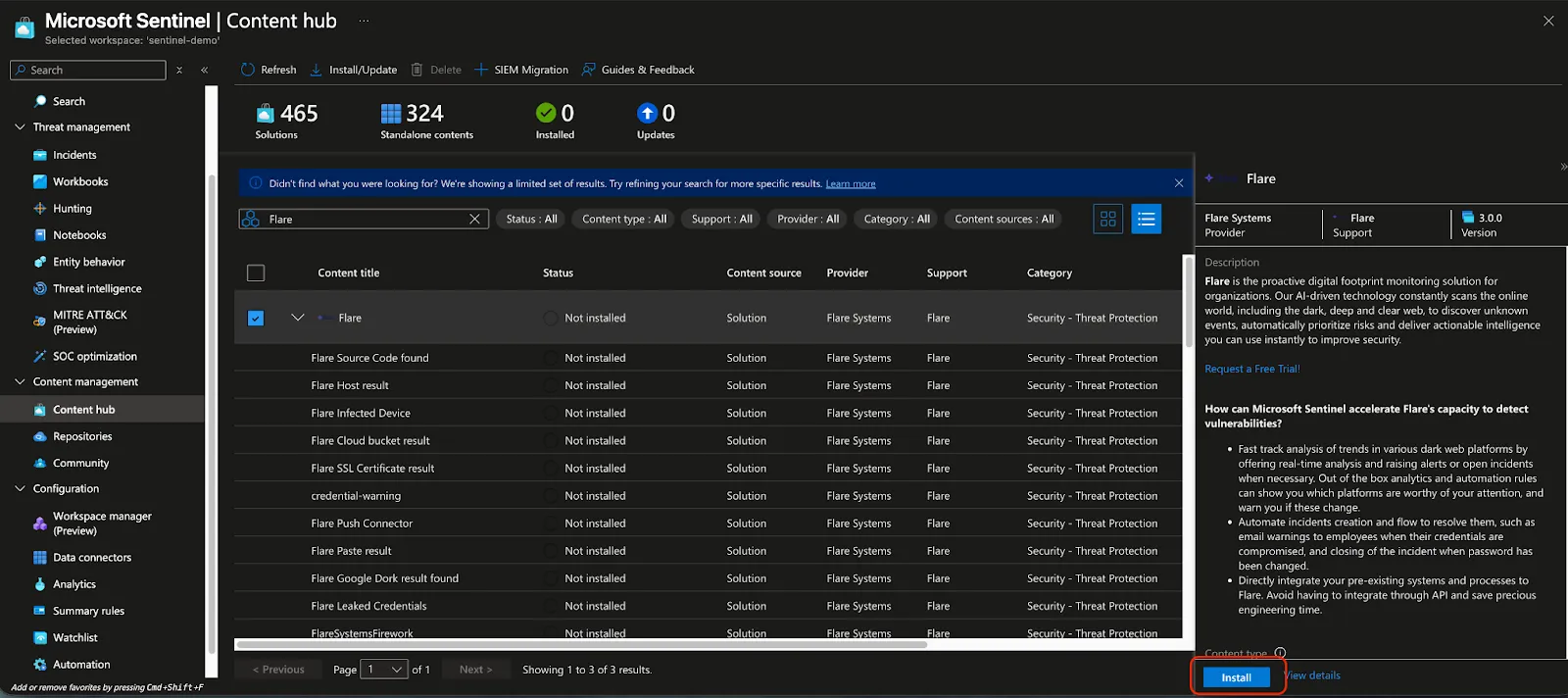
- Once installed, click Manage.
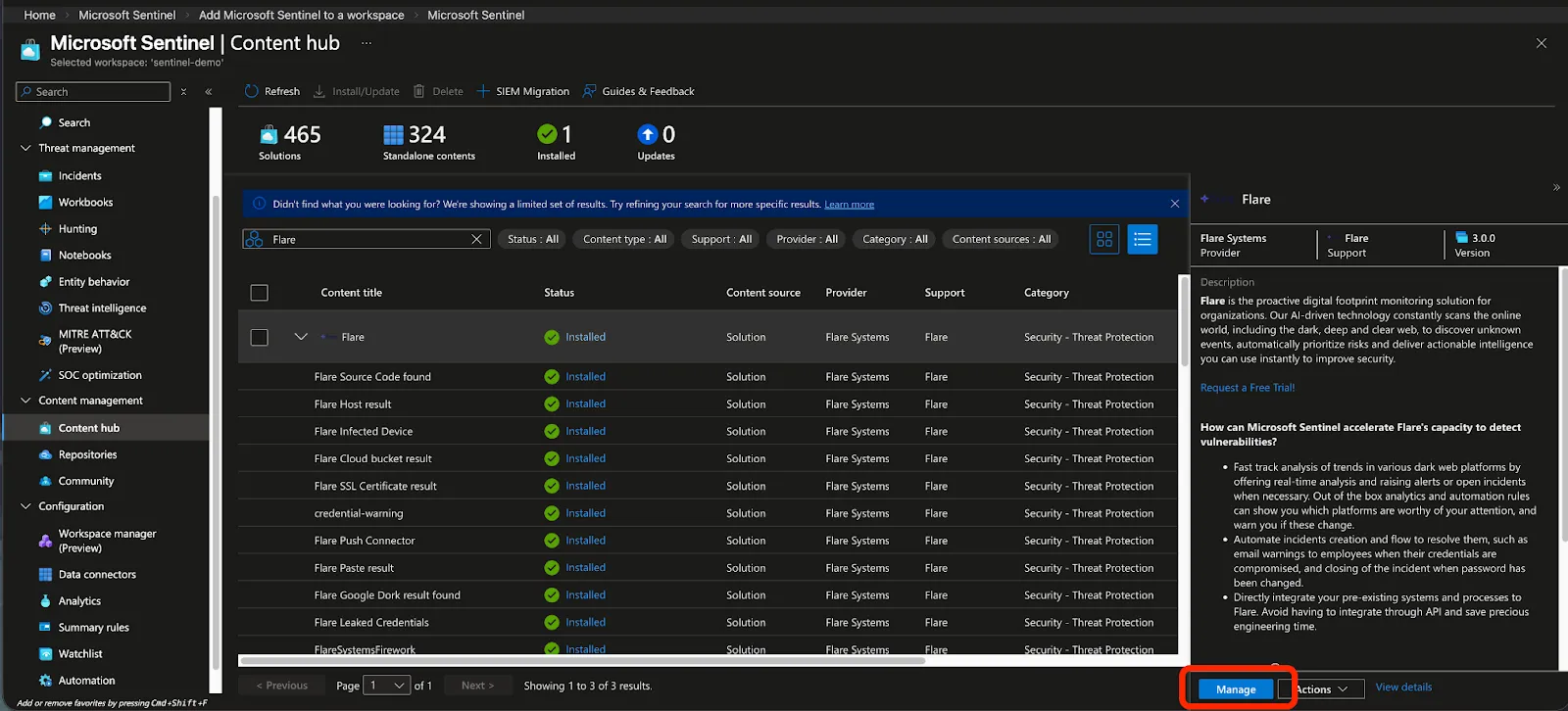
- Select Flare Push Connector and click Open connector page
Deploy Custom Resources
- On the connector page, select Deploy custom resources and accept the confirmation prompt.
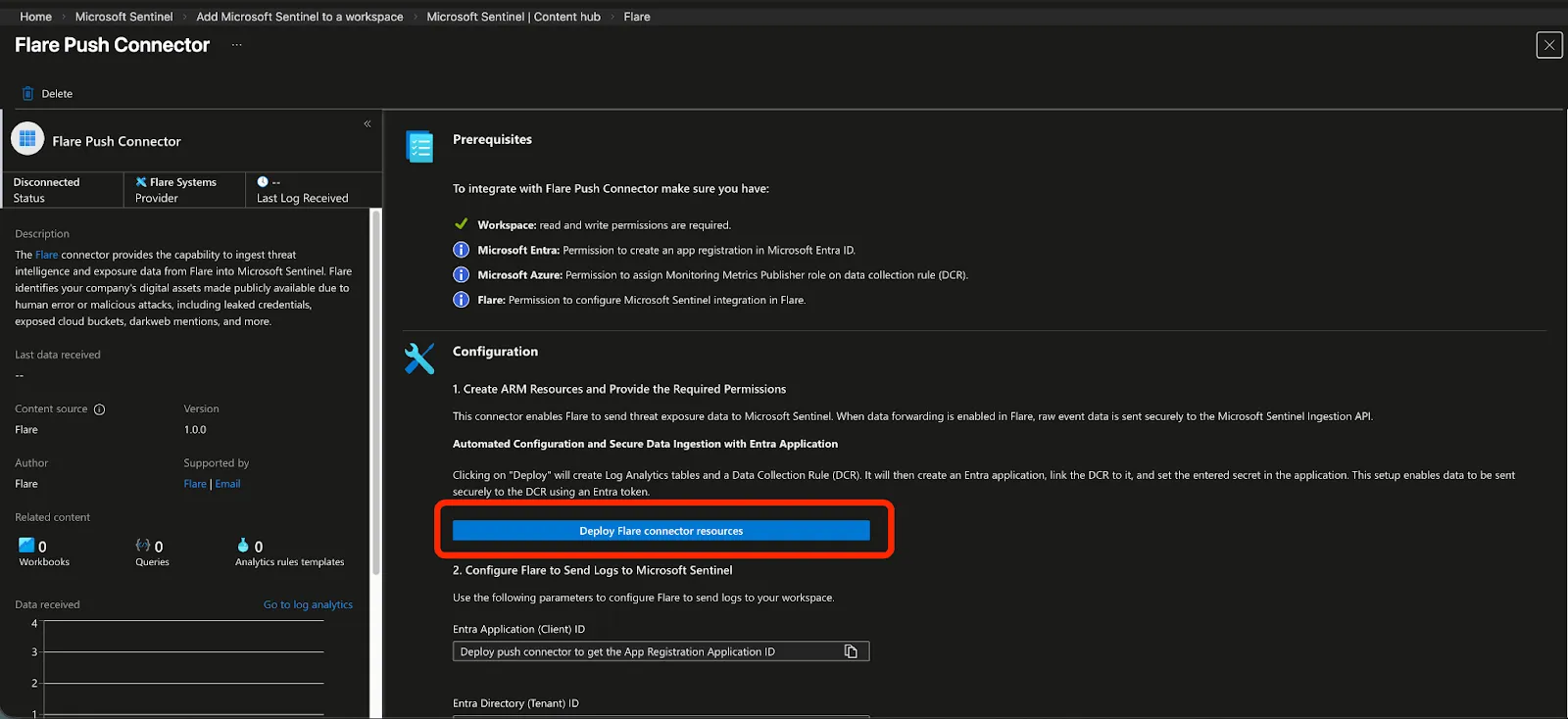
This will automatically create Azure resources, including an Application Secret valid for 731 days. This is a default value which we do not control in the Connector's form. See the Secrets Management section below for more details on how to manage this secret.
- Once the deployment is complete, several configuration fields will automatically be populated. Keep this page open, as you will need these values to link Flare to Azure Sentinel.
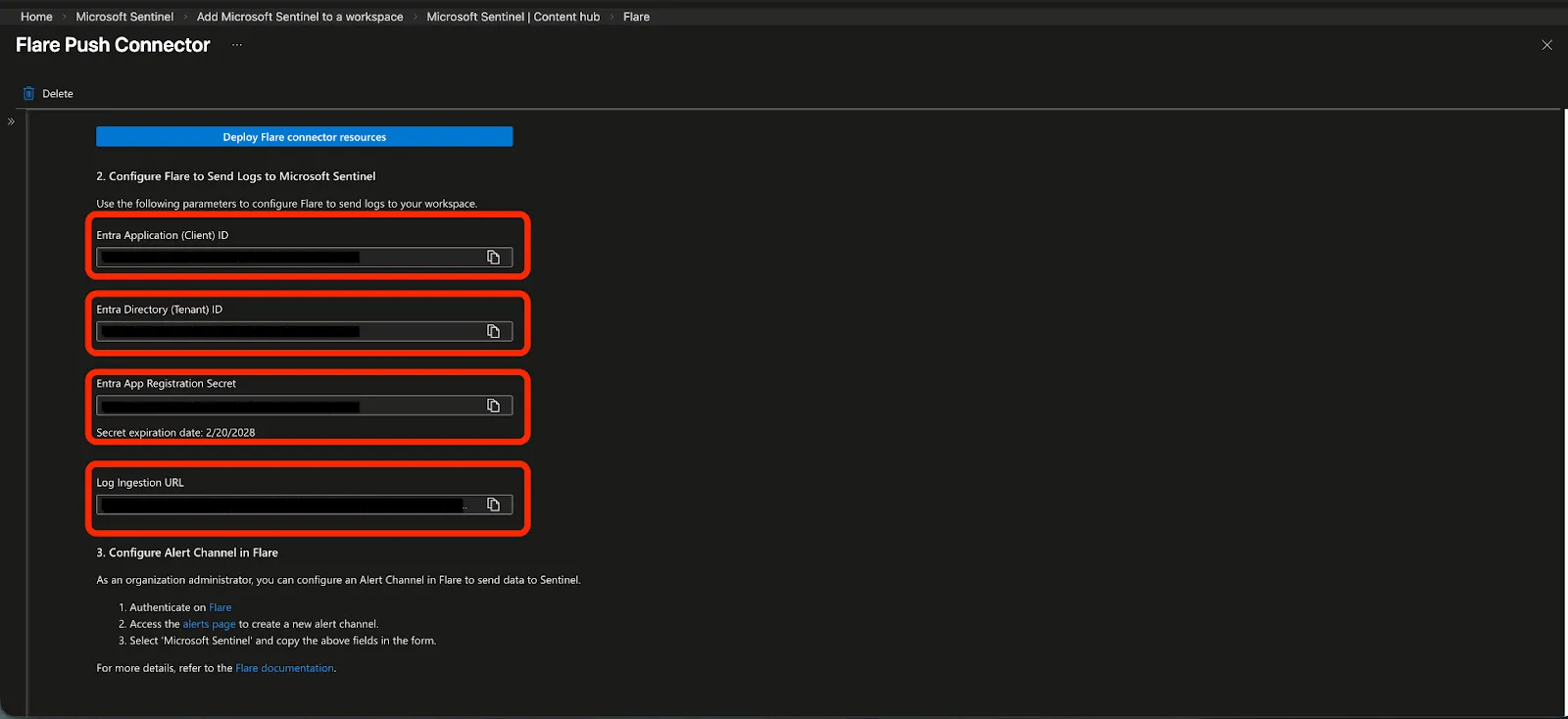
Flare Setup
Setup the Integration Channel
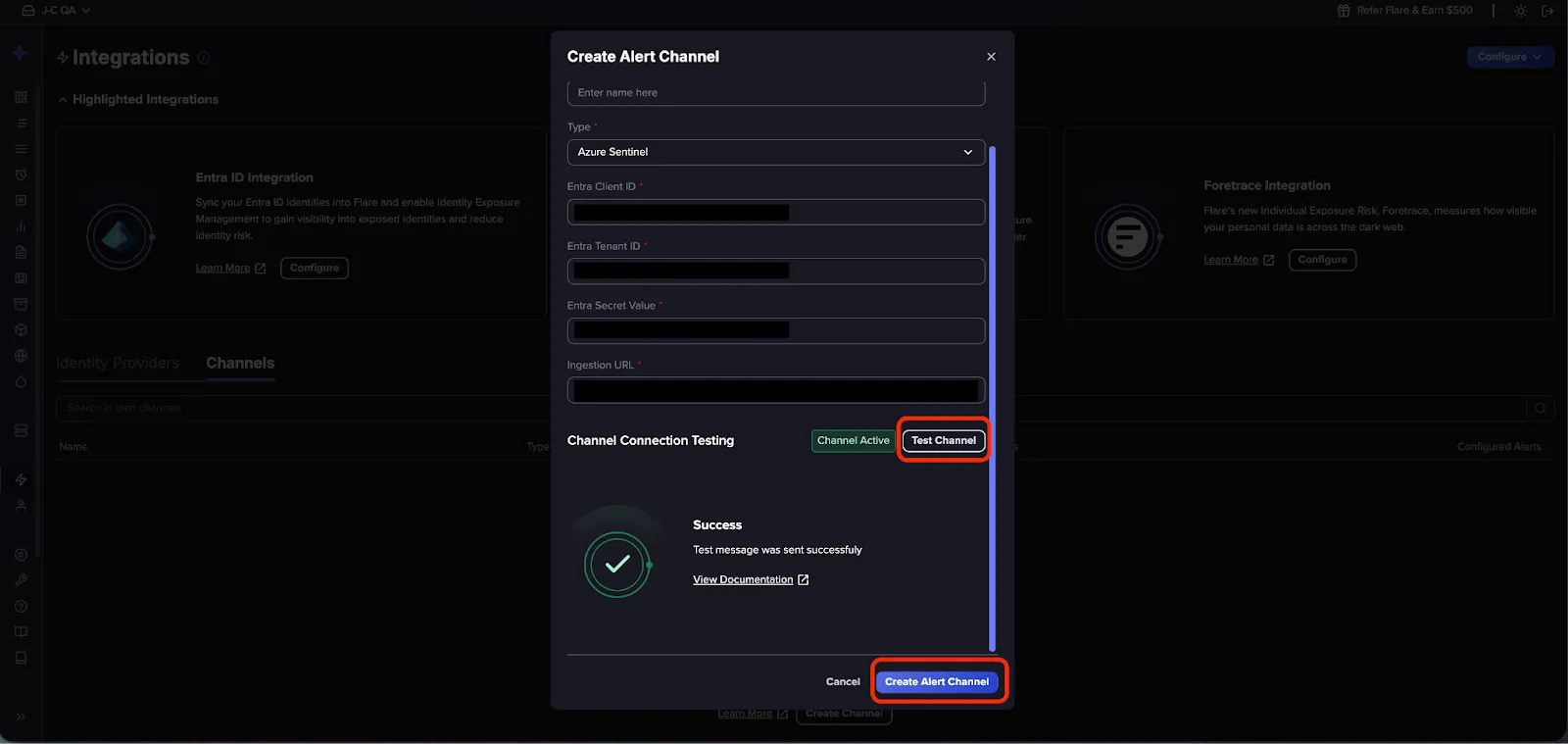
- In the Flare platform, navigate to Configure > Integrations and select Create Channel.
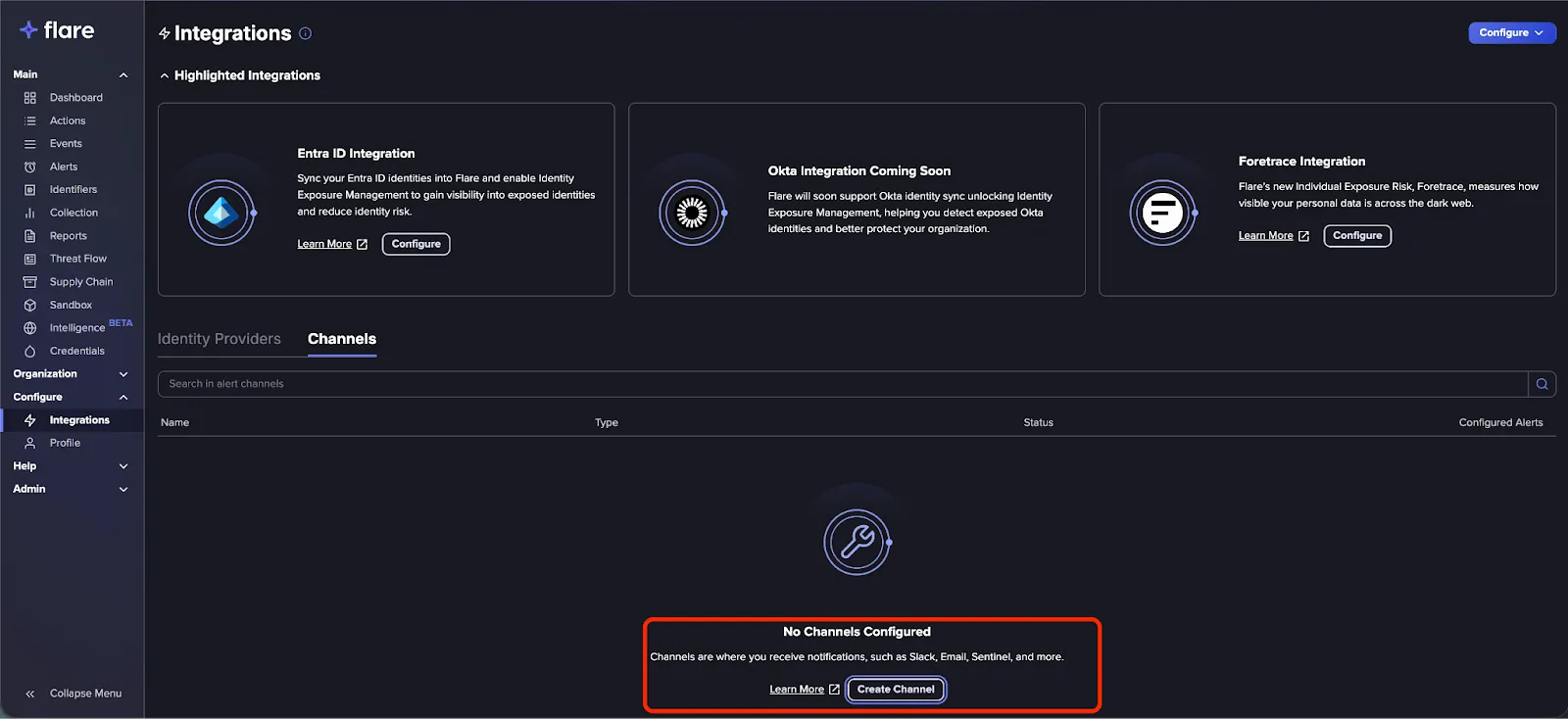
- In the modal, select Azure Sentinel from the dropdown menu.
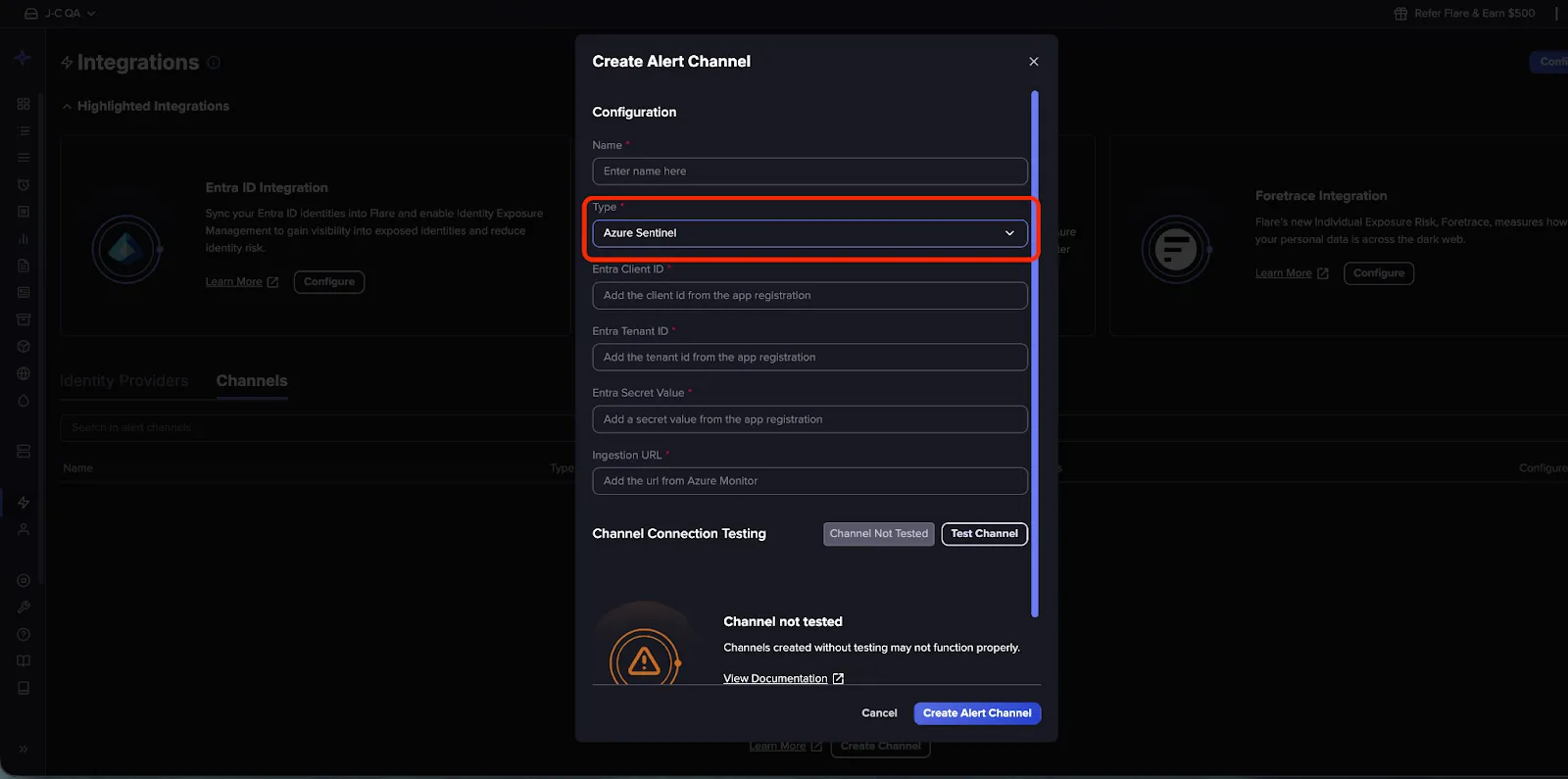
- Copy the values from the Sentinel Connector Page into into the corresponding fields.
Verify and Finalize
- Press Test Channel to verify the connection.
- Once the test is successful, click Create Channel to finalize the integration.
Secrets Management
When the Flare Connector is deployed using the one-click deployment button, Azure automatically creates a Data Collection Endpoint (DCE) along with an App Registration and a client secret valid for 731 days. If a shorter-lived secret is required, revoke the existing secret and create a new one by following the steps below.
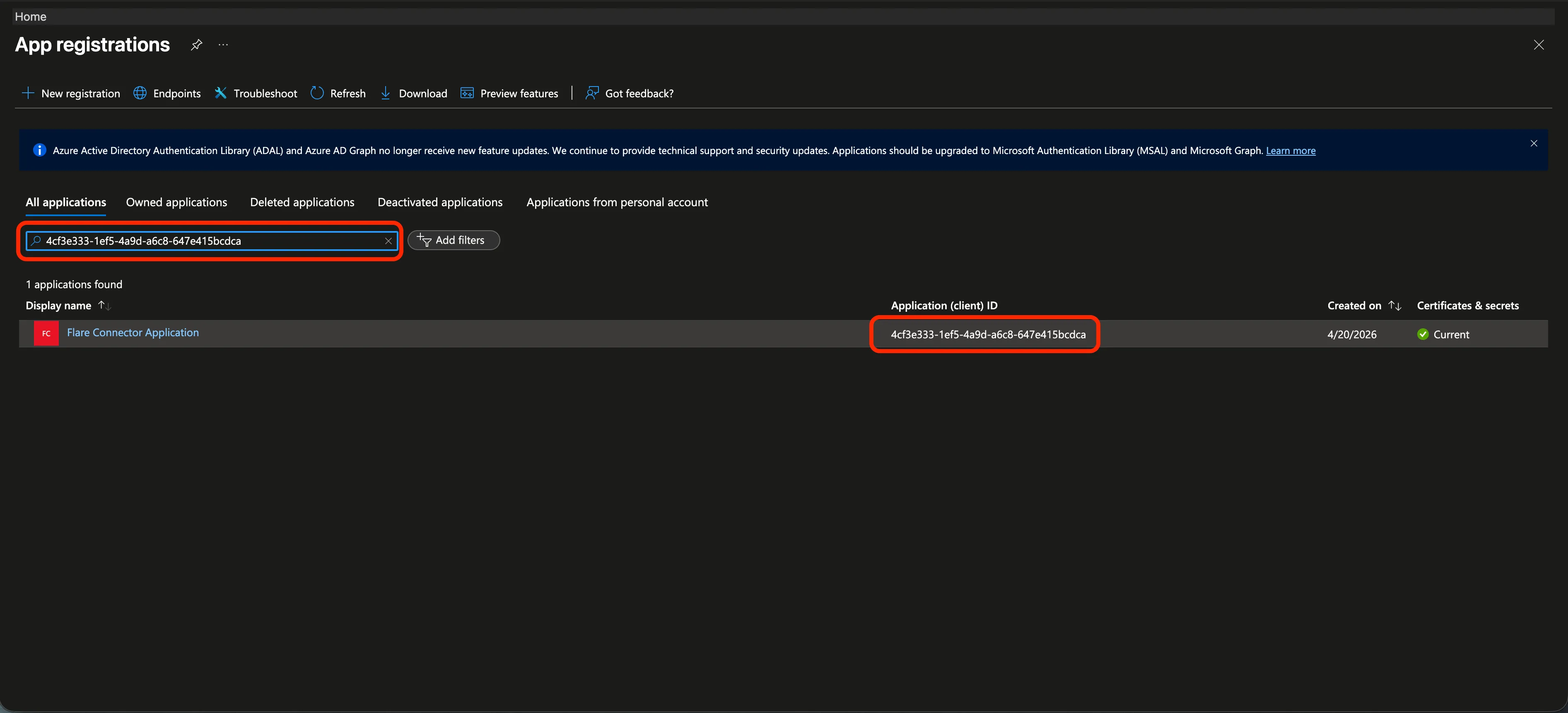
In Azure, navigate to the App Registrations page, then select the relevant App Registration. To quickly locate it, filter by the Application ID (Entra Client ID).
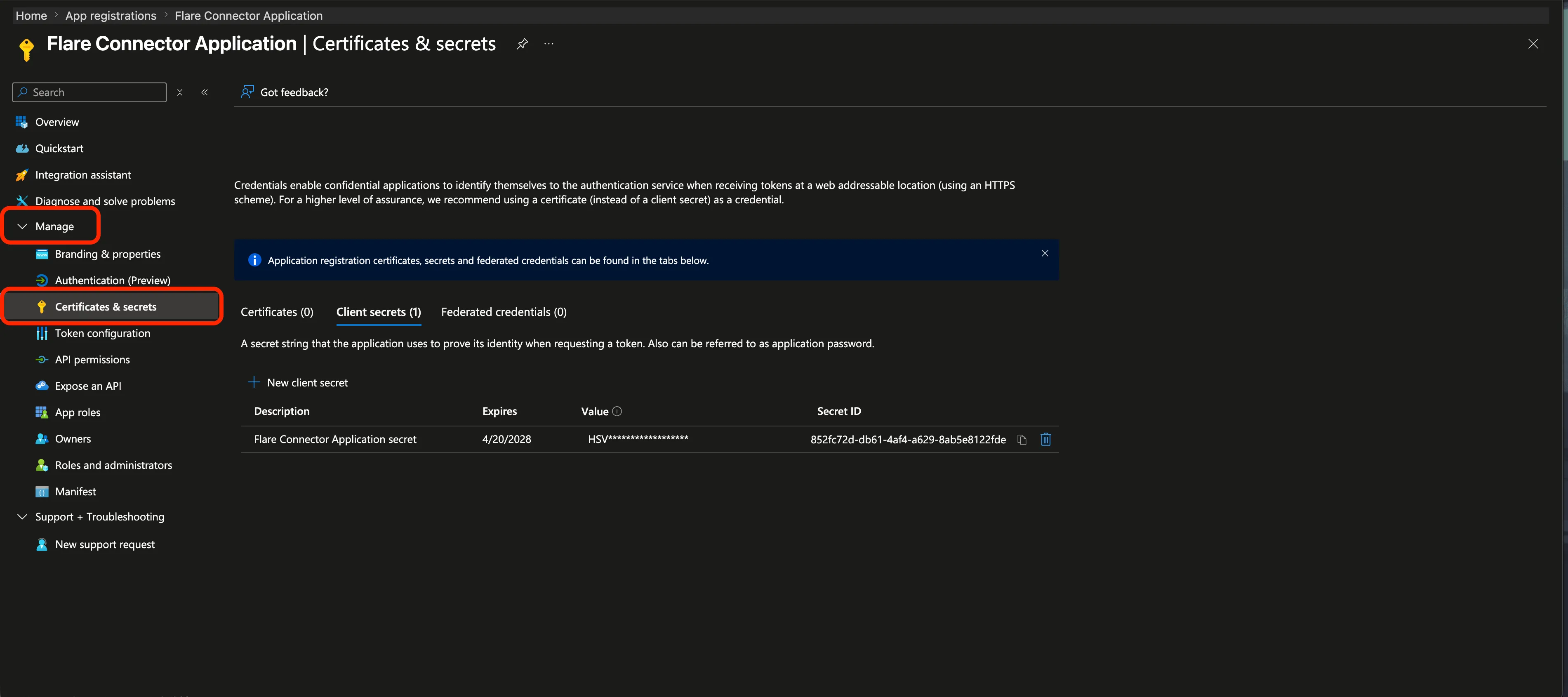
Under Manage > Credentials & secrets, your existing secrets are listed.
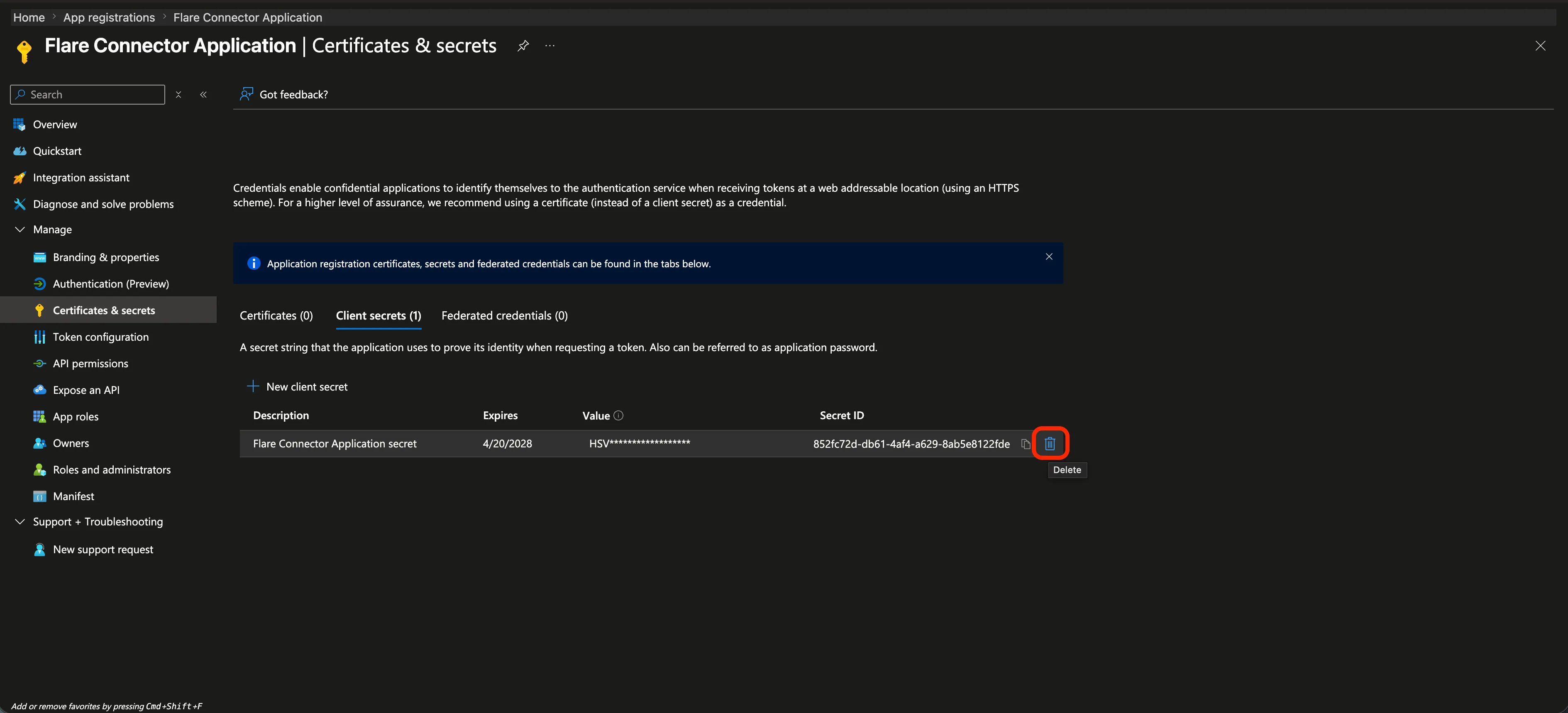
Revoking a secret
Press the trash icon next to the secret you want to remove. This immediately disables the integration - any request from Flare will be rejected until a new secret is configured.
Creating a secret
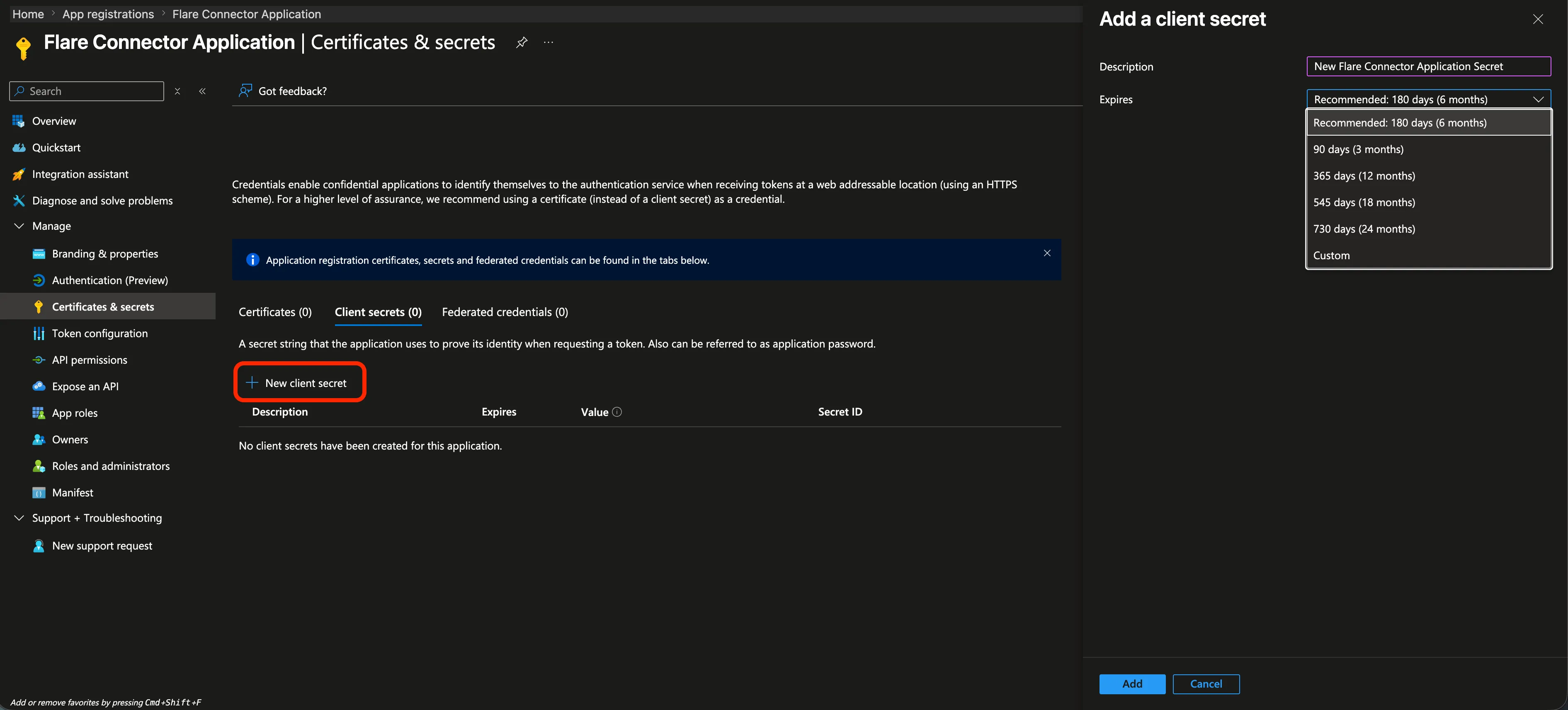
Click New client secret to open the creation form, where you can configure the secret's expiration date.
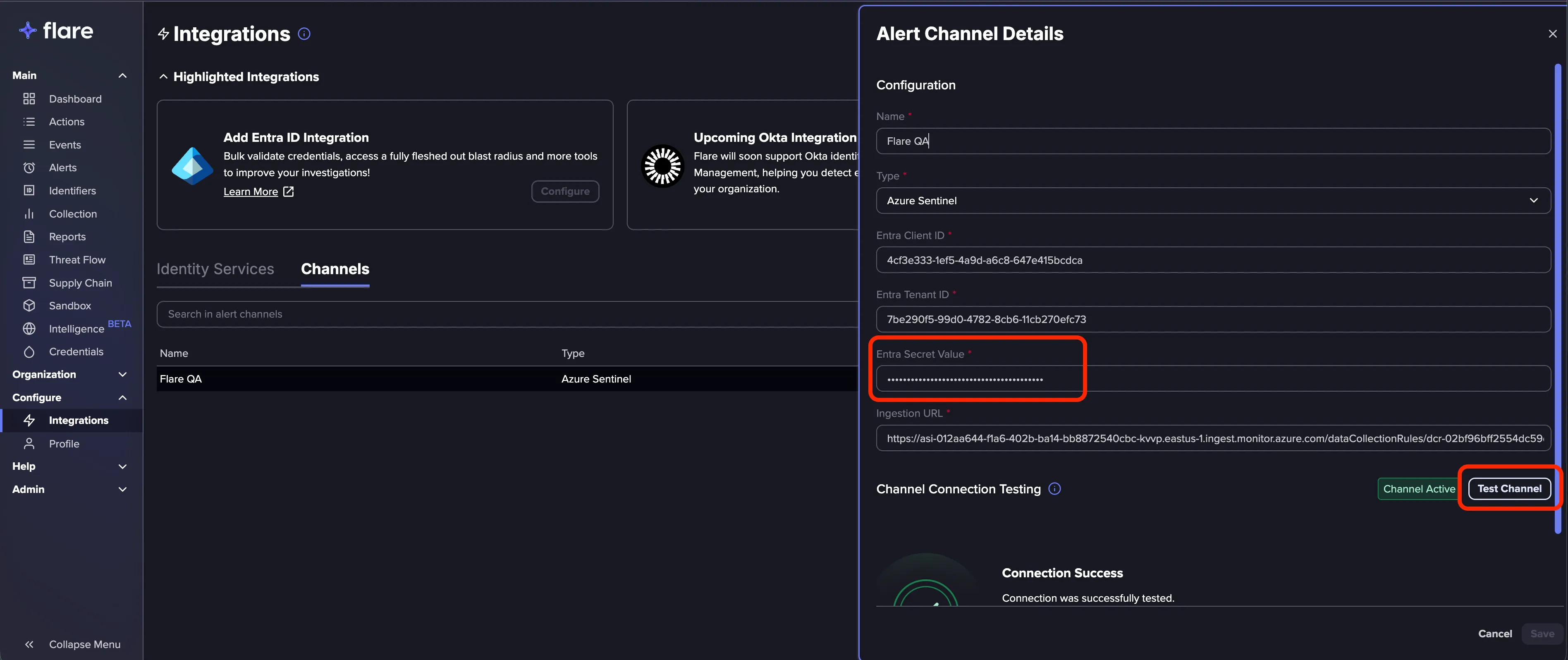
Once the new secret is created, make sure to update it in Flare and verify the integration is working using the Test Channel button.
Flare Solution Features
The Flare Solution includes pre-packaged Analytic Rules and Workbooks to help you monitor and visualize your data. They must be manually deployed through Azure Sentinel.
Note on Initial Setup: Analytic rules and workbooks will likely display error messages until the connector receives its first set of data. These components will remain inactive on fresh instances until data ingestion begins.
Analytic Rules
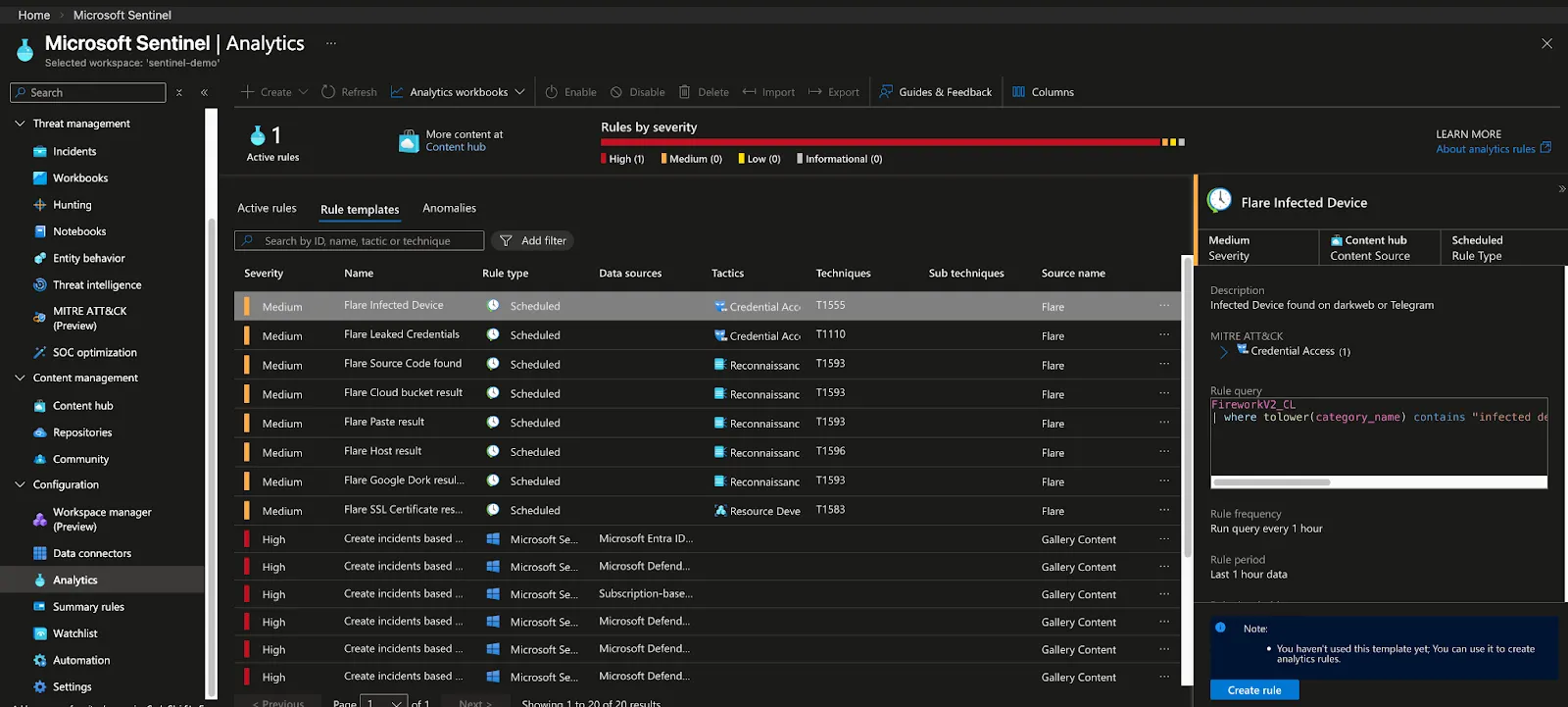
Analytic Rules enable automated alerting based on Kusto Query Language (KQL). These rules help you identify specific security threats as they appear in your logs. They can be configured from Azure Sentinel > Configuration > Analytics > Rules templates.
Workbooks
Workbooks provide interactive data visualizations for Flare events directly within the Sentinel dashboard. They are located in Azure Sentinel > Threat management > Workbooks > Templates.
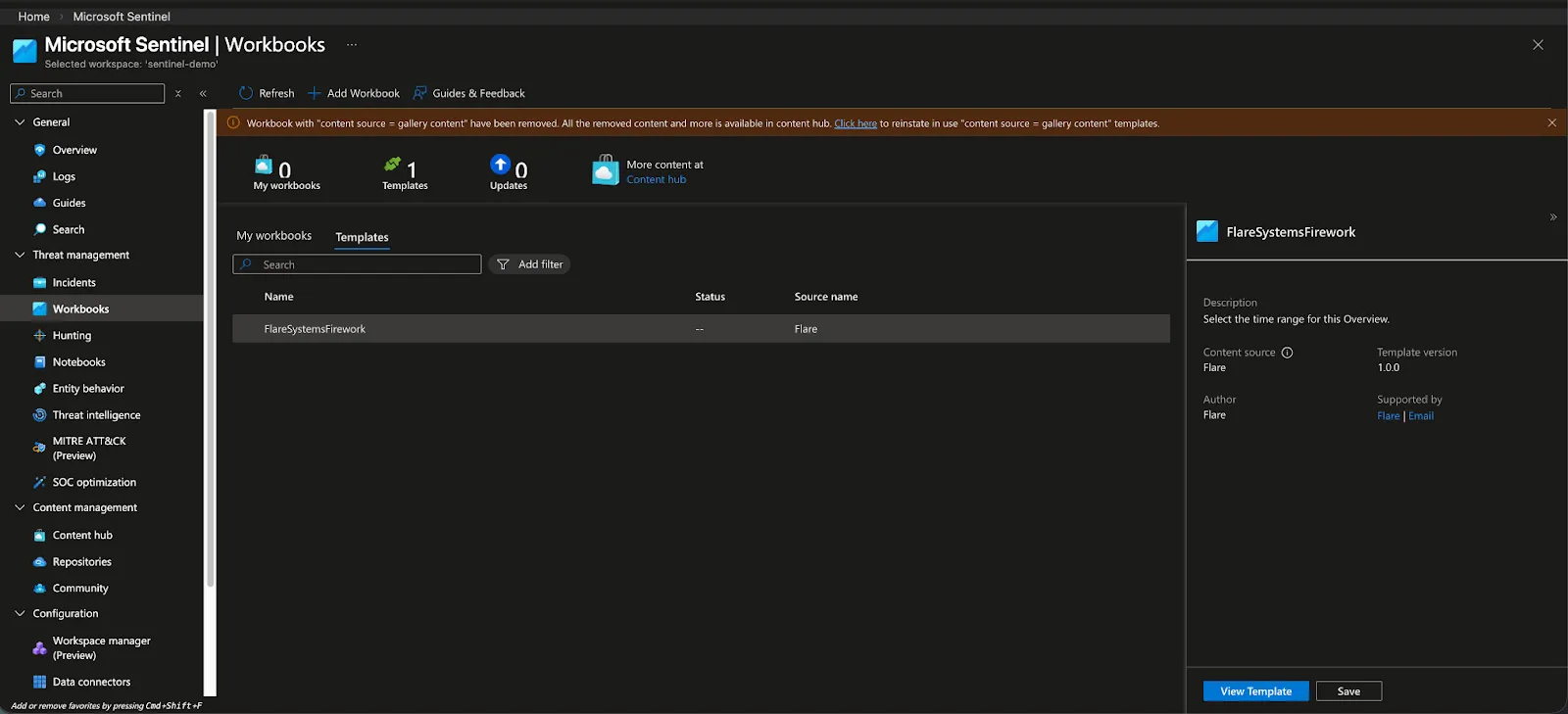
Flare includes three basic workbooks: Firework Logs by risk score, Sources of all documents collected and Total Leaked Credentials received.
- Firework Logs by Risk Score: This chart displays log activity sourced from Flare over the past 30 days, broken down by risk score level. Each line represents a distinct risk score category.
- Sources of All Document Collected: This section displays the origin of all threat intelligence documents ingested over the past 30 days, broken down by source.
- Total Leaked Credentials Received: This section is deprecated and will be removed in the next release. It displays a time series of credential leak events.
Flare Solution Schema
To understand how Flare data is structured or to build your own custom queries, you can inspect the data model using the following KQL command in the Logs interface accessible under Azure Sentinel > Logs
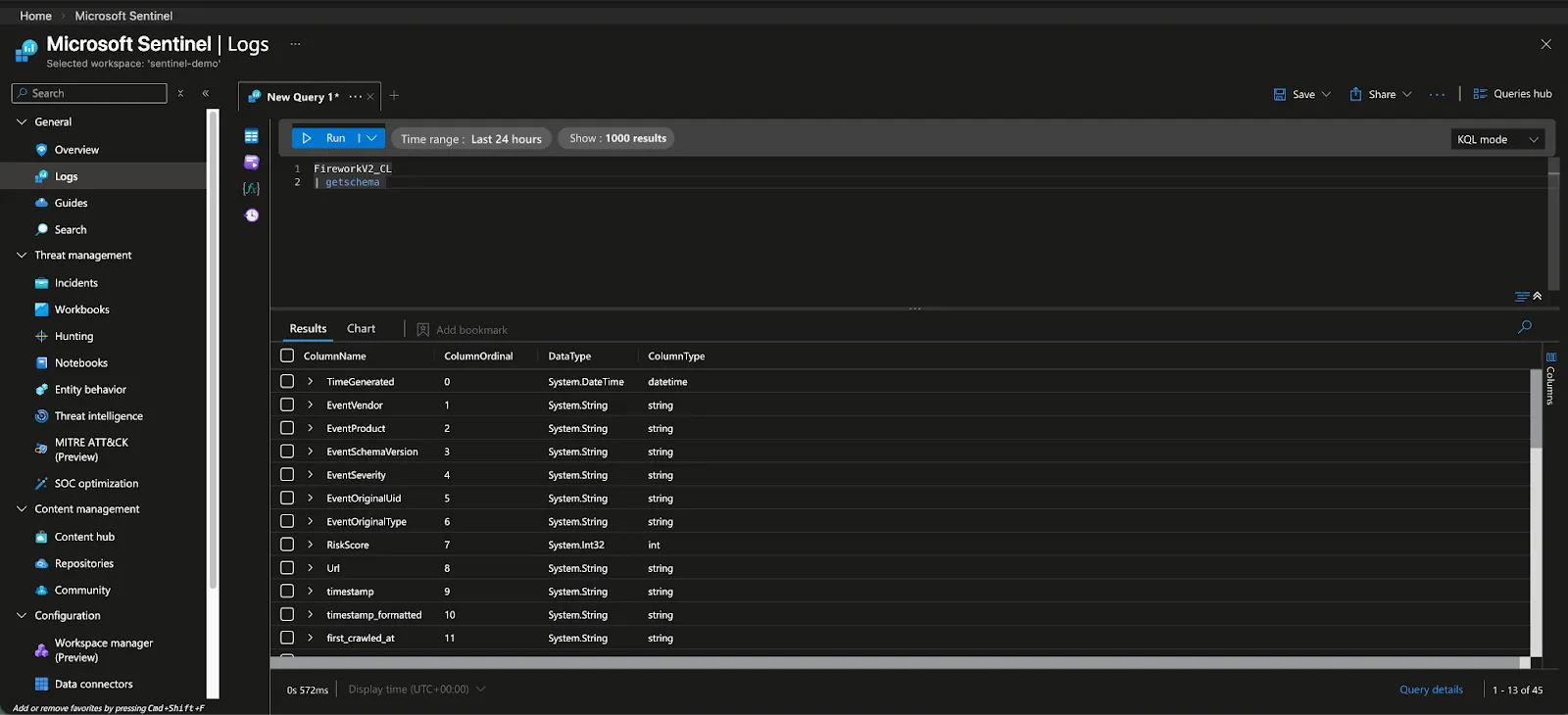
For reference, here is the latest schema:
Column Name | Type | Example |
|---|---|---|
TimeGenerated | Datetime (UTC) | 2026-02-17T15:06:35.7076596Z |
EventVendor | string | Flare |
EventProduct | string | Firework |
EventSchemaVersion | string | 0.1 |
EventSeverity | string | Informational |
EventOriginalUid | string | domain/driller_dnstwist/clare.io |
EventOriginalType | string | domain |
RiskScore | int | 1 |
Url | Optional string | https://app.flare.io/events/test-social_media_account |
timestamp | Optional string | 2026-01-20T20:07:44.0633340+00:00 |
timestamp_formatted | Optional string | |
first_crawled_at | Optional string | 2026-01-20T20:07:44.0633340+00:00 |
materialized_at | Optional string | 2026-01-20T20:13:20.7334390+00:00 |
url | Optional string | |
event_title | Optional string | clare.io |
event_type | Optional string | domain |
source | Optional string | driller_dnstwist |
source_name | Optional string | dnstwist |
id | Optional string | clare.io |
keyword | Optional string | |
category_name | Optional string | domain |
content_preview | Optional dynamic object | Domain clare.io |
content | Optional string | |
alert_content | Optional string | |
highlights | Optional dynamic object | {"identifier_domain":["<mark>flare.io</mark>"]} |
risk | Optional dynamic object | {"score":1,"unit_score":0.1,"risk_score":1,"service_score":1} |
tags | Optional dynamic object | [] |
related | Optional dynamic object | [] |
user_risk_score | Optional int | |
user_notes | Optional string | |
data | Optional dynamic object | {"username":"@fake_example_corp","platform":"Twitter","followers":1500} |
uid | Optional string | domain/driller_dnstwist/clare.io |
external_url | Optional string | |
| | [{"id":14771403,"type":"domain","name":"flare.io","group":null}] |
sort | Optional string | WzE3Njg5NDAwMDA3MzMsICJkb21haW4vZHJpbGxlcl9kbnN0d2lzdC9jbGFyZS5pbyJd |
Identifiers | Optional Dynamic Object | |
asset_uuids | Optional dynamic object | |
code | Optional dynamic object | |
author_id | Optional string | |
project_name | Optional string | |
sha | Optional string | |
actor | Optional string | WWW |
victim_name | Optional string | |
TenantId | Optional string | ea21e035-057f-483d-aad9-f436617a24a6 |
Type | Optional string | FireworkV2_CL |
_ResourceId | Optional string | |