Audit Logs
The Audit Logs provides a complete record of actions performed by members of your organization across the Flare Platform and through API. Each log entry captures the date and time of the action, who performed it, the type of resource affected, the action performed, and the Tenant where it occurred. The Audit Logs can be used to:
- Investigate Platform activity and trace specific actions back to individual users.
- Support compliance requirements by maintaining a tamper-evident record of Platform events.
- Maintain accountability across your organization by monitoring how members interact with sensitive data and platform resources.
Viewing the Audit Logs
Audit Logs are accessible to Organization Admins only. To access the Audit Logs, navigate to the Settings menu in the top-right corner, and then click Audit Logs.
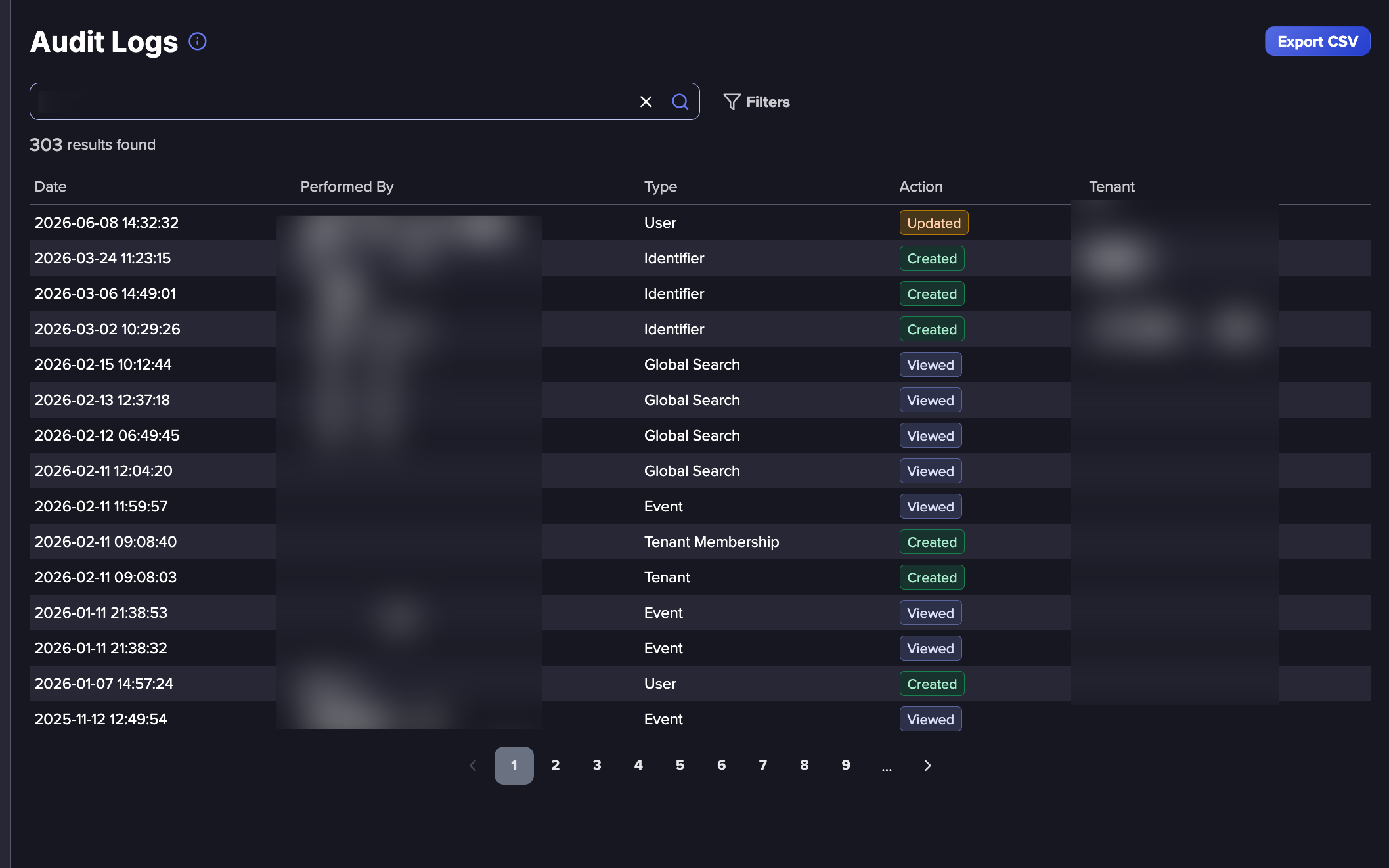
The Audit Logs display the following information:
- Date: The date and time the action was performed.
- Performed By: The user who performed the action.
- Type: The kind of resource affected, such as User, Identifier, Tenant, or Global Search.
- Action: The action that was performed
- Tenant: The Tenant where the action was performed.
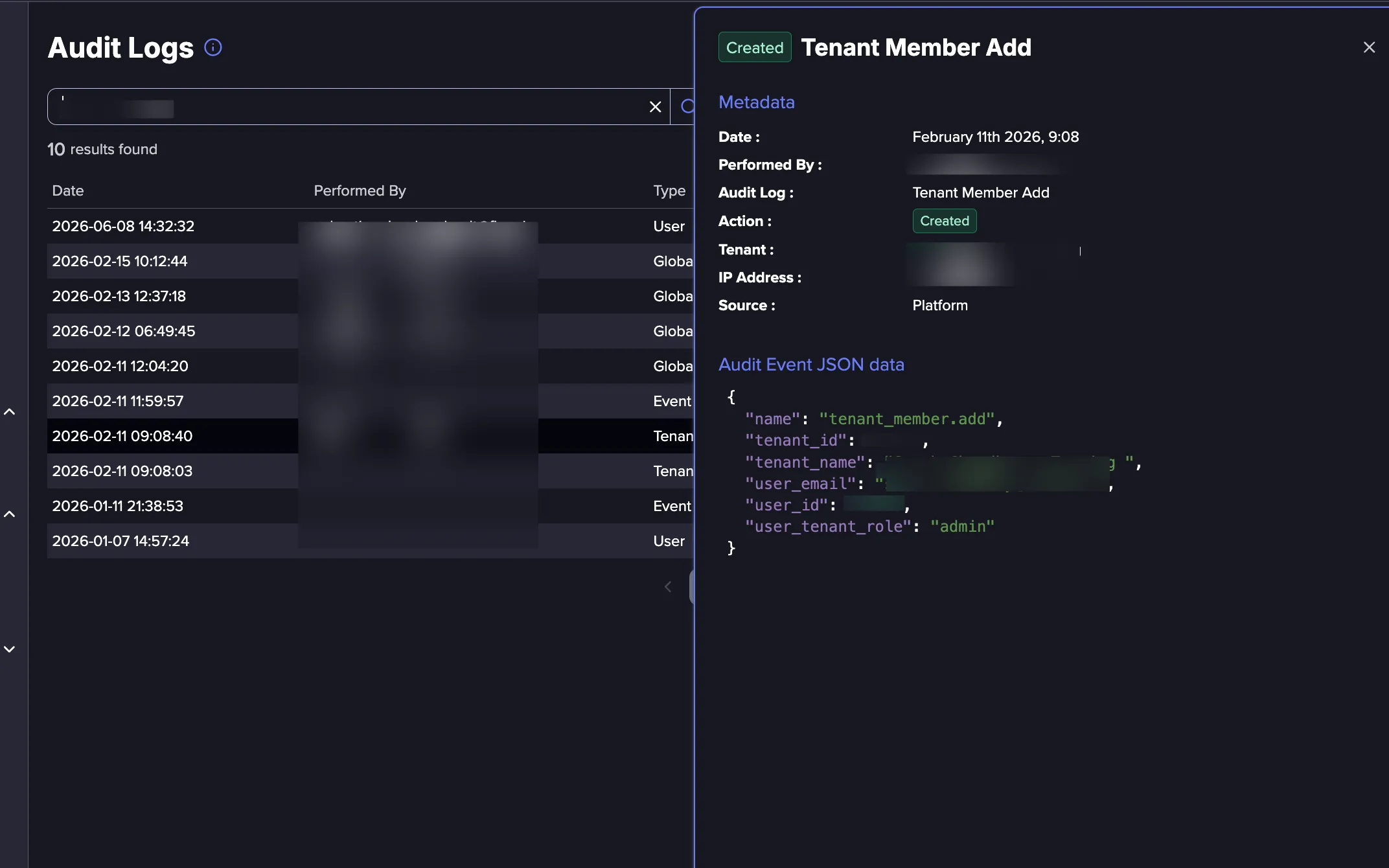
Clicking on any log entry opens a details panel showing a full breakdown of the action. The panel is divided into two sections.
- Metadata displays the core details of the event, including the date and time, the user who performed the action, the type, the action taken, the Tenant, the originating IP address, and whether the action came from the platform UI or the API.
- Audit Event JSON Data displays the raw event payload, providing additional context about the specific resource affected. The fields vary depending on the event type.
Data Retention
Audit Log entries are retained for one year, and any data older than a year is deleted from our system. You may export Audit Logsexport Audit logs to maintain historical data.
Searching and Filtering
The Audit Logs provide a search bar that allows you to quickly search for keywords within the logs. The logs can be also filtered by the following fields:
- Type: The kind of resource being accessed, such as an Alert, Credential, Identifier, User, Organization, or Tenant.
- Action: What happened to the resource:
- Created: A new resource was added to the Platform, such as a new Alert, Identifier, or Tenant.
- Updated: An existing resource was modified, such as a change to organization settings or editing an identifier.
- Deleted: A resource was permanently removed from the Platform.
- Viewed: A resource was accessed or opened without any changes being made.
- Source: Whether the action was performed through the Flare Platform interface or via the API.
- Date: A start and end range, including time, limited to the past year.
- Performed By: The user who performed the action. Select any organization member, or System for events triggered by Flare's automated processes.
- Tenant: The Tenant where the action was performed.
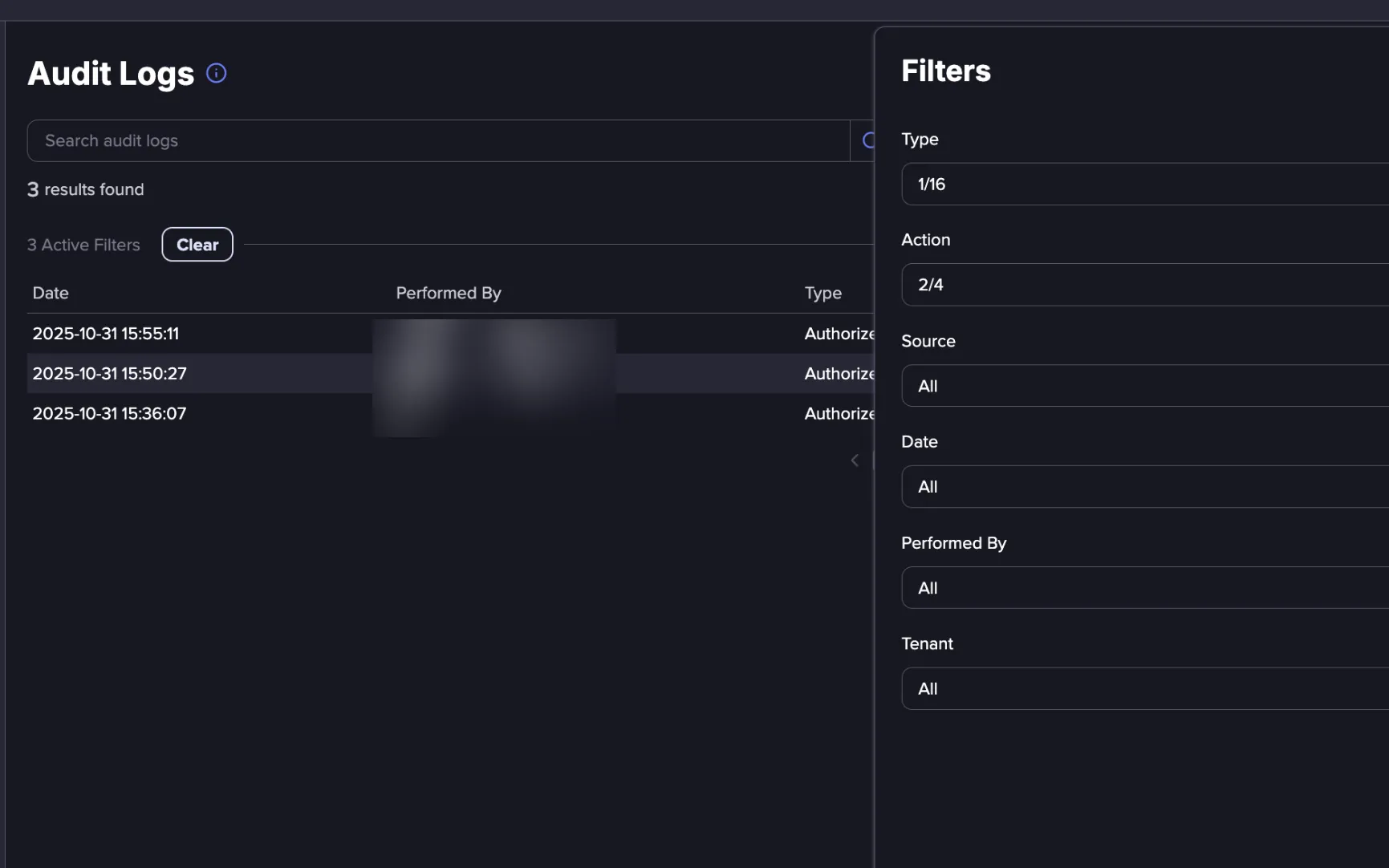
Click Clear to remove any applied filters and return to the full list. This will reset all active filters and restore the default view of the Audit Logs.
Sharing Audit Logs
Once you have applied your desired search terms or filters, the URL in your browser automatically updates to reflect your current view. You can copy and share this URL to give others a direct link to the same results without them needing to manually recreate the same view.
Exporting Audit Logs
Audit logs can be exported as a CSV file. Any filters applied to the current view are reflected in the export, so scope your results first if you need a specific subset of the logs.
Follow these steps to export the Audit Logs:
- Apply any filters or search terms to narrow the results if needed.
- Click the Export CSV button in the top right corner.
- Review the number of logs shown in the confirmation dialog.
- Click Ok to download the file, or Cancel to go back.
Tracked Events
The Audit Logs tracks actions across all major areas of the Platform. Each event is categorized by type, making it straightforward to filter activity by a specific area when investigating changes or reviewing Platform usage.
Alerts: Tracks when Alerts are created, edited, deleted, or sent across the platform.
Alert Channels: Tracks when Alert Channels are created, edited, deleted, or viewed. Useful for auditing changes to your notification configuration.
Credentials: Tracks searches performed in the Credential Browser and credential validation actions against an identity provider. Useful for monitoring who is querying credential data and when.
Events: Tracks when monitored resources are viewed, remediated, unremediated, ignored, or unignored. Useful for auditing how your team is responding to alerts and managing their workload.
Identifiers: Tracks the full lifecycle of Identifiers, including creation, edits, deletion, merging, and grouping, as well as any alerts or recommendation actions associated with them.
Integrations: Tracks actions performed against an integrated identity provider, including disabling accounts, marking accounts as compromised, revoking sessions, and validating credentials.
Organization: Tracks changes to organization settings and member management, including permission edits, member creation, and enabling or disabling accounts.
Global Search: Tracks Global Search activity across the platform.
Tenants: Tracks the creation and deletion of Tenants, changes to Tenant settings, and member and integration management within each Tenant.
Other: Covers additional platform activity including asset authorization requests, and sandbox submission activity.