Azure Sentinel Integration (Legacy)
This implementation method is legacy. Please use the Azure Sentinel Integration tab for the latest instructions.
You can send your Flare alerts directly to your Azure Sentinel instance. Here's how to configure Flare and receive data in your Sentinel Workspace. For detailed instructions, follow the storylane demo provided below.
Configuration
You will need a Workspace with read/write permissions as well as Keys (created in Azure Key Vault)
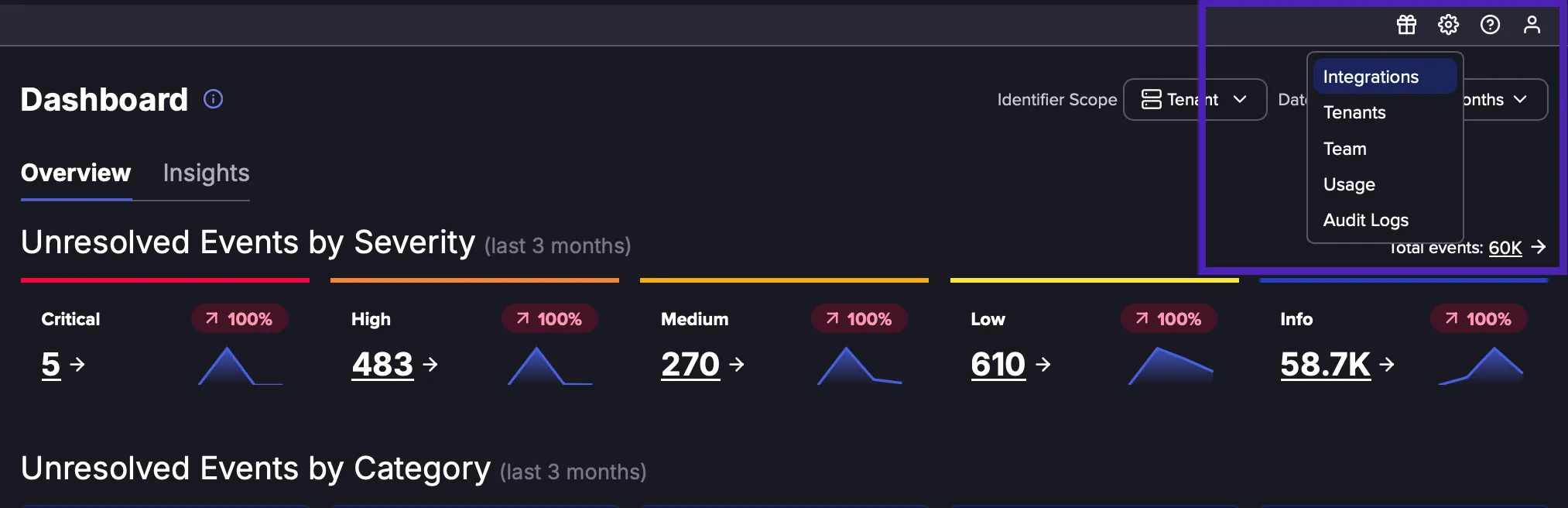
Navigate to the Settings menu in the top-right corner, and then click Integrations.
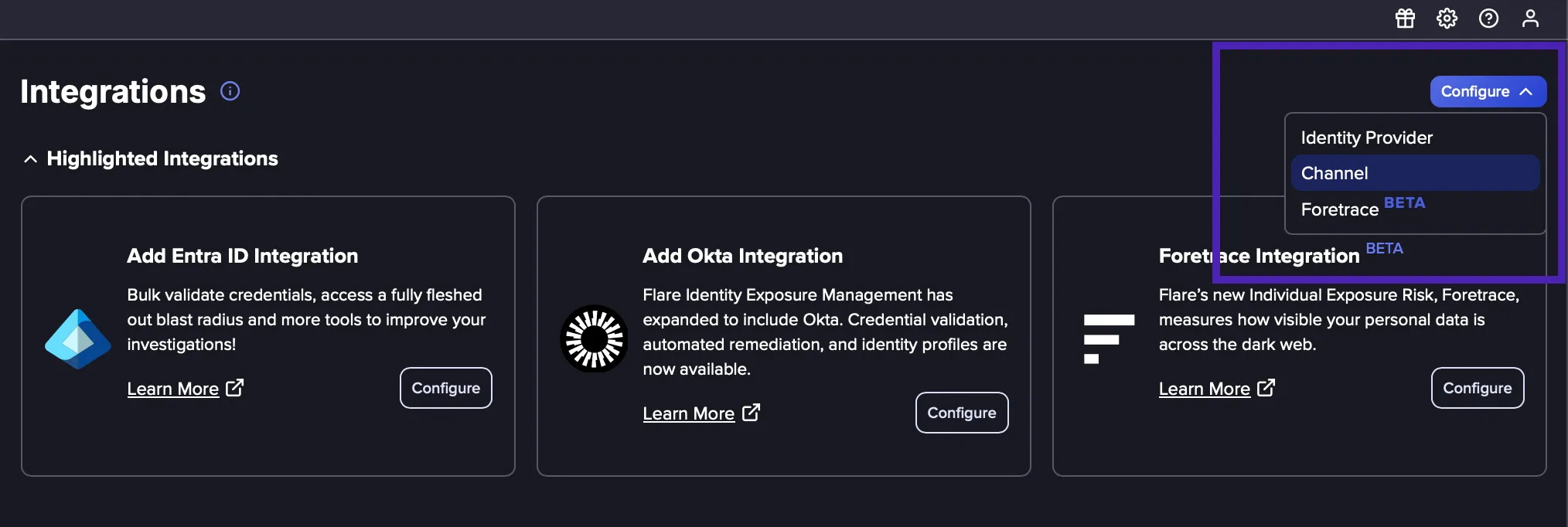
Click on Configure, and then select Channel.
Enter a Name for the Channel.

Select Azure Sentinel as Type.

Fill in the information from Azure

Workspace ID and Shared Key: Go to Sentinel -> Settings -> Workspace Setting -> Agents Management. From there open the dropdown Log Analytics agent instructions.
You will see your workspace ID and Primary key there.
Test Channel

Confirm the values are correct by using the Test Channel button. You should receive a test log inside your Workspace Log analytics within a minute.
Create Alert Channel

Expected Output
You should by then receive all the data Flare sends directly in your Workspace's Log Analytics. Note that we will write in a table called Firework_CL.

Flare Solution
We also have Workbooks that aggregate the data you received in various Dashboards and Playbooks that automate opening of incidents and sending of emails when leaked credentials (email/password) are found.
You can create the Solution on Azure by Clicking Here.