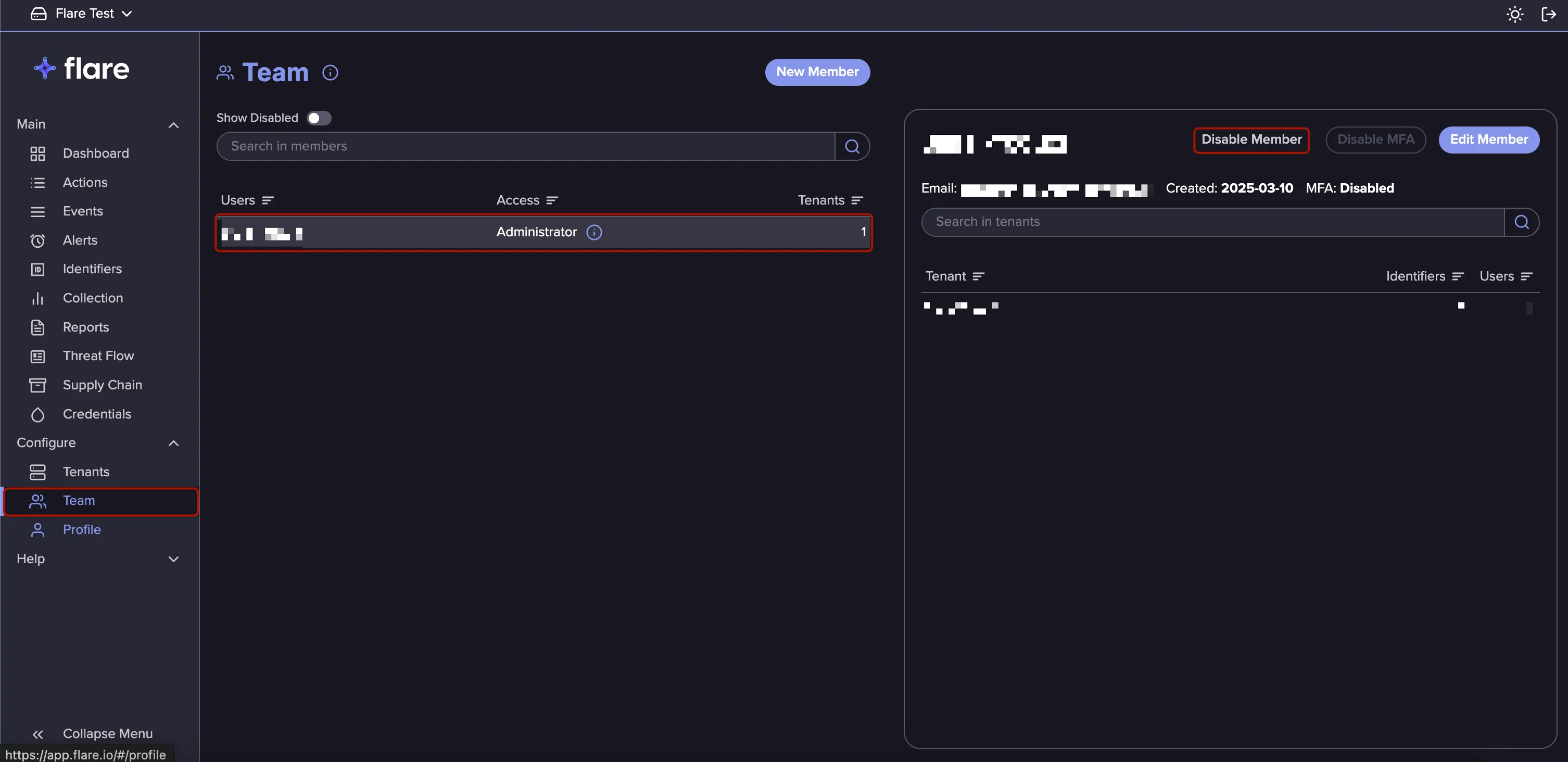
Team
The Team page allows organization administrators to manage the Members who have access to Flare.
Add a New Member
Only Flare Members with Organization Administrator rights can see the Team page.
Follow these steps to add a Member to your organization:
- Navigate to the Settings menu in the top-right corner, and then click Team.
- Provide their First Name, Last Name, and Email.
- Set their Permission level in the Flare Account ("Regular Member" or "Administrator") and choose what Tenants they have access to and what level of access ("Tenant Admin" "Tenant Editor" or "Tenant Viewer") they will have in those Tenants.
- Click Create to send an invitation email.
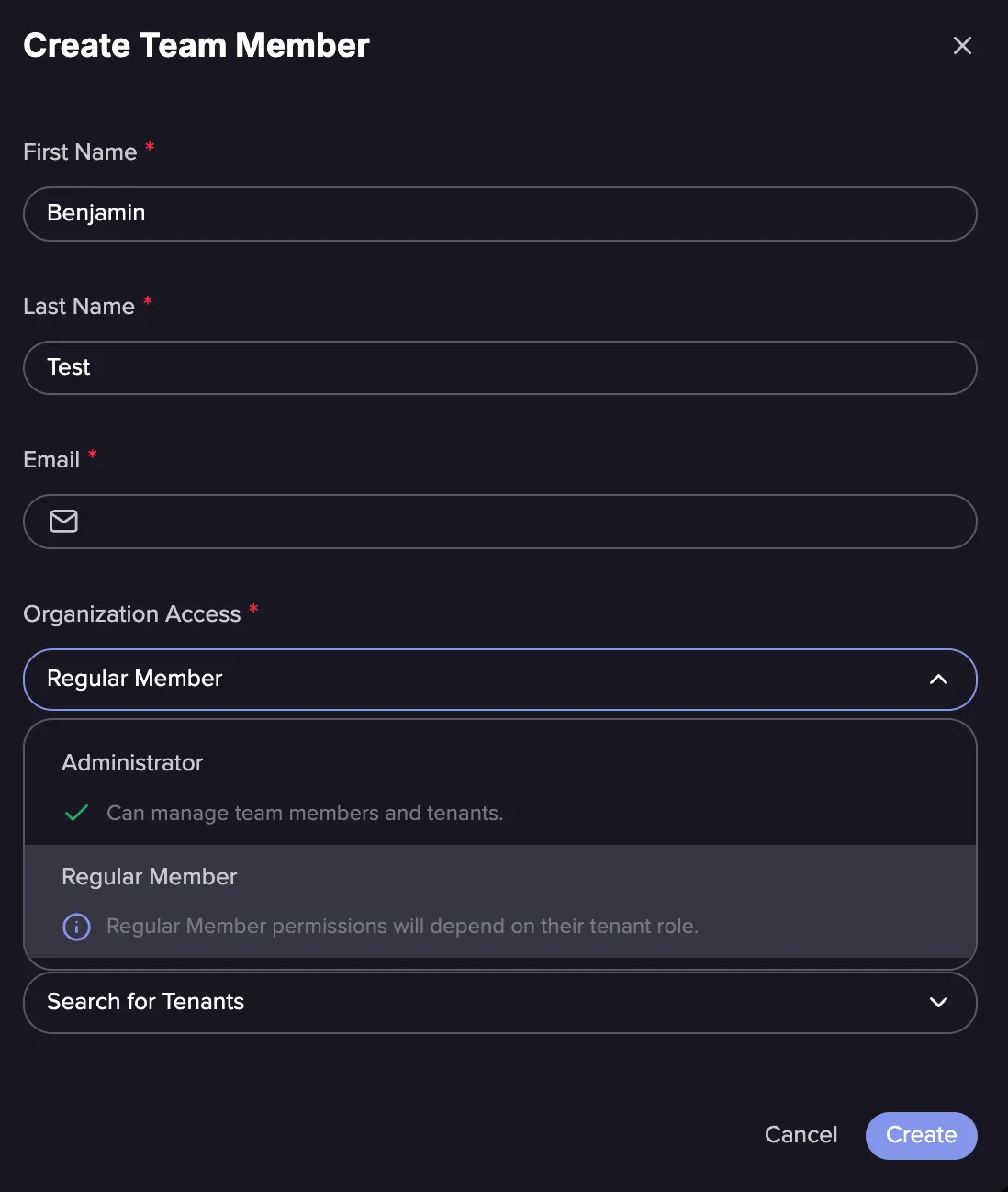
After inviting a new Member, they will receive an email with instructions to create their account and credentials.
For more information, refer to the Roles & Permissions guide.
Edit an Existing Member
From the Team page, Administrators can edit some Details of a Member. To make changes to an existing Member, go to Teams tab in the Navigation Bar -> Click on the Member that you wish to edit -> Click on the ‘Edit Member’ button and make the necessary changes.
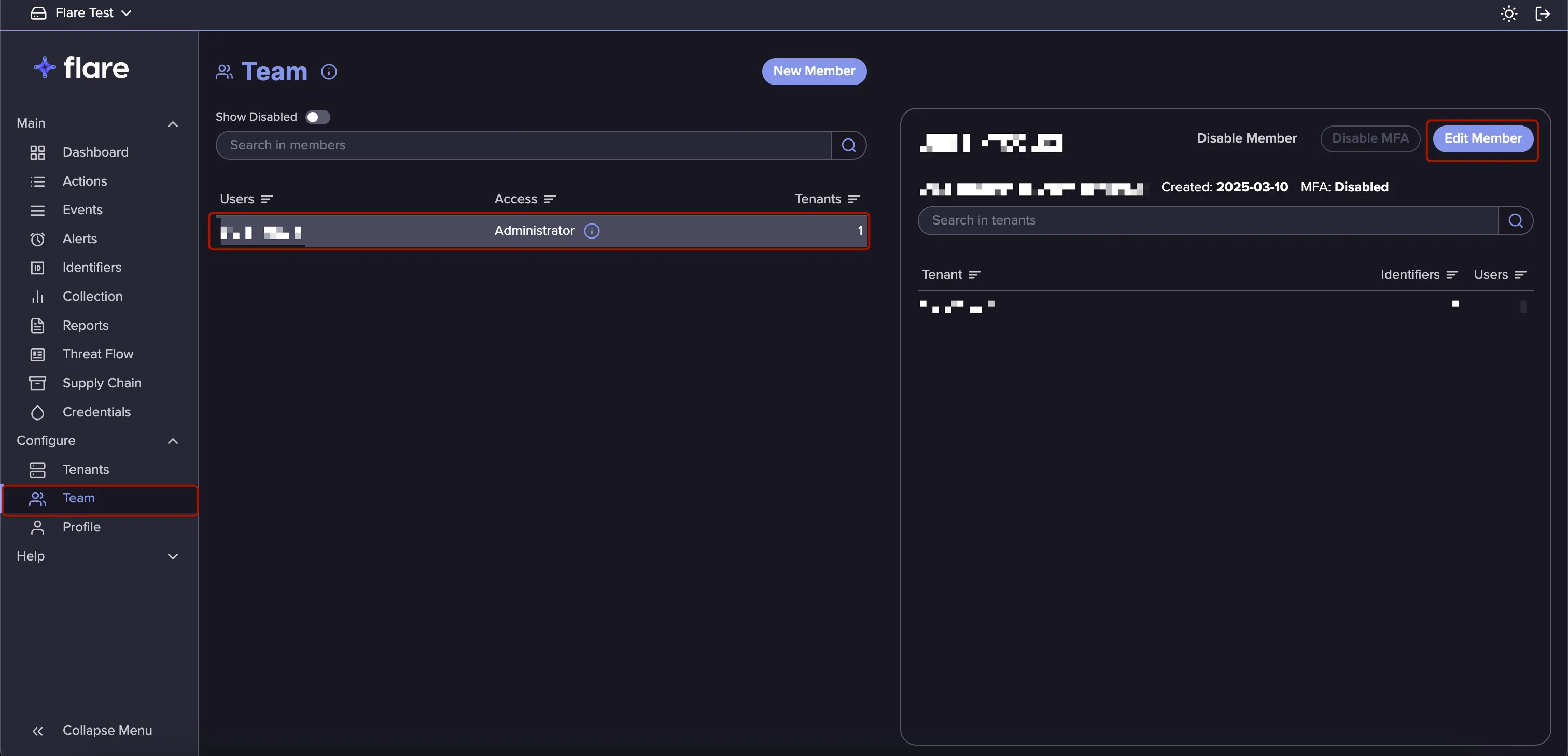
Disable a Member
If you want to restrict access for a specific Member of your team, an Administrator can go to the Teams tab in the Navigation Bar -> select the Member you wish to disable and -> Click ‘Disable Member’