Identity Profile
Overview
The Identity Profile consolidates the exposure data for a monitored identity in a single view, so you can assess its risk during triage and investigation. It shows the context and session state of the identity, how its severity has changed over time, the exposures matched to it, and the services an attacker could reach with those exposures. A timeline shows the sequence of events captured for an exposure, giving you a chronological record to reference as you investigate how the exposure developed and what has happened since.
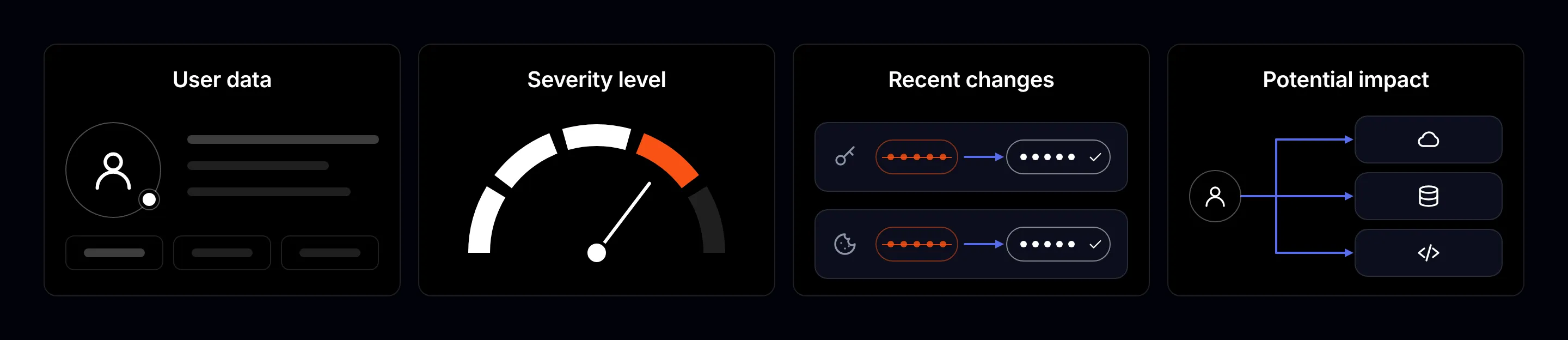
The Identity Profile answers four questions about an identity. Who is the user? How severe is their exposure? Have their password and sessions changed since the leak? Which services could an attacker reach?
Viewing the Identity Profile
The Identity Profile brings together the Identity Attributes, Session Information, Severity Level, Exposure Summary, and Blast Radius for a single identity. It is accessible from the details panel in the Credentials Browser, the Identities Browser, an event that affects an Identity, and from the Identifiers list.
The Identity Profile requires an authorized Identity IdentifierIdentity Identifier. Before you begin, confirm that the identity you want to review is covered by one.
View the Identity Profile from the Credentials BrowserCredentials Browser when you are reviewing a leaked credential and want to see the identity behind it:
- From the left navigation menu, click Credentials.
- Click a credential that affects the identity to open the details panel.
- Click the Identity Profile tab.
Identity Attributes and Session Information
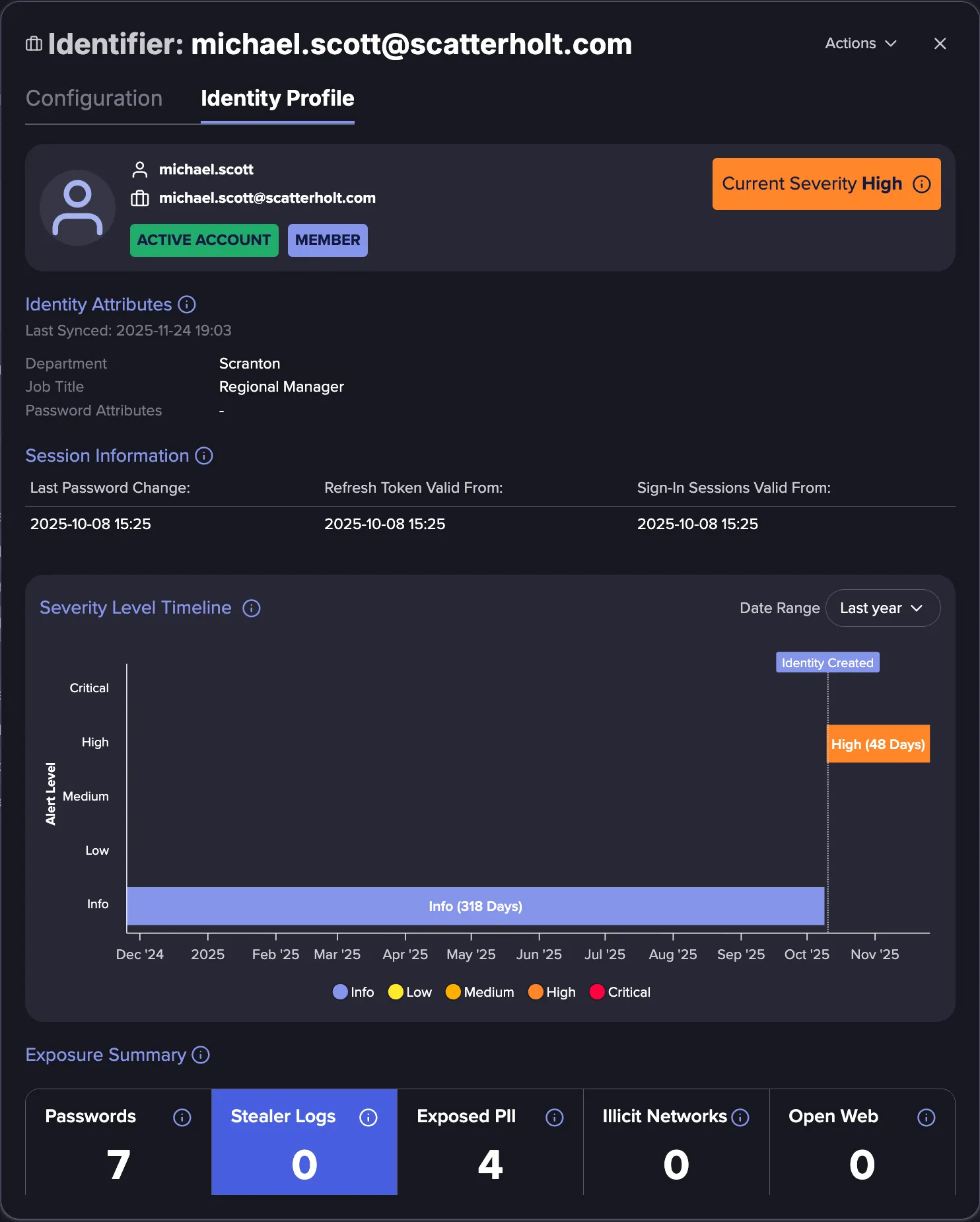
An Identity can contain multiple attributes, such as several email addresses and usernames that belong to the same user, so exposures of any of them are monitored together and attributed to the same Identity. This data is used to establish who the identity belongs to and how current its authentication state is.
The Identity Attributes section provides the context you need to judge how much an exposure matters:
- Department and Job Title: The business role of the user. Use these to judge the sensitivity of the access the account is likely to hold.
- Password Attributes: Details about the identity's password.
- Last Synced At: The date and time the attributes were last updated. Check it to know how recent the context is.
The Session Information section indicates whether previously issued credentials and sessions are still valid. Compare each date with the date of the exposure to decide whether the exposed data still poses a risk:
- Last Password Change: A date later than the leak indicates that the exposed password has since been changed.
- Refresh Token Valid From: Refresh tokens issued before this date are no longer valid. A date earlier than the exposure means a stolen refresh token may still be usable.
- Sign-In Sessions Valid From: Sessions started before this date are no longer valid. A date earlier than the exposure means a stolen session may still be usable.
Use these dates to confirm whether a remediation step has taken effect. For example, when a password is reset and sessions are revoked, the Last Password Change and Sign-In Sessions Valid From dates move later than the date of the exposure.
Severity Level Timeline
The Severity Level Timeline shows the severity level over time. Use it to see when the exposure of an identity spiked, how long it stayed at a given level, and whether any remediation has occurred.
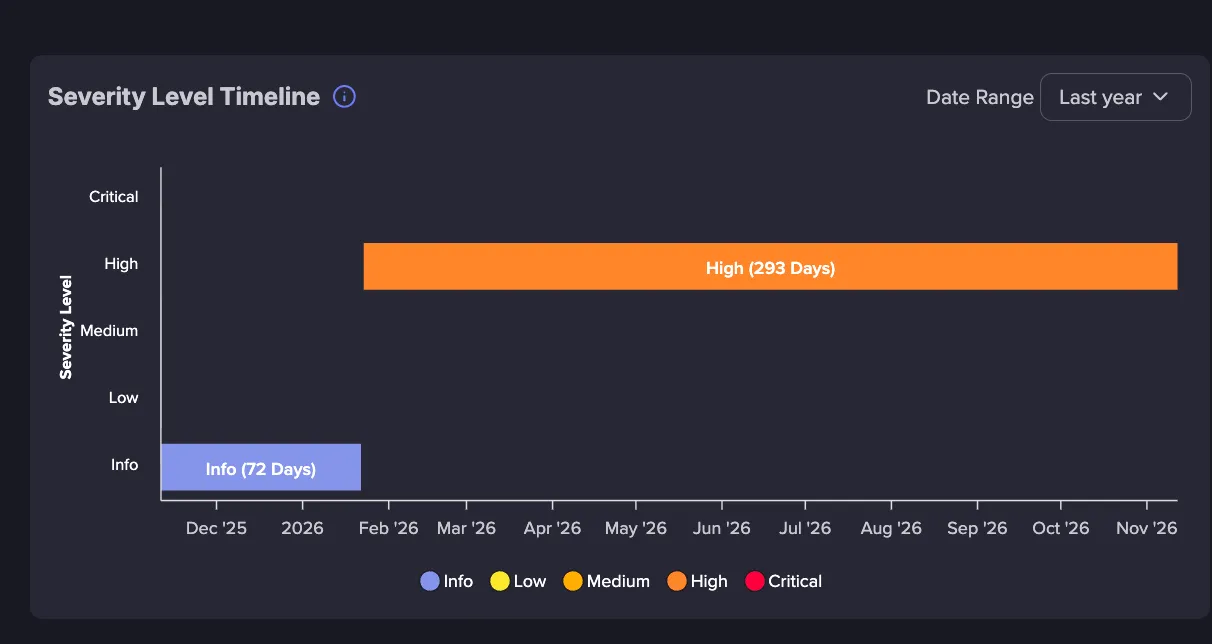
The severity level is evaluated continuously as new events, such as leaked credentials or stealer logs, are detected for the Identity. Identity Posture Tags on the profile show the status of the identity as gathered from IdP integrations and Flare context, including the IdP account status (Active, Inactive, Member, or Guest) and the VIP status. This context affects severity in the following ways:
- When an IdP is integrated, a leaked credential that corresponds to an inactive account has its severity lowered.
- When an IdP is integrated, a leaked credential that is tested as valid through Entra ID has its severity raised.
- Identities marked as VIP in your Flare configuration may trigger Severity Rules with higher severity levels.
When you remediate an event, for example by resetting a password and marking the leak as remediated, the Severity Level is recalculated. It will change to reflect to the level of the next highest non-remediated event.
Exposure Summary
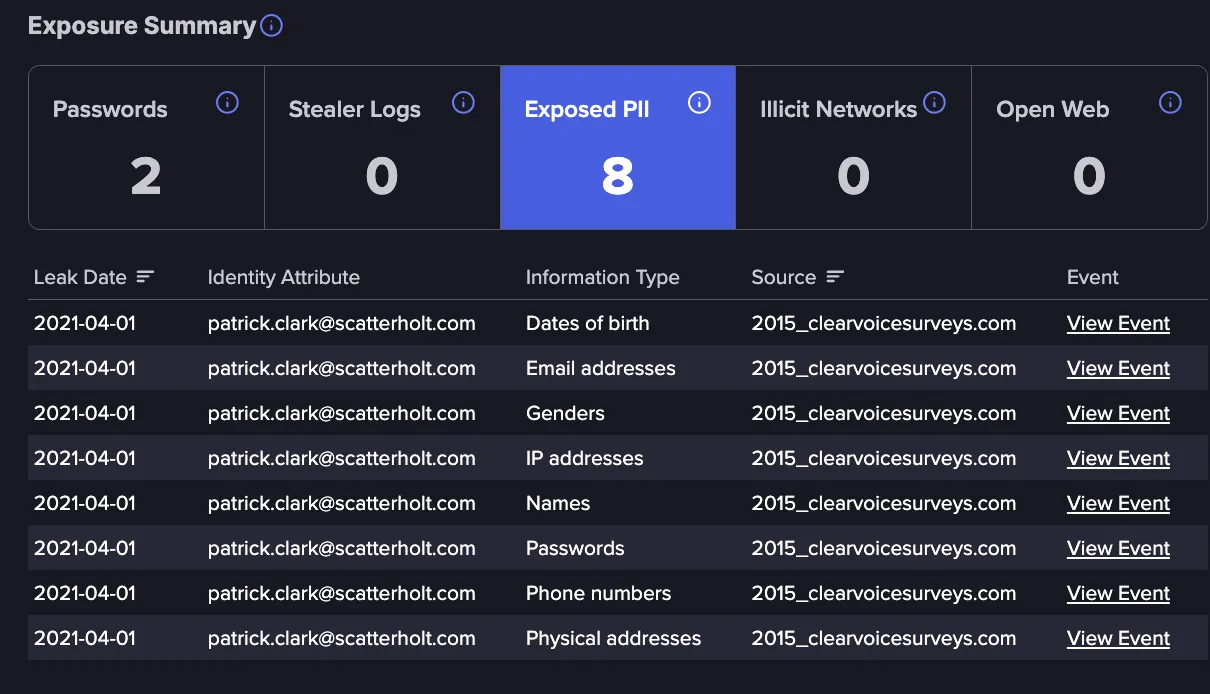
The Exposure Summary shows a count for each type of exposure detected for the identity along with matching events. Use it to determine which types of exposure contribute most to the risk of the identity. The counts are grouped into five categories: Passwords, Stealer Logs, Exposed PII, Illicit Networks, and Open Web. Select a category to view all related events.
Validation Timeline
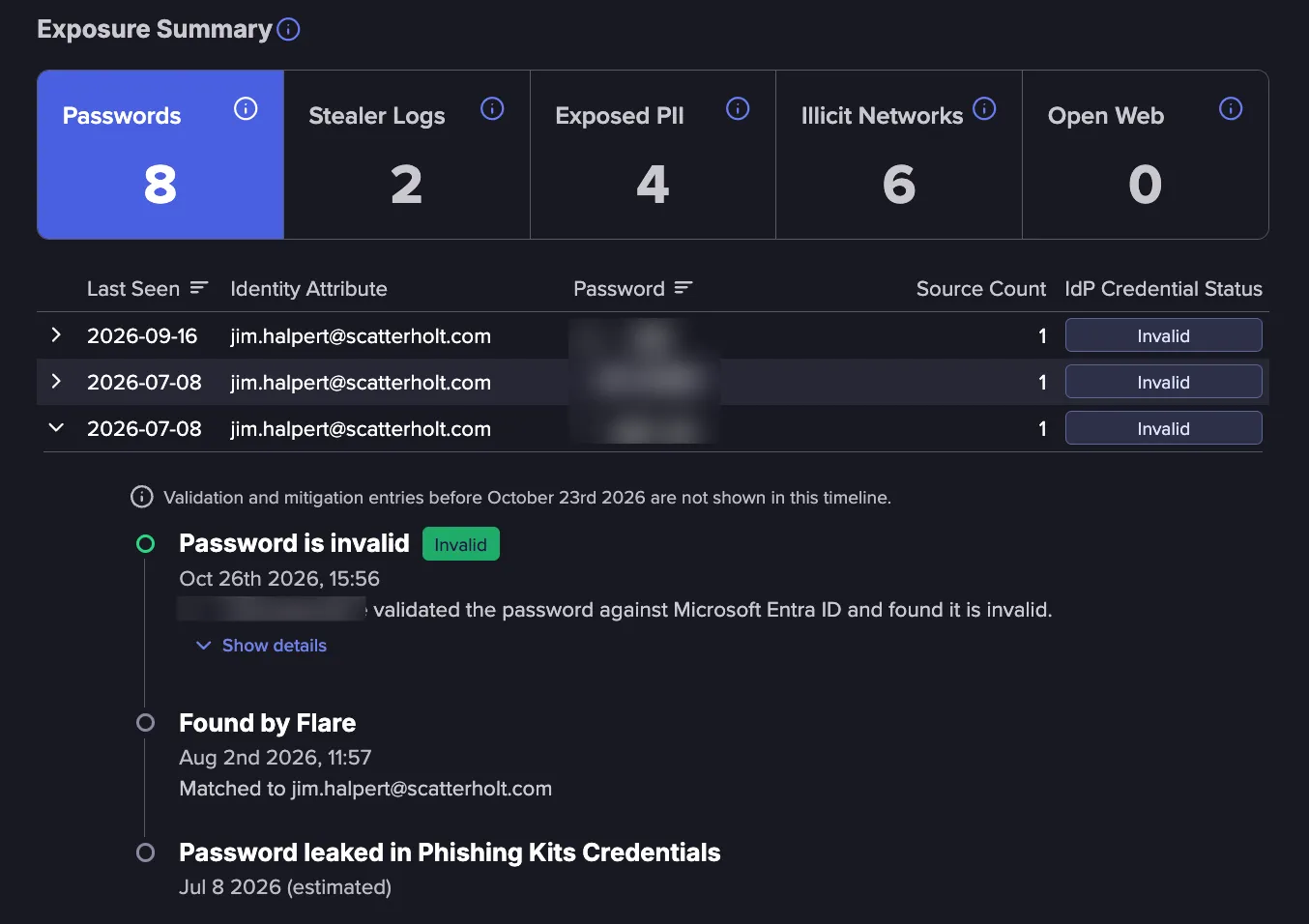
A credential validation time is available when viewing the Passwords category in the Exposure Summary. The validation timeline shows key moments in the life of a credential exposure. Use it to establish the sequence of an incident: when the exposure occurred, when it was detected, and whether any validation or remediation actions have followed.
In the Credentials Browser and on Credential Leak Events, the timeline is also available as a separate tab.
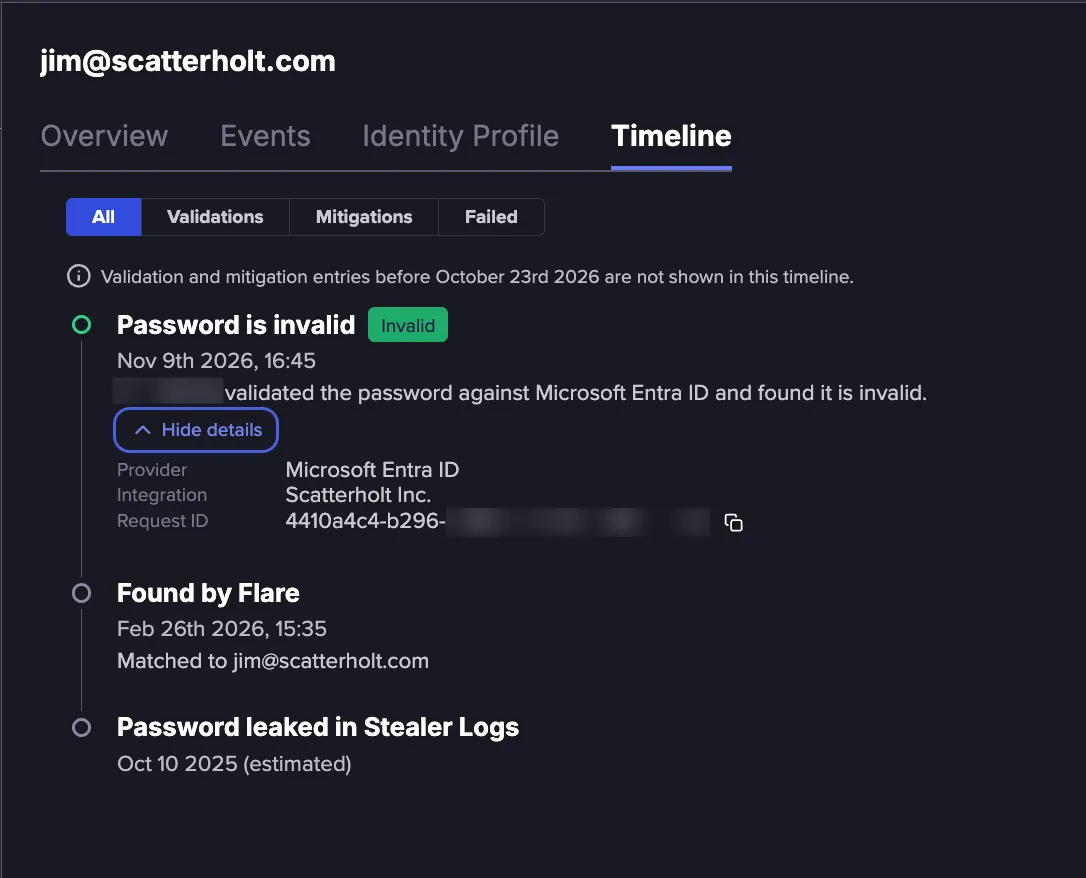
Use the filters on top to choose which events to review. All is selected by default and shows every event. Validations and Mitigations show only the successful validation and mitigation events, and Failed shows only the events that did not succeed.
Blast Radius
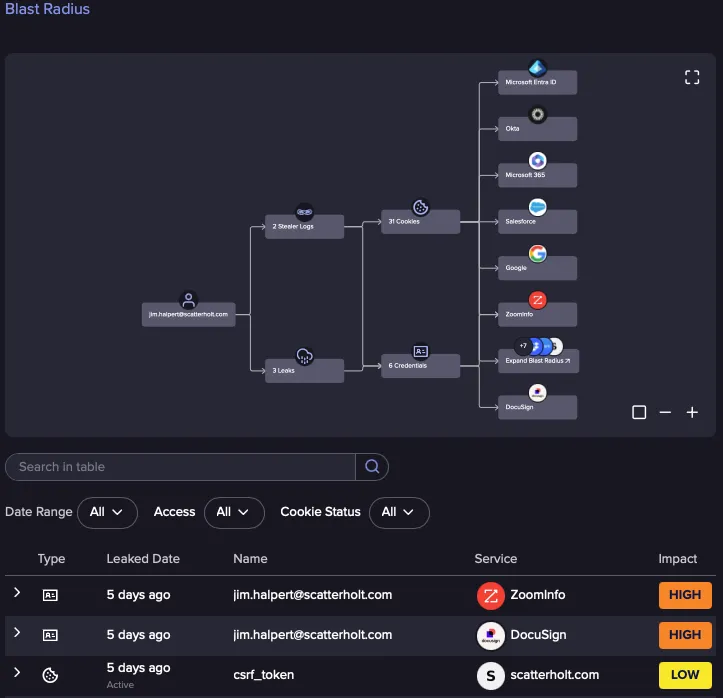
The Blast Radius shows the sprawl an attacker could reach with the identity's IdP permissions and its leaked credentials and cookies. Use it to scope an exposure and find out which services are exposed and which records carry the highest impact, so you can prioritize password resets and session revocation.
Review the records by Impact, starting with Critical and High. Review active cookies next, since a cookie can provide access without a password. The impact of each exposure is determined as follows:
- Critical: A cookie or credential that matches a Domain Identifier, or that is tied to a service designated as Critical based on its popularity and prevalence online.
- High: A cookie or credential tied to a service designated as High based on its popularity and prevalence online.
- Medium: A cookie or credential tied to a service designated as Medium based on its popularity and prevalence online. These services are more common.
- Low: All other cookies and credentials.
- Info: Expired or tracking cookies.