Identities Browser
This is a beta release, and the capabilities and interface of this feature may change. To request access or report an issue, please reach out to your CSM.
The Identities Browser is part of Flare’s Identity Posture Management and brings every identity in your organization into one view, so you can see which accounts carry the most risk and why. Each identity represents a person, combining the account attributes synced from your identity provider (IdP) with every exposure matched to that email address, from leaked passwords and stealer logs to exposed personally identifiable information (PII).
Each identity’s security posture is also evaluated, showing what an attacker could reach if the account were compromised, including the applications, roles, groups, and devices tied to it. Use the Identities Browser to prioritize the identities that need attention, review their exposures and posture findings, and track how their risk changes over time.
Key Features
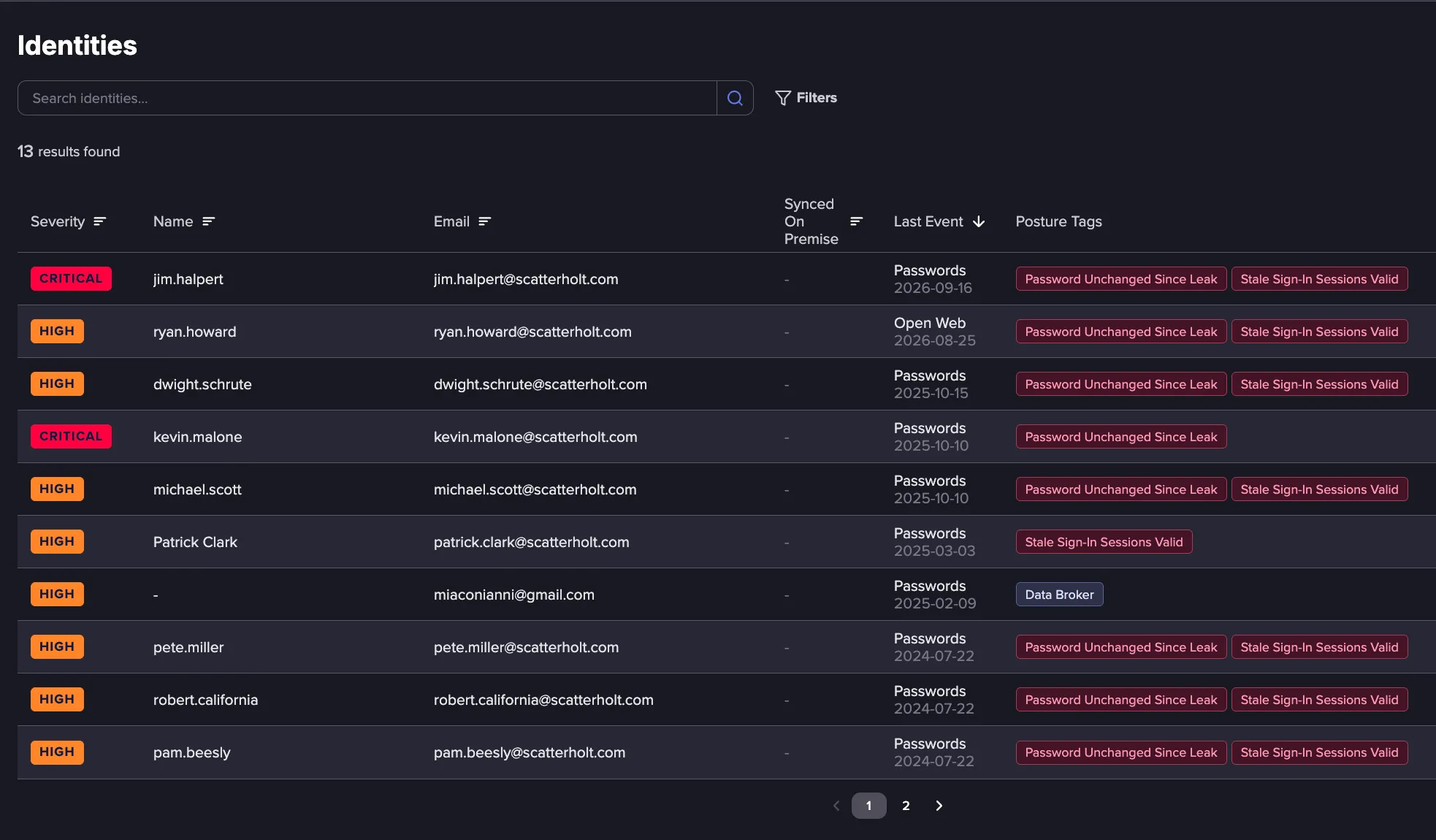
- Unified Identity View: Every identity in your organization appears in a single list, with its severity, most recent Event, Posture Tags, and last-seen date, so you can prioritize which identities to review.
- Identity Profile: Open any identity to see its synced attributes, session and credential state, exposure history, and owned IdP objects in one place.
- Severity Level Timeline: Track how an identity's severity has changed over a chosen date range, from when it was first created through to its current level.
- Exposure Summary: Review an identity's exposures grouped by category (Passwords, Stealer Logs, Exposed PII, Illicit Networks, and Open Web), and drill into the underlying records for each.
- IdP credential validation: For exposed passwords, see the validation status of the credential against your identity provider.
- Posture Management: Assess the potential impact of a compromised identity through security posture checks with recommended remediation for each risk.
Using the Identities Browser
From the left navigation menu, click Identities to open the Identities Browser. The browser lists each identity as a row, with the following columns:
- Severity: The current severity level of the identity. Each identity is assigned one of five severity levels: Info, Low, Medium, High, or Critical.
- Name: The username associated with the identity. This is blank when no name has been synced.
- Email: The email address associated with the identity.
- Synced On Premise: Indicates whether the identity is synced from an on-premises Active Directory.
- Last Event: The most recent Event matched to the identity, shown as the Category and the date it was observed.
- Posture Tags: Any Posture Tags applied to the identity.
- Last Seen At: The date the identity was most recently observed.
Guided Walkthrough
Investigating an Identity
Follow these steps to investigate an identity, from finding it in the list to reviewing the IdP objects behind a failing posture check.
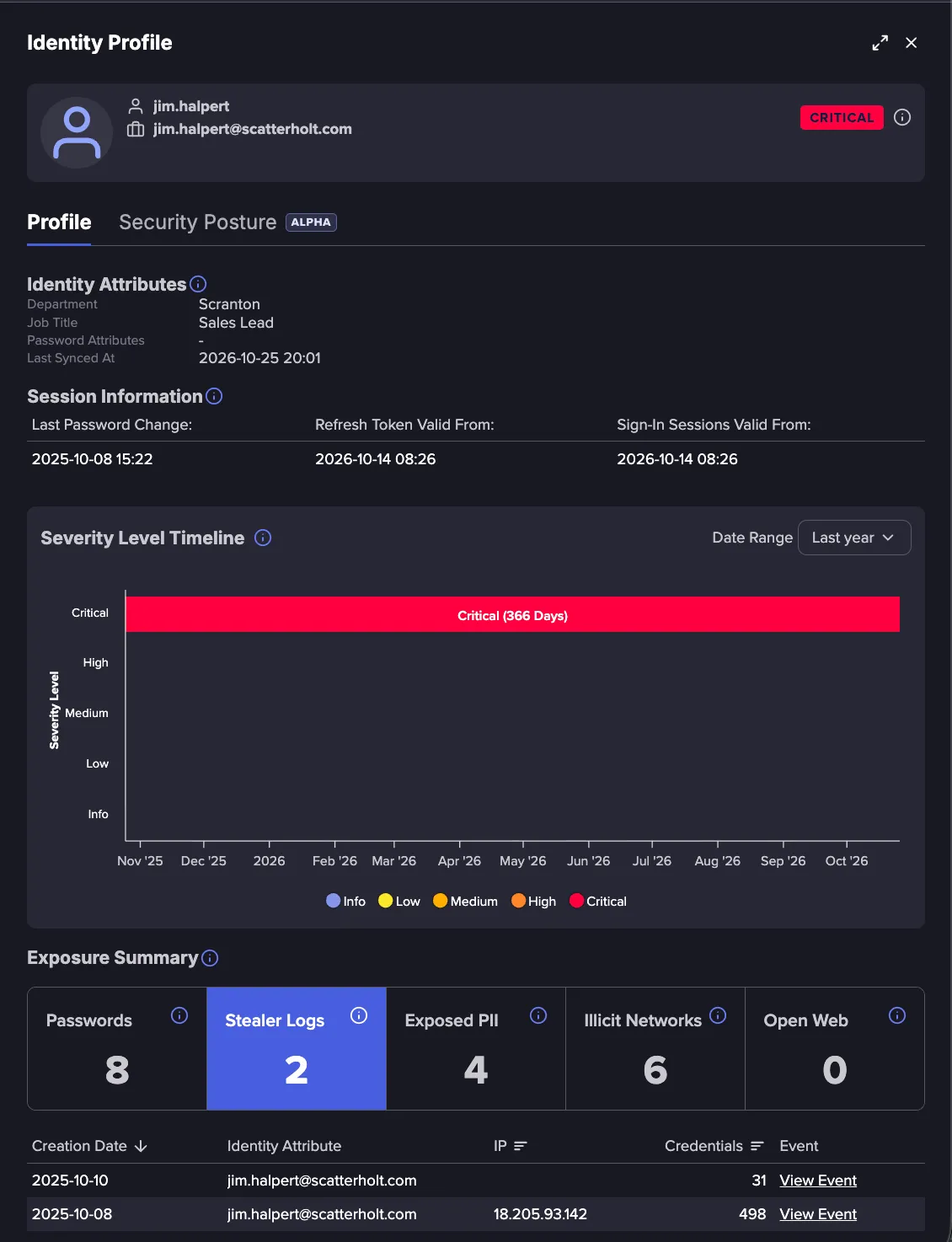
Click an identity to open the Identity Profile.
On the Profile tab, review the Identity Attributes and Session Information, and Exposure Summary. For more information, see Identity ProfileIdentity Profile.
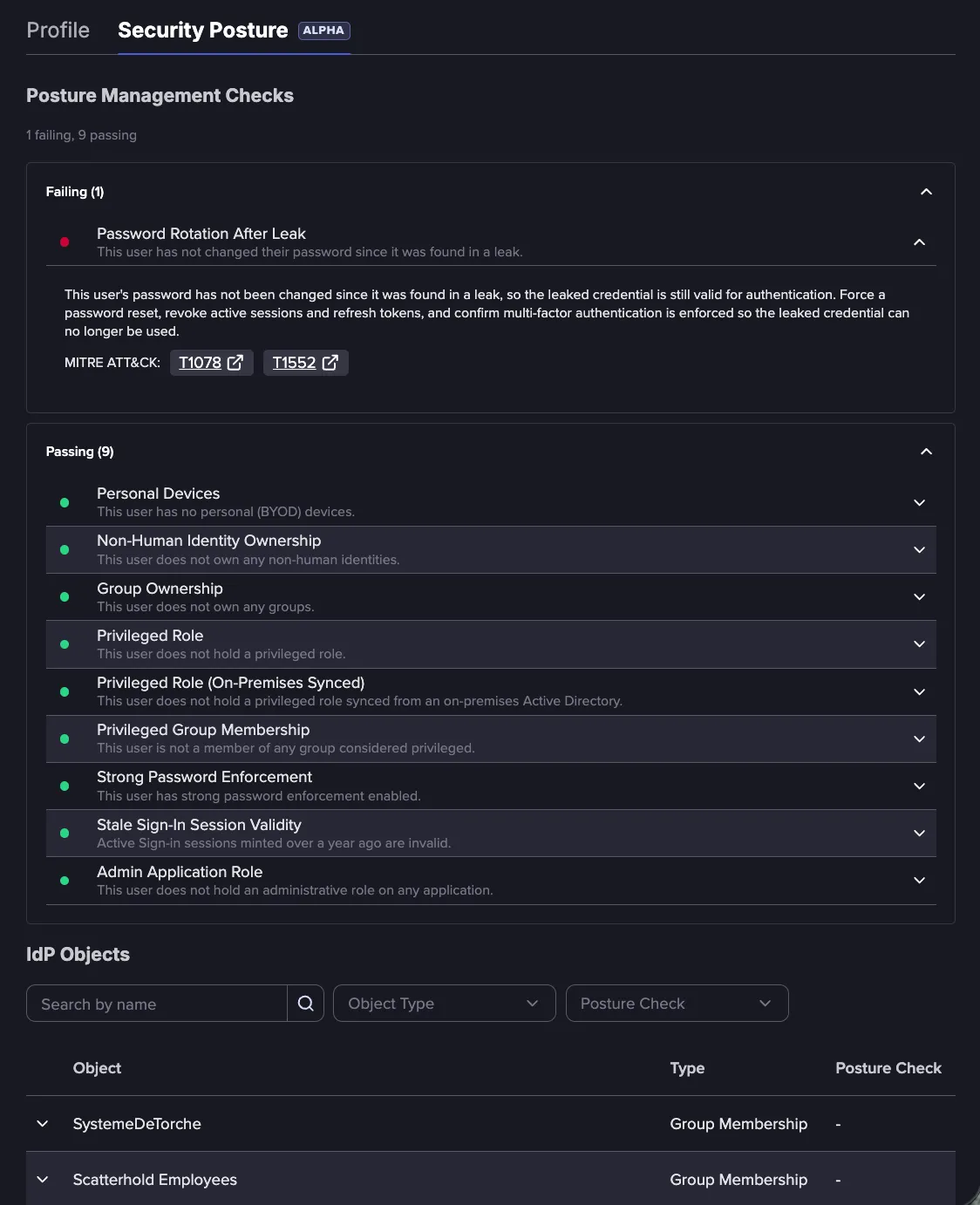
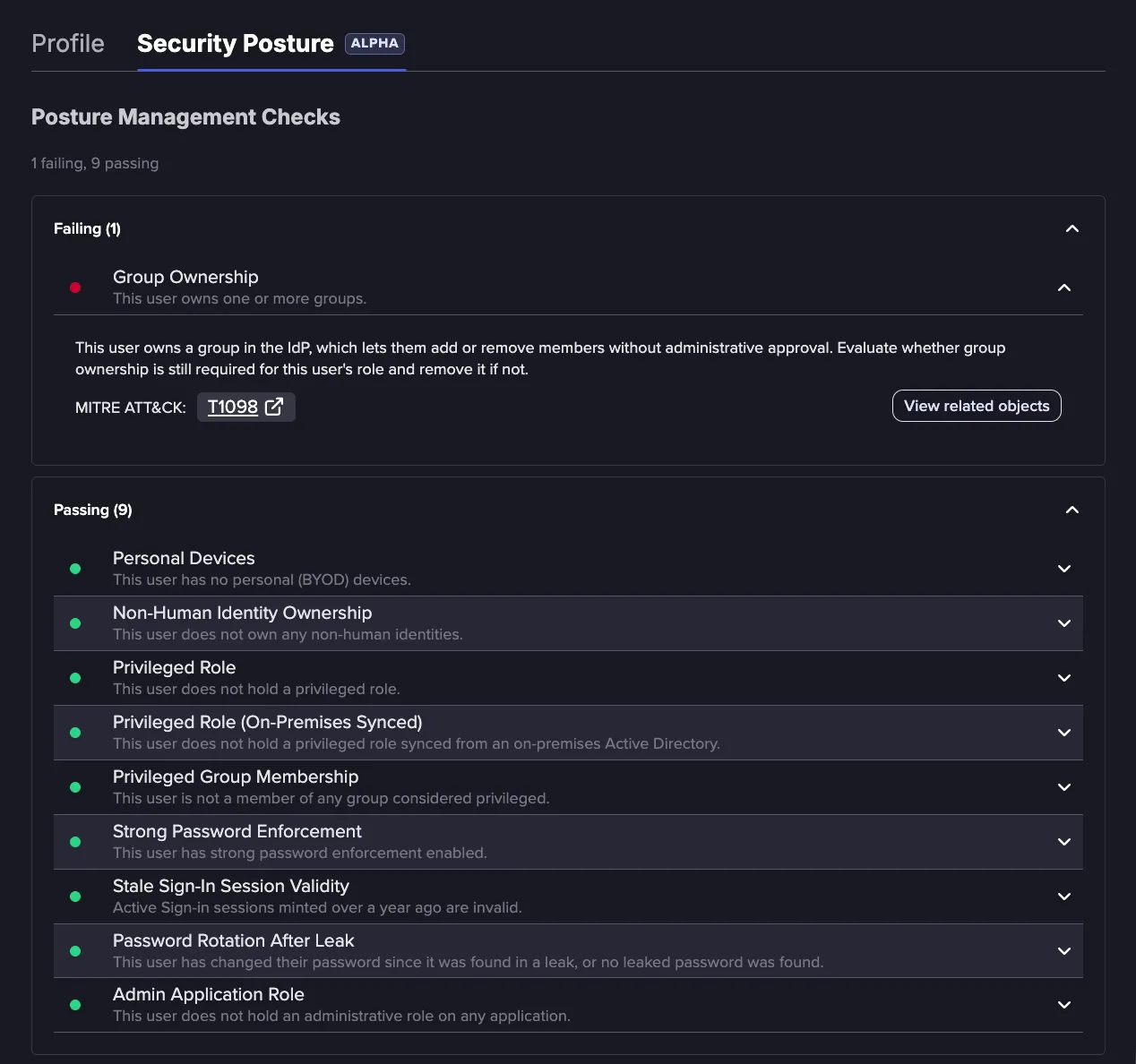
View the Security Posture tab to see a list of Security Posture checks. Click a failing check to expand it and review its risk and recommended remediation. For more information, see Security PostureSecurity Posture.
Identity Profile
The Identity Profile brings together everything known about a single identity, including its synced attributes and session state, how its severity has changed over time, its exposures across Flare's data sources, and its security posture and related IdP objects. For more information, see Identity ProfileIdentity Profile.
Security Posture
The Security Posture tab evaluates the identity against a set of security posture checks and lists the IdP objects behind them. This shows information such as used devices, applications, and owned Entra ID objects. For each, it reports what was found and, where relevant, the recommended remediation actions.
IdP Objects
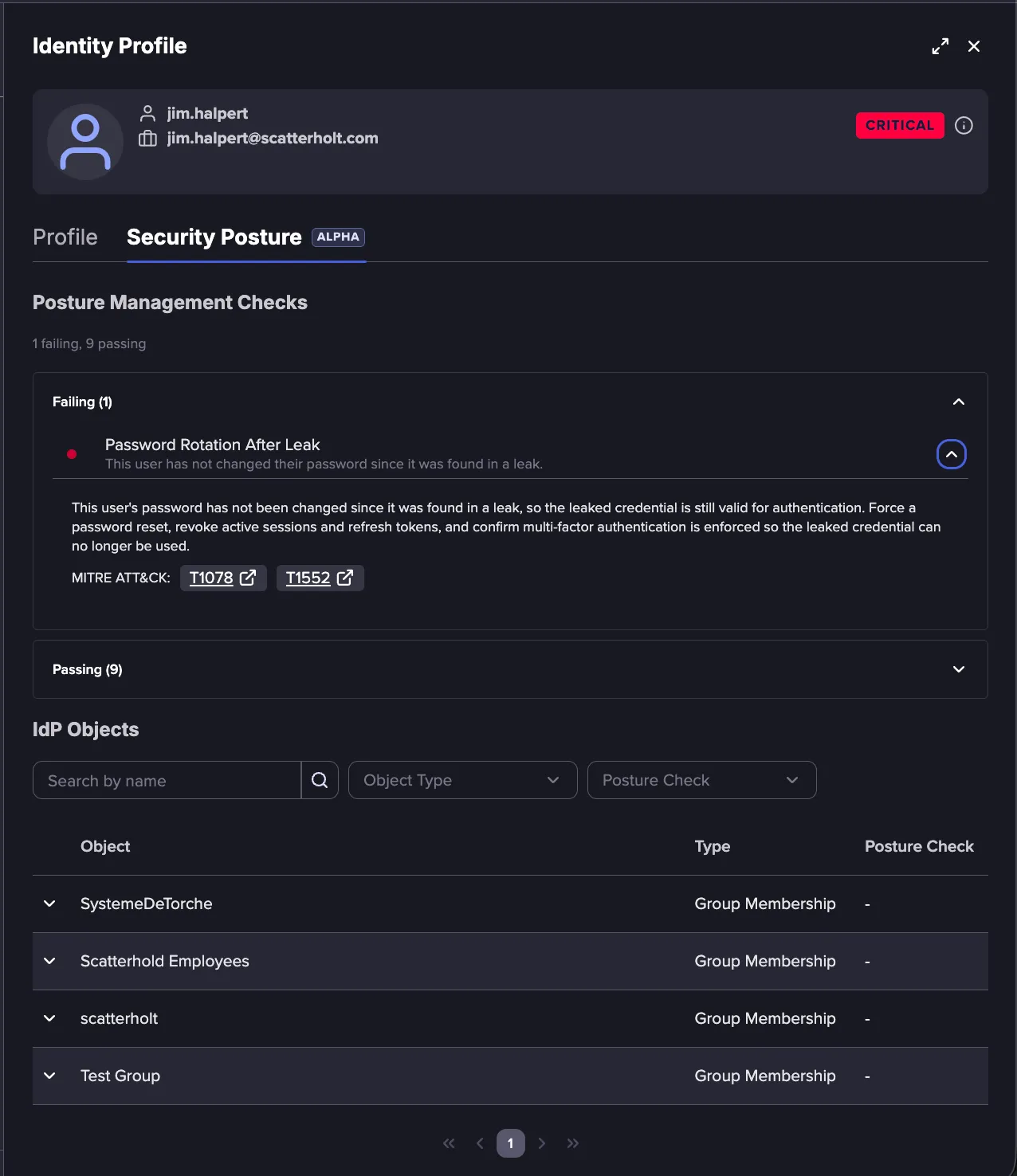
The IdP Objects list shows the Entra ID objects related to the identity. It shows owned devices, group memberships, application assignments, role assignments, and any applications or service principals.
IdP Objects include everything available through the Directory.Read.All permission for the user. This includes applications, groups, roles, devices, and owned objects. Together, they show what an attacker could reach if the account were compromised. Each row shows the object's name, its Type, and one or more Posture Check chips indicating which checks the object triggers.
Follow these steps to find a specific object:
Enter a name in the Search by name field.
Use the Object Type filter to show only certain object types: Owned Device, Assigned Device, Owned & Assigned Device, Group Membership, Role Assignment, Application Assignment, Owned Application, or Owned Service Principal.
Use the Posture Check filter to show only objects tied to specific posture checks.
Expand a row to see the object's details. For example:
- For an application assignment, the row shows the granted App Roles and Scopes. Scopes are the OAuth permissions delegated to the application, such as Calendars.Read, Mail.ReadWrite, offline_access, and openid, with sensitive scopes highlighted.
- For a device, the row shows attributes such as Operating System, Operating System Version, Last Sign In, Registration Date, Trust Type, Managed, and Enrollment Type. These attributes are used to determine the ownership for a device.
- For an owned service principal, the row shows the Service Principal Name, Service Principal ID, and Service Principal Type.
- For a group membership, the row shows the group's Description and whether On-Premises Sync Enabled applies.
- For a role assignment, the row shows the role's Description and whether it is Privileged.
Review application assignments closely
Each assigned application is one an attacker could access with the user's account if it were compromised. For example, an assignment to a finance application means a compromised account could reach the organization's financial data.
Evaluate whether the user still needs each assignment, starting with applications that hold sensitive data or control other systems, such as security tooling, CRM systems, data platforms, cloud control planes, and password vaults.
Posture Management Checks
The Posture Management Checks test the identity against a set of security best practices, and a summary at the top shows how many checks the identity currently passes and fails.
Follow these steps to investigate risks:
Expand a check to see its details. A failing check explains the risk, recommends how to remediate it, and maps the finding to the relevant MITRE ATT&CK techniques and, where applicable, to compliance controls (such as CISA SCuBA, NIST 800-53, the Microsoft cloud security benchmark, and CIS Controls).
Click View related objects (where available) on a check to open the IdP Objects list filtered to the objects responsible for that finding.
Posture Management Checks for each identity include the following information:
- Personal Devices: Indicates whether the user has signed in from a personal, unmanaged device. These devices typically fall outside endpoint detection and response (EDR) and other managed-device controls. Infostealers are built to harvest browser-stored credentials and session cookies from them.
- Risk: Using a personal computer reduces the normal protections and visibility companies have into the endpoint.
- Recommendation: Block access to personal devices through Intune or conditional access policies. Alternatively remove the device from Entra ID.
- Non-Human Identity Ownership: Indicates whether the user owns any Non-Human Identities (NHI), such as applications, service principals, or AI agents.
- Risk: Owning a service principal or app registration lets a user add credentials or change the object's configuration, which creates a privilege-escalation path.
- Recommendation: Evaluate if there is a business use case for NHI ownership, if not remove the ownership.
- Group Ownership: Indicates whether the user owns one or more groups in the IdP, which would let them add or remove members without administrative approval.
- Risk: A group owner can add or remove users from the group. While not inherently an issue, this compounds with groups that supply application access or roles.
- Recommendation: Evaluate whether group ownership is still required for the user's role and remove it if not.
- Privileged Role: Indicates whether the user holds a permanent directory role considered privileged based on Microsoft’s privileged roles and permissions.
- Risk: A privileged role gives an attacker an immediate escalation path if the account is compromised.
- Recommendation: Evaluate if the user needs the role, if not remove it. Consider using Privilege Identity Management to apply Just-In-Time access. Alternatively consider making a dedicated privileged account for the associated users.
- Privileged Role (On-Premises Synced): Indicates whether an account from Active Directory holds a permanently assigned privileged role in Entra ID.
- Risk: Syncing a privileged role with an Active Directory enabled account inherits the risky capabilities of Active Directory. A user compromised in AD will have all the cloud permissions of the role creating additional attack paths.
- Recommendation: Evaluate if the user needs the role, if not remove it. Consider using Privilege Identity Management to apply with Just-In-Time access. Alternatively consider making a separate, dedicated cloud-only privileged account for the associated users.
- Privileged Group Membership: Indicates whether the user is a member of a group considered privileged. Privileged accounts include Tier-0 domain privileged accounts, to accounts granting Kubernetes access, to conditional access policy exclusions, to Helpdesk groups, to Entra Sync groups, etc
- Risk: Privileged groups inherit a variety of permissions, increasing the scope the resources the user can reach.
- Recommendation: Evaluate if the user needs group access, if not remove it. In the event of a compromise evaluate the permissions associated with groups to identify escalation opportunities.
- Admin Application Role: Indicates whether the user is assigned an administrator-level app role in an Entra-integrated application, which would give an attacker admin control inside that application if the account were compromised. Because this access sits outside Entra directory roles, it is not covered by Privileged Identity Management (PIM) or standard privileged-role reviews.
- Risk: App-level admin rights bypass directory-role monitoring, so this exposure often goes unreviewed.
- Recommendation: Confirm that the user needs admin rights in the application. Where available, move the assignment to a group managed with PIM for Groups for just-in-time access, or add it to a recurring access review.
- Strong Password Enforcement: Highlights users that are using a legacy password attribute that permits 8 character passwords.
- Risk: Without it, the account's minimum password requirement is weaker, making it easier to compromise by guessing or brute force.
- Recommendation: Update settings to enforce strong passwords.
- Stale Sign-In Session Validity: Indicates whether active sign-in sessions minted more than a year ago are treated as invalid. Evaluate if the associated date is before recent infostealer operations.
- Risk: A stolen session token stays usable until the session is revoked, so long-lived sessions are a persistence path that a password reset alone does not close.
- Recommendation: Plan to revoke sessions once a year.
- Password Rotation After Leak: Indicates whether the user has changed their password since it was found in a leak. This check passes when the password was rotated or invalidated.
- Risk: If the password has not changed since it leaked, the exposed credential still works for sign-in.
- Recommendation: Validate the password to confirm if compromised, if so, rotate the password. Make sure to do this twice if it is synced with on-premise.
Enrichment Checks
Enrichment Checks are informational tags that highlight notable characteristics of an identity's IdP objects, such as hidden applications, proxied on-premises apps, or work devices. They do not pass or fail like the posture checks above. Instead, they add context to support incident response investigations. These are available when filtering the IdP ObjectsIdP Objects.
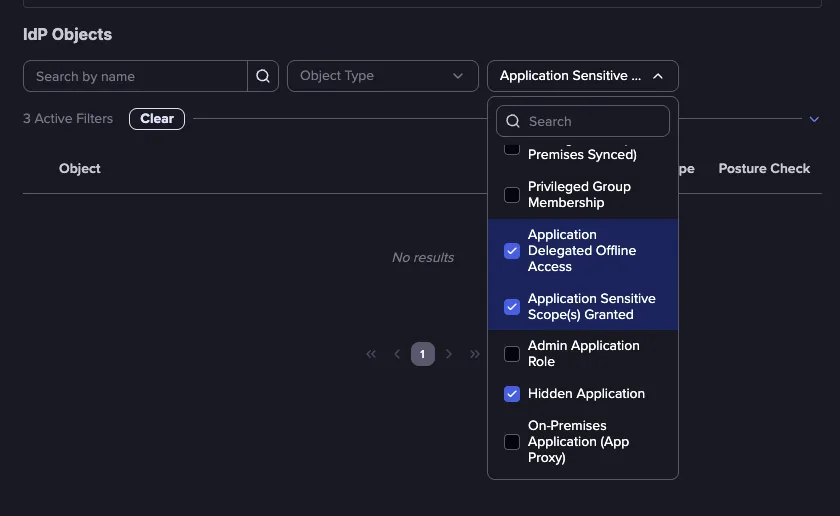
- Application Delegated Offline Access: Correlates with an application that has the offline_access OAuth scope. This should be evaluated along with any infostealer exposure. Offline_access permits the application to not check in every hour giving the attacker persistent access. If a user with this permission were to be compromised, immediately revoke the sessions.
- App Proxy: Highlights an application (usually on-premise) that is being proxied into Entra ID. These apps could provide an on-premise escalation opportunity for an attacker.
- Application Sensitive Scope Granted: Highlights when an application contains a delegated permission Microsoft has deemed risky.
- Corporate Phone: Highlights a work device from our device checks.
- Hidden Application: Signifies an application assigned to a user that has been hidden.
- Personal Phone: Uses the associated checks from the device check to highlight a personal phone. This is often used with MFA authenticator applications.