IEM Entra ID Setup
Getting Started
Here are the steps for setting up the IEM integration. Both from the side of Flare and Entra ID.
After the integration is setup, if an error occurs Flare will automatically email the Tenant Admin. To view more information go to the integration and press test connection.
Identity Identifier Deletion
Identity Identifiers are automatically removed under the following circumstances:
- User deleted from Entra ID: If a user is removed from Entra ID, the corresponding Identity Identifier in Flare is deleted after two weeks.
- Integration downtime: If your Entra ID integration goes down, all Identity Identifiers synced from Entra ID are deleted after two weeks.
It is recommended to restore a broken integration as soon as possible to avoid unintended deletion of Identity Identifiers. Tenant admins receive in-app notifications of a broken IdP integration through the Notifications CenterNotification Center.
Setup Overview
Create Entra ID App Registration
Assign Permissions
Setup the Integration in the Integrations Hub and Import Identities
Configure Alerting
If using Mark as Compromised create a Conditional Access Policy within Entra ID
- Create an Entra ID Application Registration
Within Entra ID create a new Application Registration. Have Flare in the name to ensure users understand what the application is for.
The following configurations should be in place for this app:
- Require the user to be assigned the app for access
- Create a Client Secret for the application. This will be needed by Flare in a later step
- Assign Permissions
The table below highlights the application permissions to assign to the app registration. Directory.Read.All is required for the integration however each of the permissions corresponds to a different remediation capability. Determine which permission best corresponds with your organizations remediation needs.
Add Directory.Read.All then what you need. If you’re not using a remediation option, you don’t have to grant its permission.
Capability | Permission |
|---|---|
Identity Profiles & directory reads | Directory.Read.All |
Revoke user sessions (invalidate refresh tokens) | User.RevokeSessions.All |
Disable user account | User.EnableDisableAccount.All |
Mark user as compromised | IdentityRiskyUser.ReadWrite.All |
Mark User as Compromised requires a Conditional Access Policy to fully remediate the user.
- Setup Integration in the Integration Hub
Navigate to Integrations from the sidebar.
Click Add Integration.
In the modal, select Microsoft Entra ID as the integration type.
Fill in the required fields:
Integration Name: A descriptive name for the integration (e.g., Entra ID).
Entra ID Client ID: Enter the Application (client) ID from your Entra ID App registration’s Overview page.
Entra ID Client Secret: Enter the secret value from the app registration Certificates & secrets page.
Entra ID Tenant ID: Enter your organization’s Directory (tenant) ID from your App registration’s Overview page.
(Optional) Identity Creation:
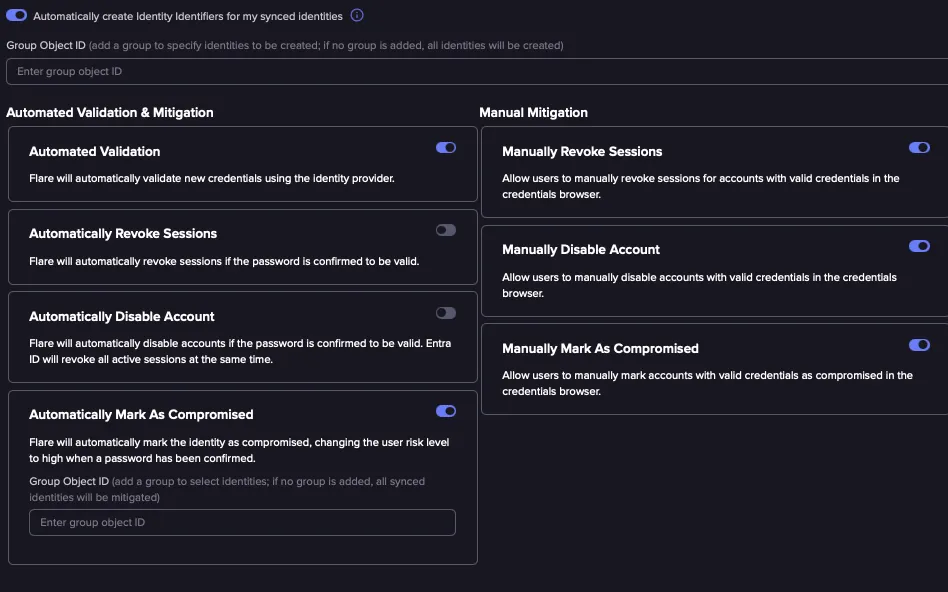
Automatically create Identity Identifiers for my synced identities: Toggle on to sync identities.
Group Object ID: (Optional) Enter a group ID to restrict which identities are created. If left blank, all identities will be created.
Identities may take up to 24 hours to appear.
⚠️ Identity Identifiers are created only up to the limit of your package. If you’ve reached your identifier limit, Entra ID synchronization continues, but additional identities are not created. Contact your Customer Success Manager for more details about this.
(Optional Automation) Configure Automated Validation & Mitigation
Automated Validation:
- This will automatically validate new credentials found related to your authorized identity identifiers.
Each of the below settings can be configured to just a specific group within Entra ID.
Automated Mitigation: Disable Accounts
- This will automatically test new credentials, if they are confirmed valid, Flare will disable the account.
Automated Mitigation: Mark as Compromised
- This will automatically test new credentials, if they are confirmed valid, Flare will mark the account as compromised.
- Note: Flare recommends creating a conditional access policy where the user risk is high to remediate these events.
Automated Mitigation: Revoke Sessions
- This will automatically test new credentials, if they are confirmed valid, Flare will revoke the sessions of the account.
With the execption of validation all of the above can also be enabled/disabled for manual operations.
Test Integration before saving:
- Click Test Integration to validate the configuration.
- If the test passes, you’ll see a confirmation message.
- A failure will display an error message. Common errors we have observed:
- INVALID_PARAMETERS: the Entra ID Client ID, Entra ID Client Secret or Entra ID Tenant ID may be incorrect.
- The Entra ID secret is not correct or has expired.
- MISSING_PERMISSIONS: you will need to grant additional permissions to the application you have registered in Entra ID. See table x located at y for list of permissions required by feature.
- The application is missing the required permissions.
- Untested integrations can be saved, but they remain disabled by default.
Click Save Changes to finalize the configuration.
- Setup Alerts
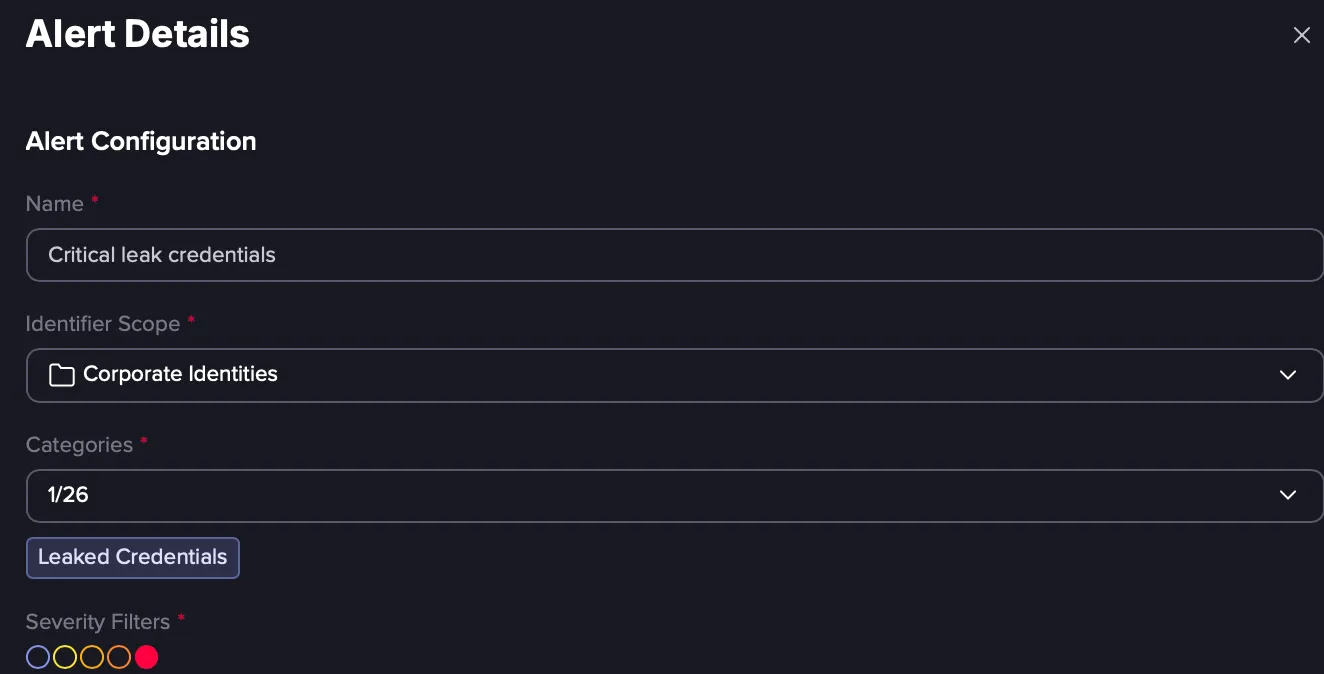
- To create an alert follow these steps:
- Within the Alerts page, create a new alert.
- Identifier Scope: Corporate Identities
- Severity Filters: Critical
- Categories: Leaked Credential
This will fire an alert anytime a credential has been found and confirmed valid.
- Conditional Access Policy Setup (For Mark as Compromised)
If the remediation option is Mark as Compromised a conditional access policy is required to action the signal Flare sends (if not using Mark as Compromised skip this section). This requires Microsoft P1 or Business Premium licenses.
- Flare recommended implementation:
- Users: All users however this can be fine grained to lower the scope
- Target resources: All Resources
- Conditions: User Risk is High
- Grant Access: Require Authentication strength (we recommend using passwordless MFA if possible) and require a password change
- Session: Sign in Frequency - Every Time
- Alternatively use Identity Protection or Logic Apps for more fine grained remediation options
Troubleshooting
- Confirm the correct permissions are applied to the app registration
- Confirm the secret value is being entered and not the secret ID
- Confirm the integration has been tested within Flare