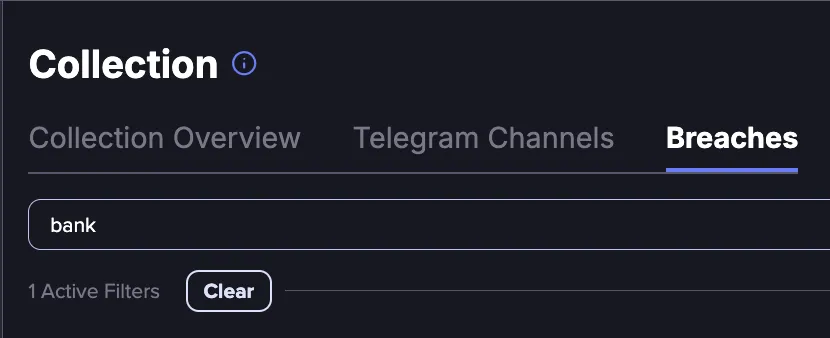
Breaches
Breaches are service-specific data leaks linked to a particular company or website. Each represents a distinct cyber incident where user credentials or personal data were exposed. The Breaches directory enables you to view and search across all the breaches that Flare covers.
This directory includes two types of breaches:
- Breaches with credentials: These are breaches where Flare has ingested credential data (emails, usernames, and passwords). They also appear in the Credentials Browser and as Leaked Credentials Events.
- Breaches without credentials (New): These are breaches where the exposed data does not include credentials. However, they may still contain other personal information such as physical addresses, phone numbers, or other personally identifiable information (PII).
Starting June 2026, newly identified breaches without credentials will appear in the Breaches directory. Historical data will be added in a future update.
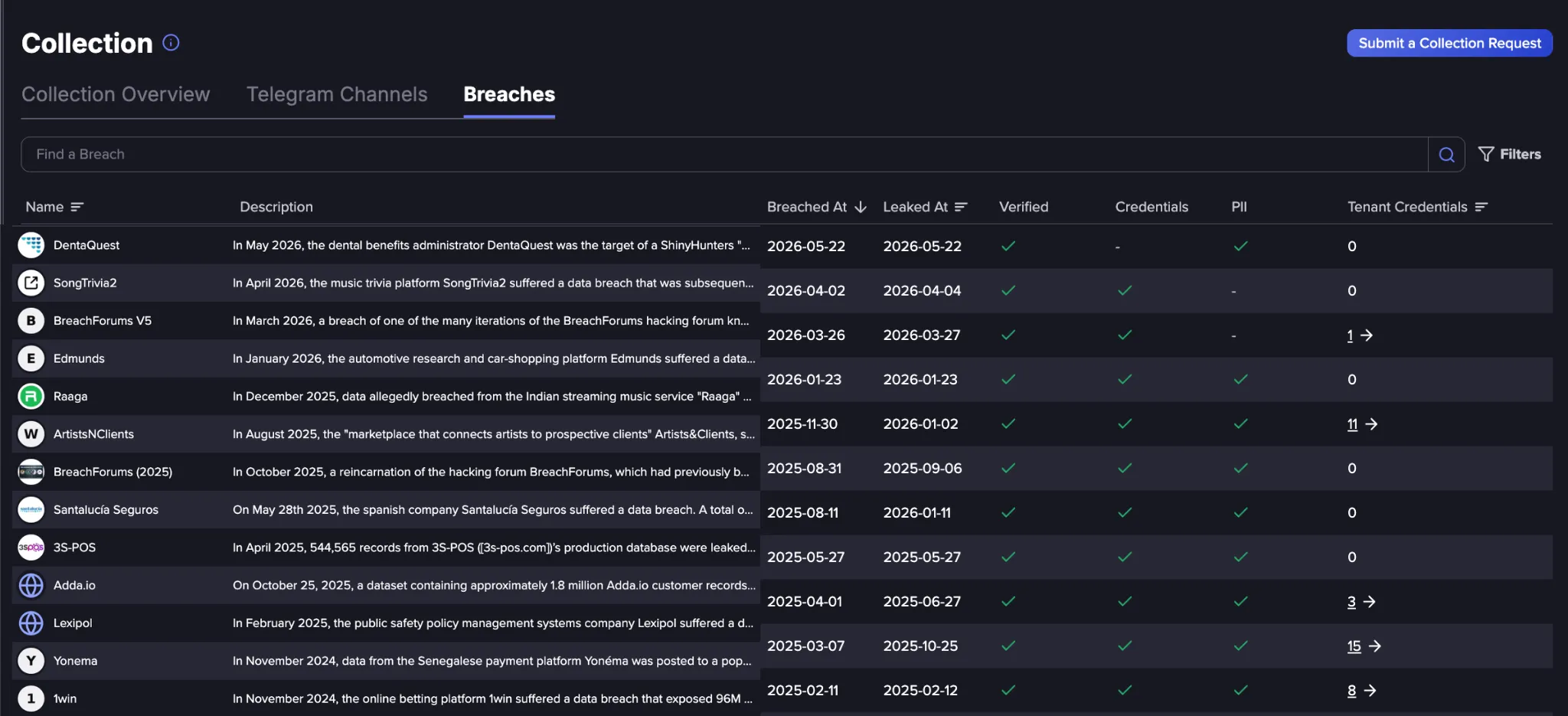
The Breaches Directory
The Breaches directory can be sorted by Name, Breached At and Leaked At dates, and Tenant Credentials count to narrow down results, and displays the following information:
- Name: The name of the breached service or platform.
- Description: A brief summary of the breach.
- Breached At: The date the breach is believed to have originally occurred (i.e., when the data was stolen).
- Leaked At: The date the stolen data was publicly leaked or made available. To find out more about the difference between the Breached At and Leaked At dates, refer to Event Date FieldsEvent Dates Field documentation .
- Verified: Indicates whether the breach has been confirmed as legitimate by trusted sources such as HaveIBeenPwned (HIBP) or included in official lists on dark web forums. The data is believed to be real and poses a more likely risk to your organization. Unverified breaches have not been confirmed and may contain inaccurate data, though they could still be legitimate.
- Credentials: Indicates whether the breach contains credential data such as usernames, passwords, or emails.
- PII: The PII column indicates whether the breach contains personally identifiable information other than credentials. This might include physical addresses, phone numbers, medical data, or other personal details.
- Tenant Credentials: The number of credentials within that breach that match Identifiers within your Tenant. A value of 0 means no matches were found for your tenant. Click on the credentials count to view them in the Credentials Browser.
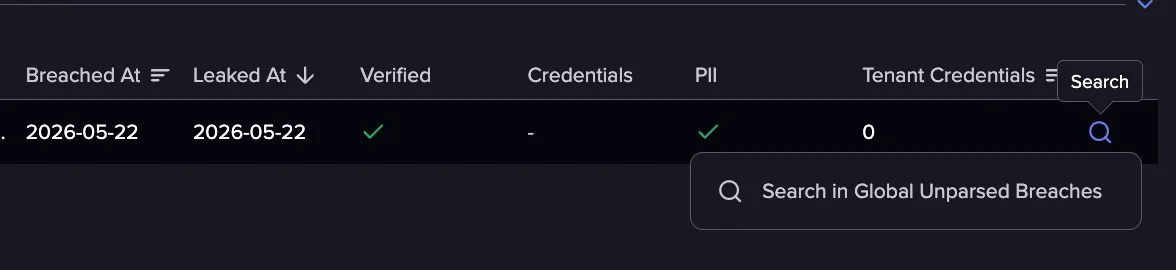
- Search for Unparsed Breaches: For breaches without credentials (unparsed leaksunparsed breaches), you can navigate directly to the related Event in the Global Event feed. Hover over a row to view the Search option which takes you directly to the corresponding unparsed leak. Note that this option is only available for breaches without credentials since breaches with credentials appear in the Credentials Browser and as Leaked Credentials Events instead.
Viewing Breach Details
Clicking on any row in the Breaches directory opens a Leak Details panel, which provides additional information about the selected breach.
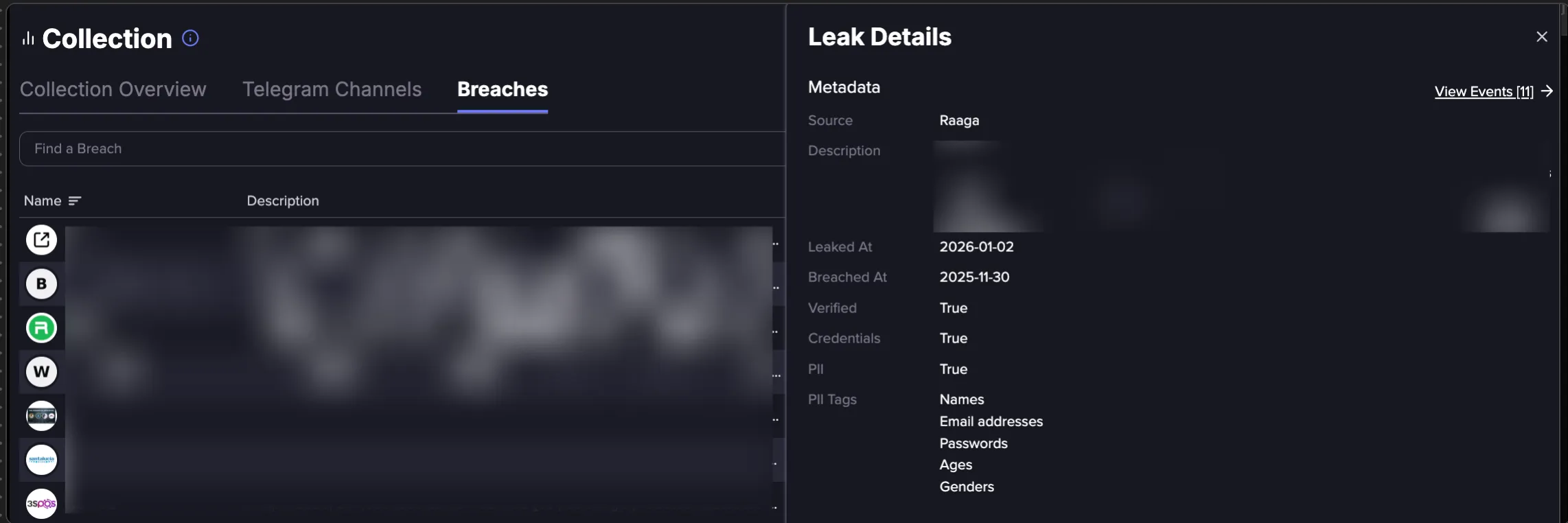
The panel displays the following additional metadata:
- Description: A full description of the breach, including how it occurred, what data was exposed, and any relevant context around how the leak became public.
- PII Tags: A list of the types of PII exposed in the breach. This includes any information other than passwords, usernames or email addresses, such as phone numbers, medical data, or other personal details.
- View Events: Similar to the Tenant Credentials column, the View Events link also opens any matching events in the Credentials Browser.
Searching and Filtering
The Breaches directory includes a search bar that allows you to quickly find a specific breach by name.
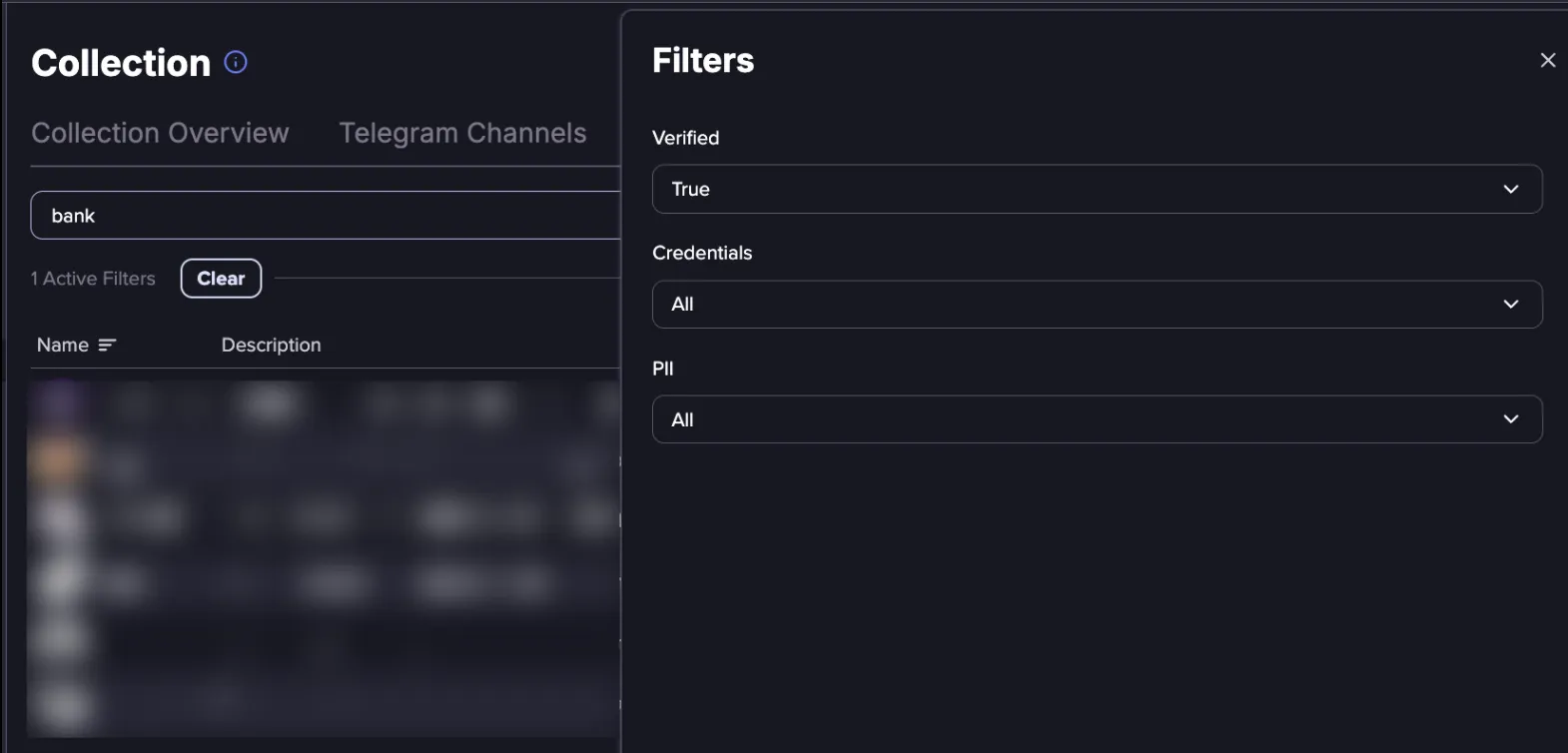
The directory can be also filtered by the following fields:
- Verified: Filter breaches by their verification status. Setting this to True shows only breaches that have been confirmed as legitimate by trusted sources. Setting this to False shows only unverified breaches whose legitimacy has not been confirmed. Note: A breach is considered verified when it has been confirmed as legitimate by trusted sources such as HaveIBeenPwned (HIBP) or included in official lists on dark web forums.
- Credentials: Filter breaches by whether they contain credential data. Setting this to True shows only breaches where Flare has ingested credential data (emails, usernames, and passwords). Setting this to False shows only breaches where no credential data was exposed, though these may still contain other personal information such as physical addresses or phone numbers.
- PII: Filter breaches by whether they contain personally identifiable information. Setting this to True shows only breaches that contain PII beyond credentials, such as physical addresses, phone numbers, or other personal details. Setting this to False shows only breaches with no PII.
Sharing your filtered view
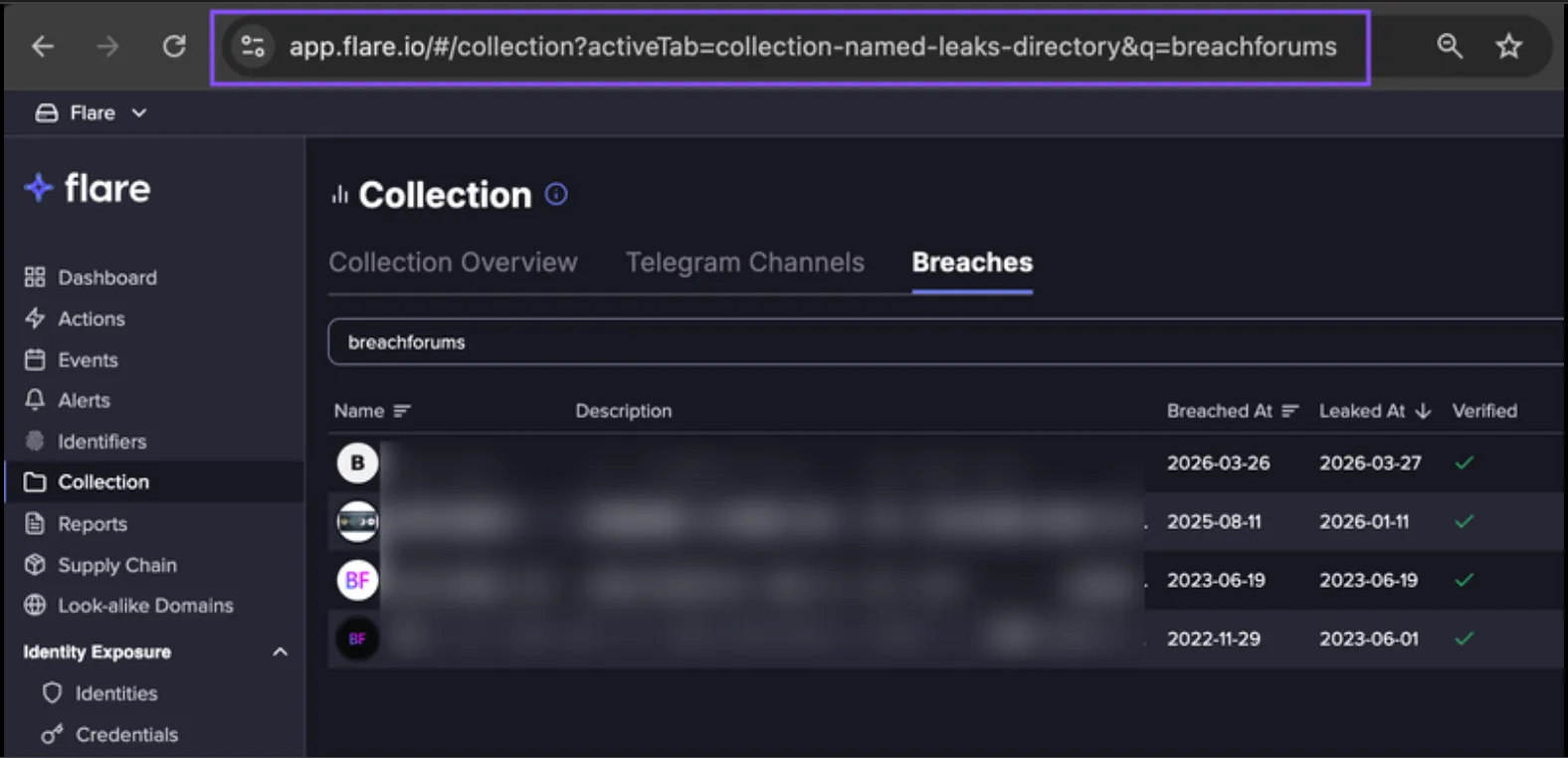
Once you have applied your desired search terms or filters, the URL in your browser automatically updates to reflect your current view. You can copy and share this URL to give others a direct link to the same results without them needing to manually recreate the same view.
How Does Filtering Work?
The Verified, Credentials, and PII filters can be combined to narrow down results in the Breaches directory. The table below shows some common filter combinations and the results they return.
Verified | Credentials | PII | Results shown |
|---|---|---|---|
All | All | All | All breaches |
True | All | All | All verified breaches |
False | All | All | All unverified breaches |
All | True | All | Breaches with credentials |
True | True | All | Verified breaches with credentials |
True | False | True | Verified breaches without credentials but with PII |
False | True | All | Unverified breaches with credentials |
Click Clear to remove any applied filters and return to the full list of breaches. This will reset all active filters and restore the default view of the Breaches directory.