Leaked Credentials Event Category
As Flare collects data from various sources, leaked credentials are continuously extracted from ingested documents and indexed in two places: the Tenant feede and the Credentials BrowserCredentials Browser. Any leaked credentials that match your configured Identifiers are automatically added to your Tenant feed, enabling you to actively monitor for exposures directly affecting your organization.
How They Work
Each newly detected credential that matches your Identifiers appears as its own individual card in the Events feed as soon as it is detected.
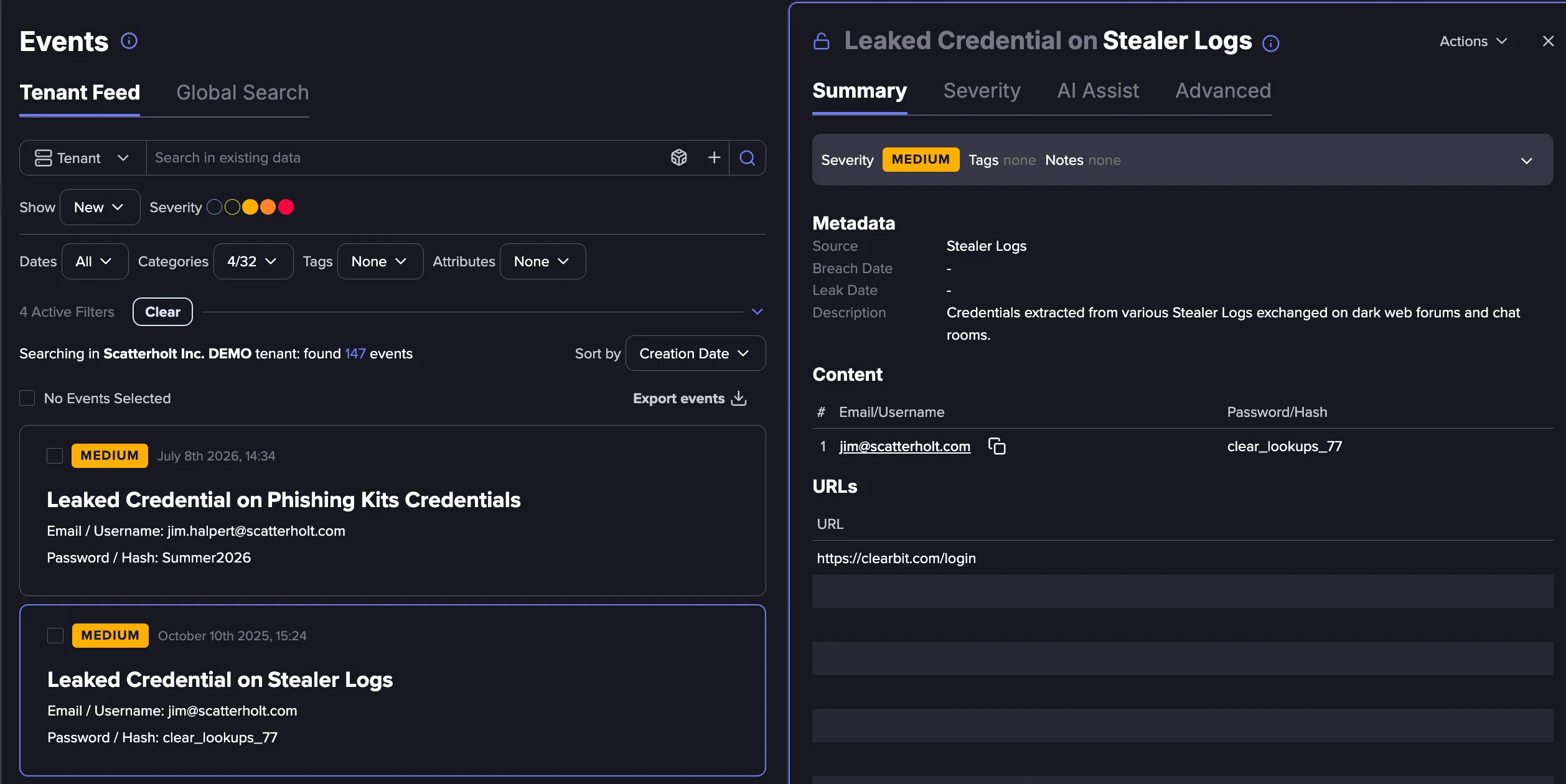
Newly detected credentials appear instantly in both the Tenant feed and the Credentials BrowserCredentials Browser. The number of leaked credential events in your Tenant feed will always match the count shown in the Credentials Browser and the dashboard.
Credential validation can be triggered manually from the Credentials Browser or run automatically. Each validation check generates an Event, creating an audit trail of when validation occurred and what the result was.
Event Categories
Leaked Credential Events are grouped into four categories based on their validation status:
Event Category | Description |
|---|---|
All Credentials | All leaked credentials discovered by Flare. |
Valid Credentials | Credentials confirmed to have a correct leaked password. |
Invalid Credentials | Credentials confirmed to have an incorrect leaked password. |
Mitigated Credentials | Credentials confirmed to have a correct password, but where mitigation actions have since been taken. |
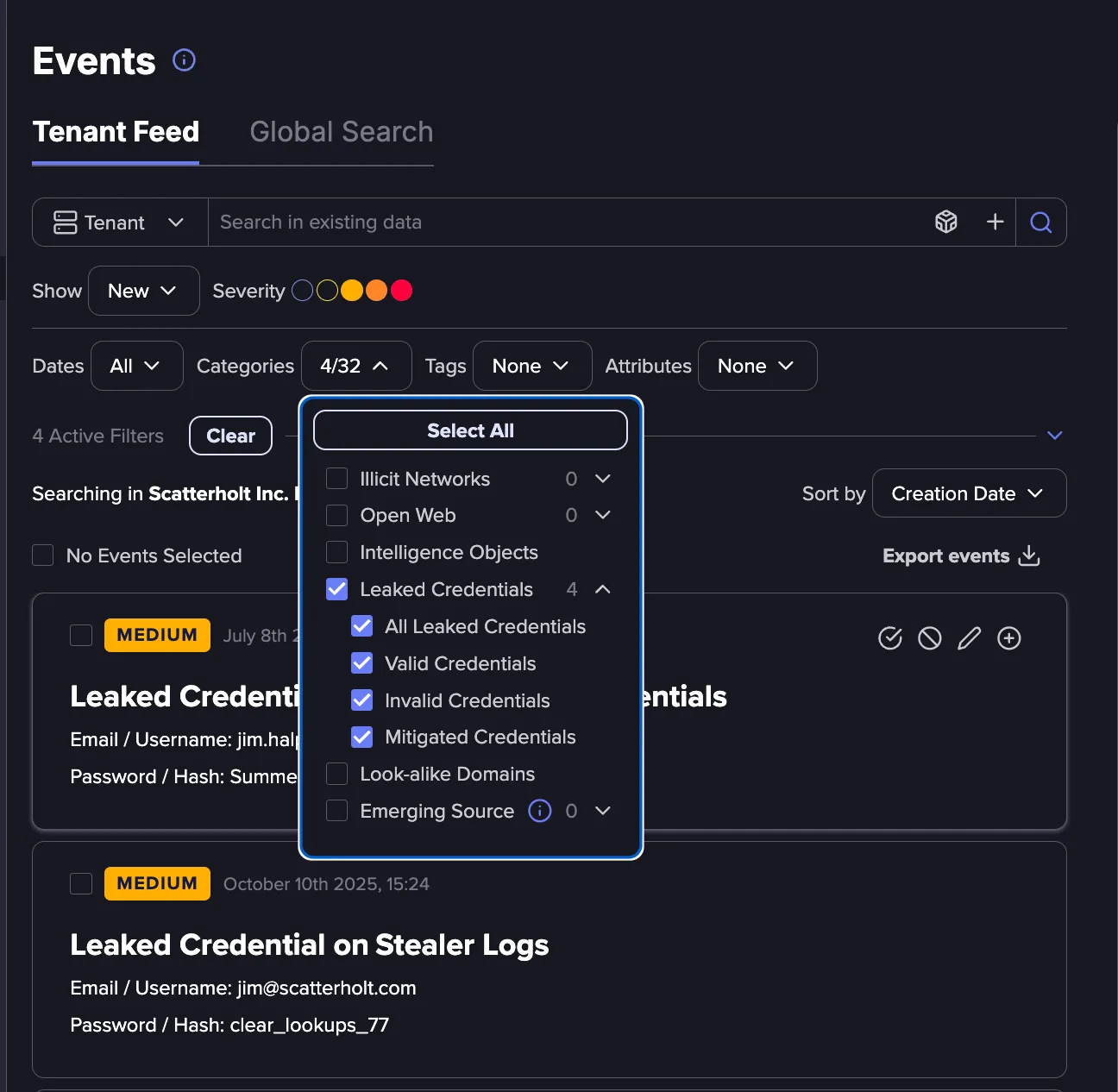
Alerts can be created Alert CentralAlerts based on specific Event categories, allowing your team to prioritize and respond to confirmed active exposures more efficiently.
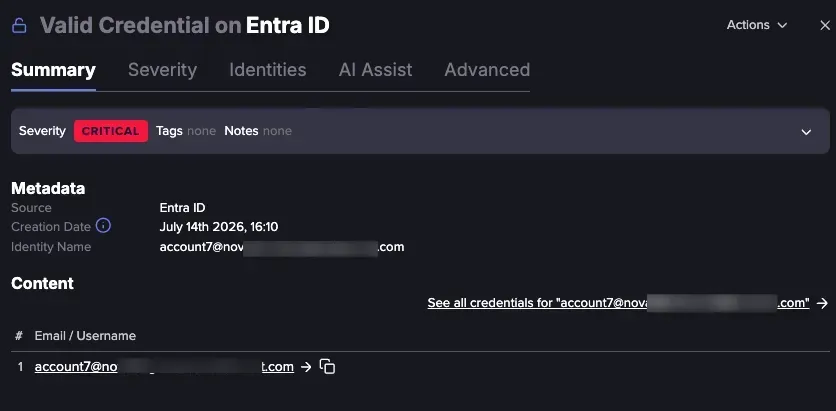
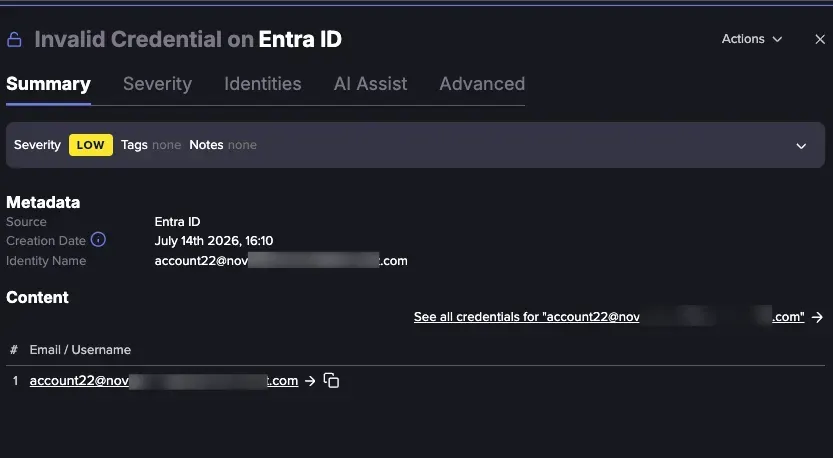
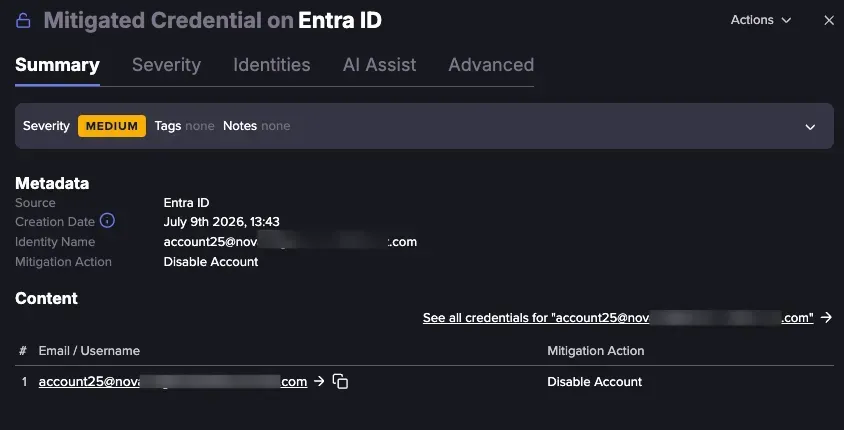
Each Leaked Credential Event includes the following details, depending on its category:
- Event title and source: Displays the event type and the source where the credential was found.
- Severity: Displayed as a badge at the top of the Summary tab and indicates the urgency of the Event.
- Creation date: The date and time the Event was created. Use this to correlate the event with your own sign-in logs to see activity around the same time.
- Identity name: The affected identity or email address.
- See all credentials: Located in the Content section. Select this link to open the Credentials Browser and view all credentials associated with that identity.
- Identity profile: The affected identity. Select the email address under the Email / Username column in the Content section to navigate directly to the Identity profile.
- Mitigation action: For mitigated events, the action taken is also displayed.
Here is a snapshot of the information that each Leaked Credentials Event displays:
Remediating and Ignoring Events
To remediate or ignore an Event, expand the Actions menu in the top right of the event card and select the required option.
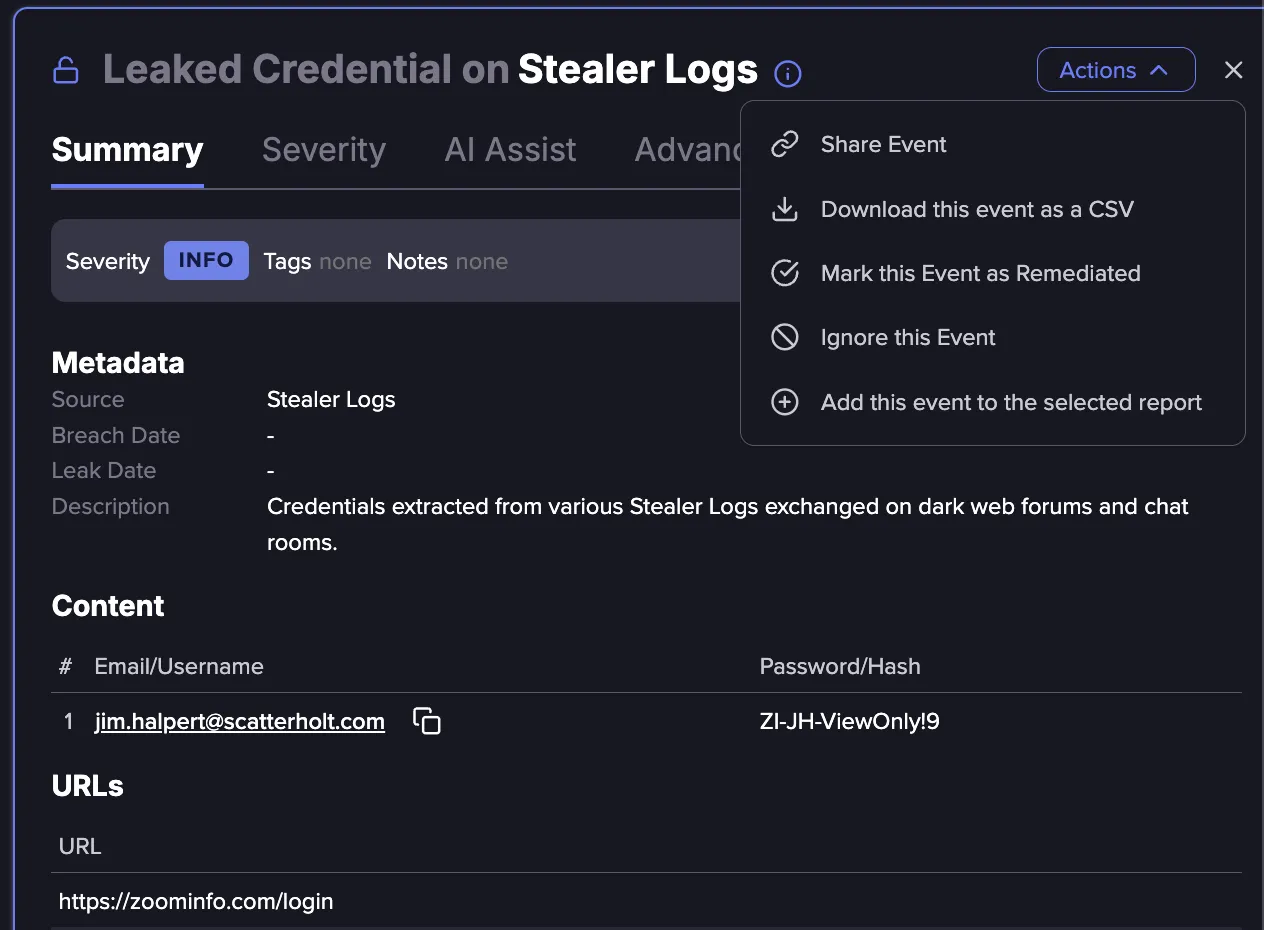
Remediation and Ignore statuses for Events are synchronized between the Tenant feed and the Credentials Browser:
- Remediating a Leaked Credential Event in the feed will remediate the corresponding credential pair in the Credentials Browser, and vice versa.
- Remediating a credential pair will also automatically remediate future credentials with the same username/password combination.
- Ignoring a Leaked Credential Event will ignore all credential pairs associated with the same email address or username.
Configuring Alerts
Alerts can be configured for any Credential Event category, allowing your team to act at each stage of the validation process. For example, you can create an Alertcreate an Alert when a credential is confirmed valid, and a separate alert when a mitigation action has been completed.
Even though credential events appear in the tenant feed instantly, alerts are triggered on an hourly cadence, even when configured to send as soon as possible. Each alert message includes all events added to the feed during that time window.
Even though leaked credential events appear in the Tenant feed instantly, Alerts are triggered on an hourly cadence, even when configured to send as soon as possible. Each alert message includes all individual events added to the feed during that time window.
Alerts never include password values, regardless of tenant permissions. This applies to email alerts and all other notification channel types.
Searching Leaked Credentials in Global Search
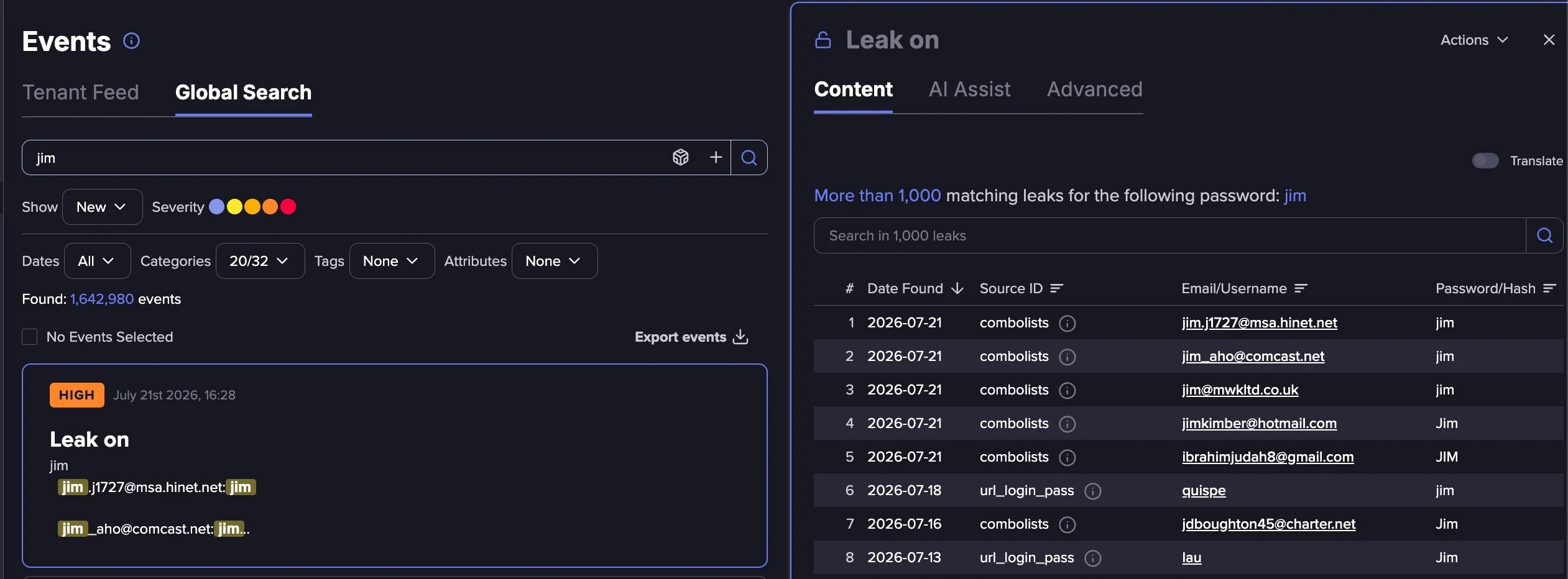
Searching for leaked credentials in Global Search generates a grouped card for results. Note that Global Search results are capped at 1,000 credentials per card.
For broader searches without this limitation, use the Credentials BrowserCredentials Browser, which supports unrestricted searching and exploration of leaked credentials.
Filter Events Using Password Attributes
Leaked credential Events can be filtered by a set of password attributes that describe the leaked password, including its length and the counts of lowercase, uppercase, numeric, and special characters. These attributes are available when searching for Events in the Events feed or Global Search and in matching policies.
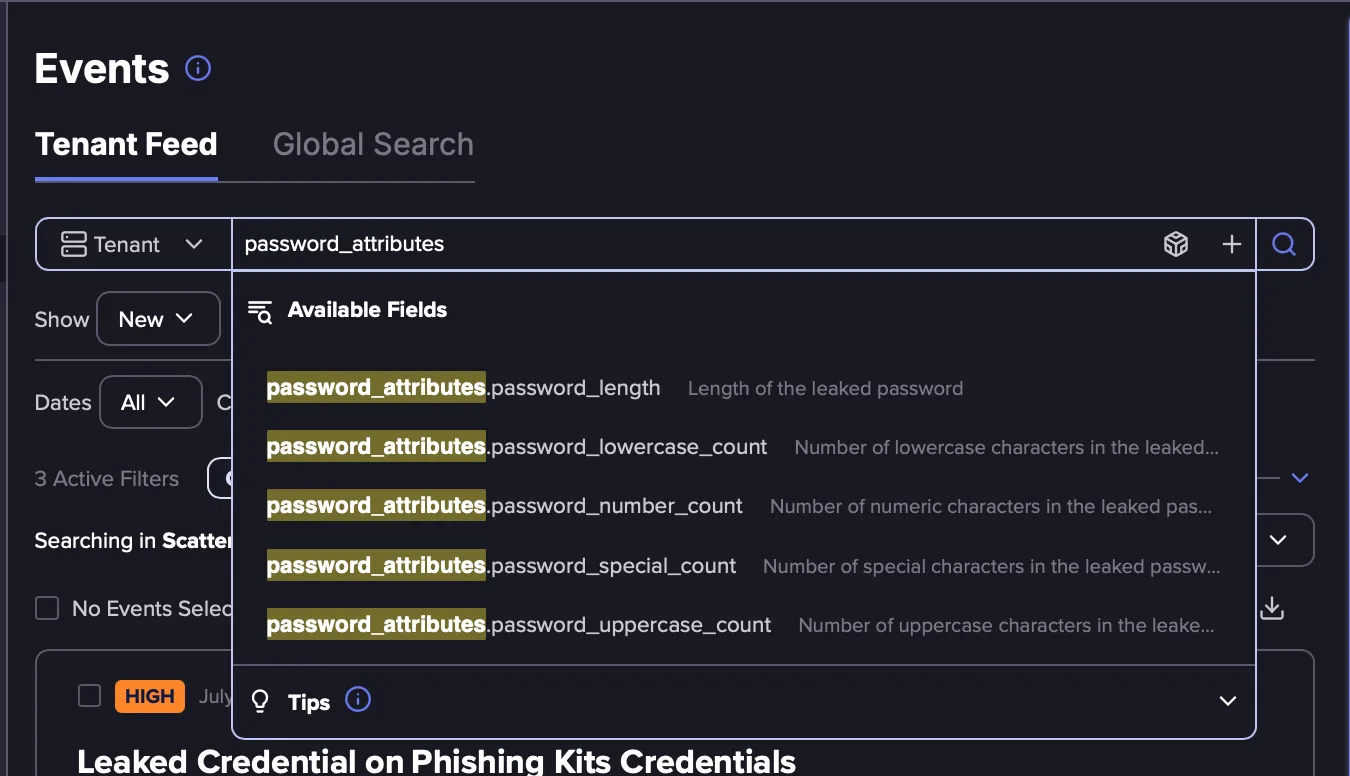
Here are the available password attributes:
Looking for | Search |
|---|---|
Passwords shorter than 10 characters | password_attributes.password_length:<10 |
Passwords with no lowercase letters | password_attributes.password_lowercase_count:0 |
Passwords with no uppercase letters | password_attributes.password_uppercase_count:0 |
Passwords with no numbers | password_attributes.password_number_count:0 |
Passwords with no special characters | password_attributes.password_special_count:0 |
Passwords meeting a full policy (10+ characters, 1+ number, 1+ special) | password_attributes.password_length:>=10
AND password_attributes.password_number_count:>=1 AND password_attributes.password_special_count:>=1 |