Intel
The Intel tab in Threat Flow gathers all of your intelligence in one place, where you can review the latest reports from Flare, create your own, and download any of them for further research.
There are two types of Intel:
Flare Intel
Available to all Flare customers, Flare Intel covers specific themes and industry verticals. It is vetted, updated, and published by Flare's analysts, with new Intel released almost every day.
Custom Intel
Custom Intel lets you build your own intelligence from ongoing conversations on the dark web, scoped to what matters to your organization.
Access to Custom Intel requires an add-on. Please reach out to your CSM for more information.
Click through the following product tour to learn how to regularly receive intelligence relevant to your organization.
Receiving Flare Intel
You can stay up to date on Flare Intel in two ways, depending on whether you prefer to check in yourself or have updates delivered to you:
- Check the Intel tab in Threat Flow for the latest reports.
- Subscribe to the Flare Intel newsletter by clicking Configure Flare Intel.
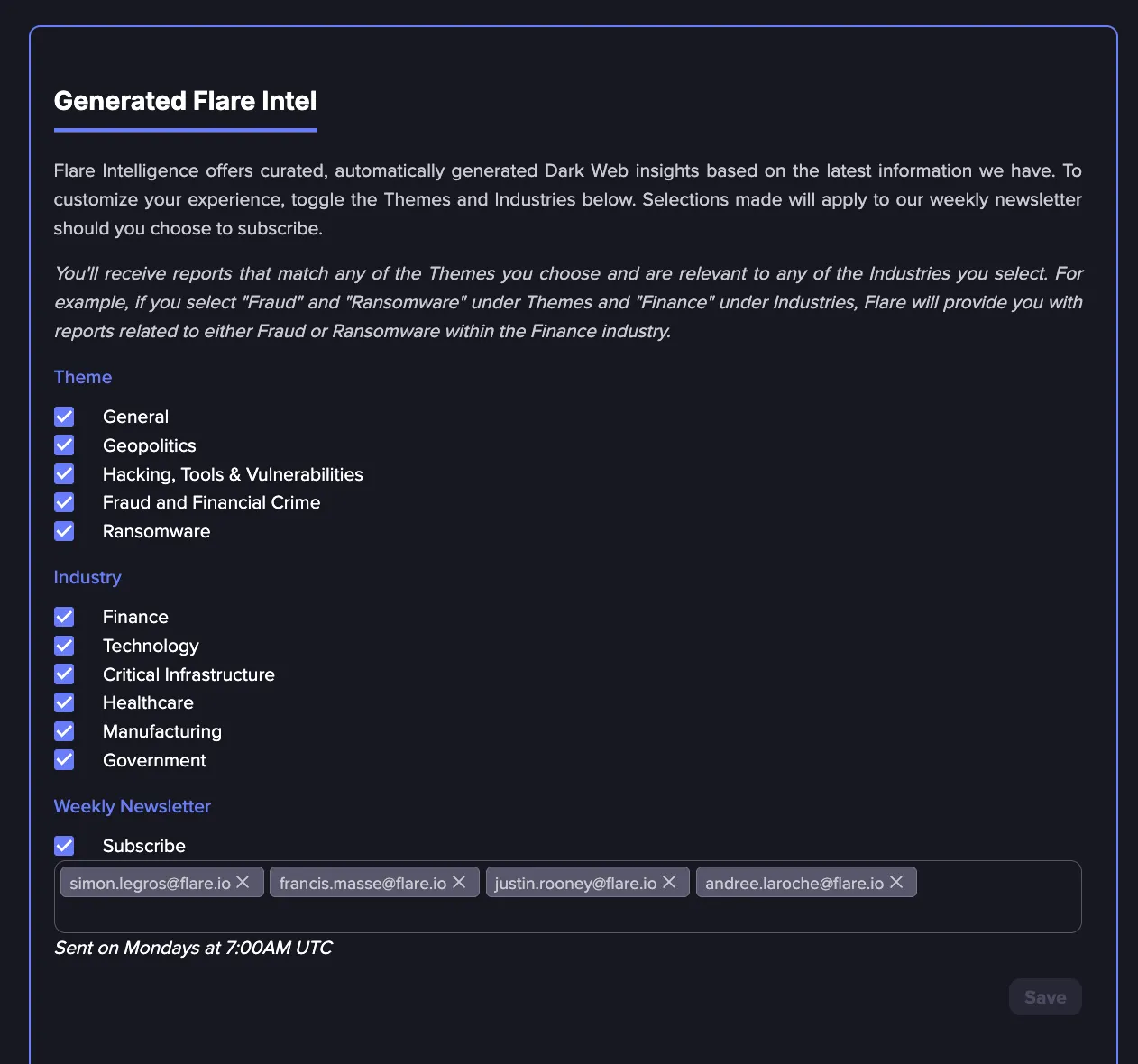
Here you can choose the themes and industries you are interested in and configure which addresses the newsletter is sent to. There is no limit to how many you can add.
Newsletters are sent every Monday at 7:00AM UTC
Receiving Custom Intel
Custom Intel lets you build your own intelligence from ongoing conversations on the dark web, scoped to what matters to your organization. Follow these steps to create a custom intelligence report:
From Threat Flow, view the Intel tab.
Click Create Custom Intel and describe the intelligence you are looking for. See Custom Intel Prompt guideCustom Intel Prompt Guide for best practices and examples.
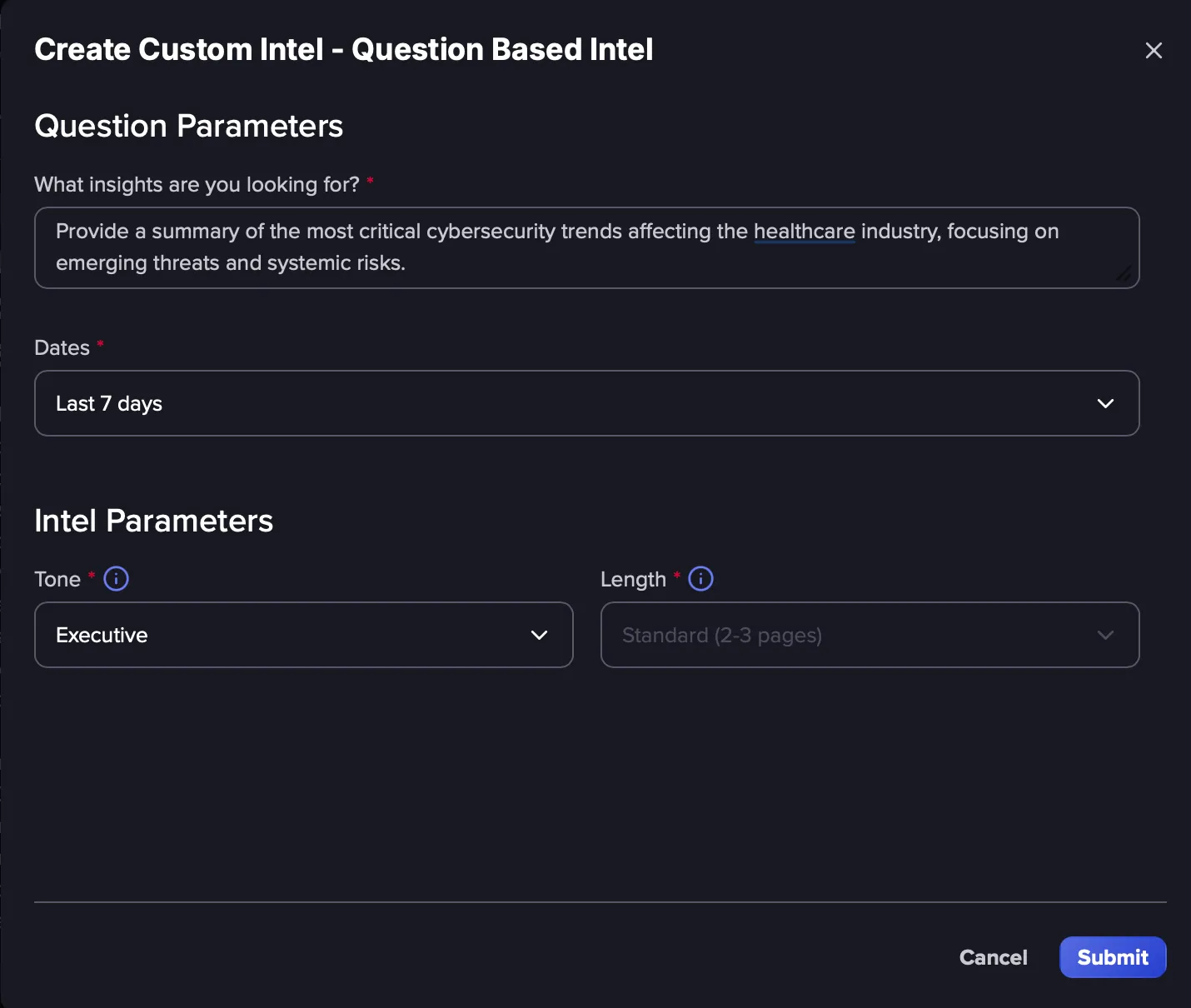
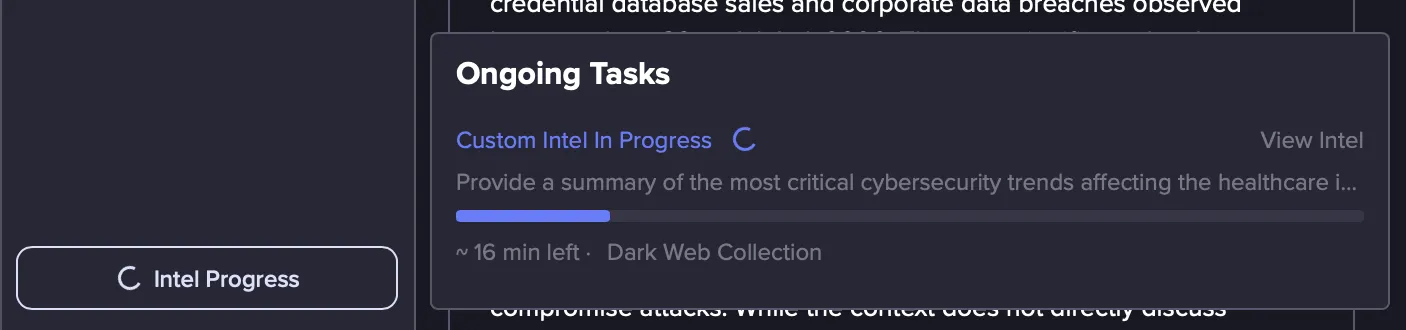
Click Submit. Flare generates the report in a few minutes and shows an estimate of how long it will take to compile.
Custom Intel Prompt Guide
The quality of a Custom Intel report depends on the prompt behind it. Use these ready-to-use prompts to get started, organized by use case. Pick a category, replace the text in brackets with your own details, and run the prompt.
Tips for better results
- Be specific. Combine industry, country, and time frame, for example: Ransomware in healthcare in the UK in the last 90 days.
- Ask for references. Add "Provide references where possible" to the end of a prompt.
- Set a time window, such as "in the last 7, 30, or 90 days" or "in [MONTH] [YEAR]."
- Automate your monitoring. Reuse recurring prompts daily or weekly for continuous coverage.
Sharing Custom Intel
To share Custom Intel, download it and send it to the relevant stakeholders:
In the Intel tab, select the Custom Intel report you want to share. It opens in the details pane on the right.
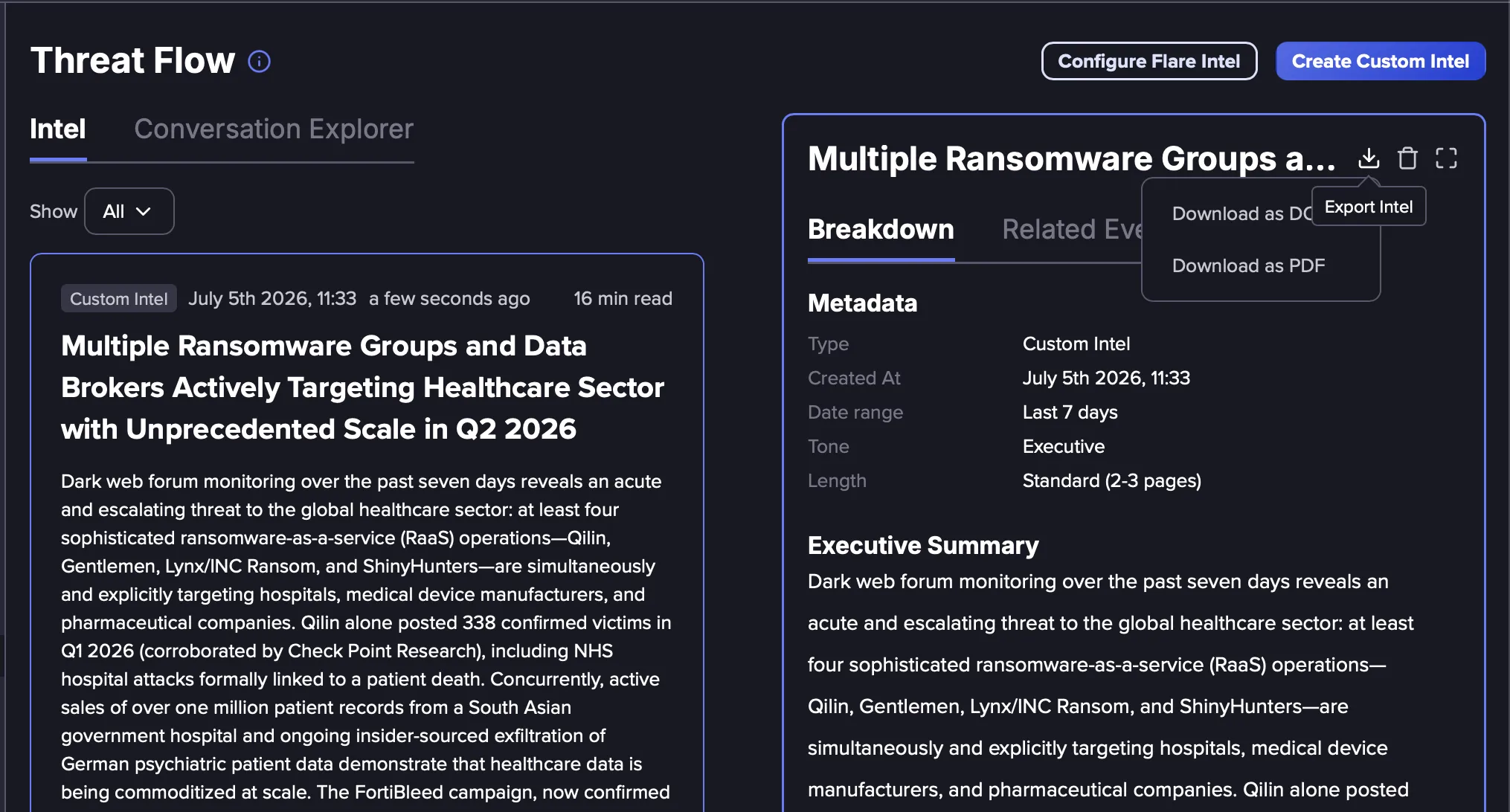
Click the Export Intel icon in the top right of the report.
Choose Download as DOCX or Download as PDF to download and share the report.