Tenants
A Tenant functions as a workspace, enabling users within an organization to collaborate and share identifiers seamlessly. By default, each organization is equipped with a single shared Tenant that includes all its users.
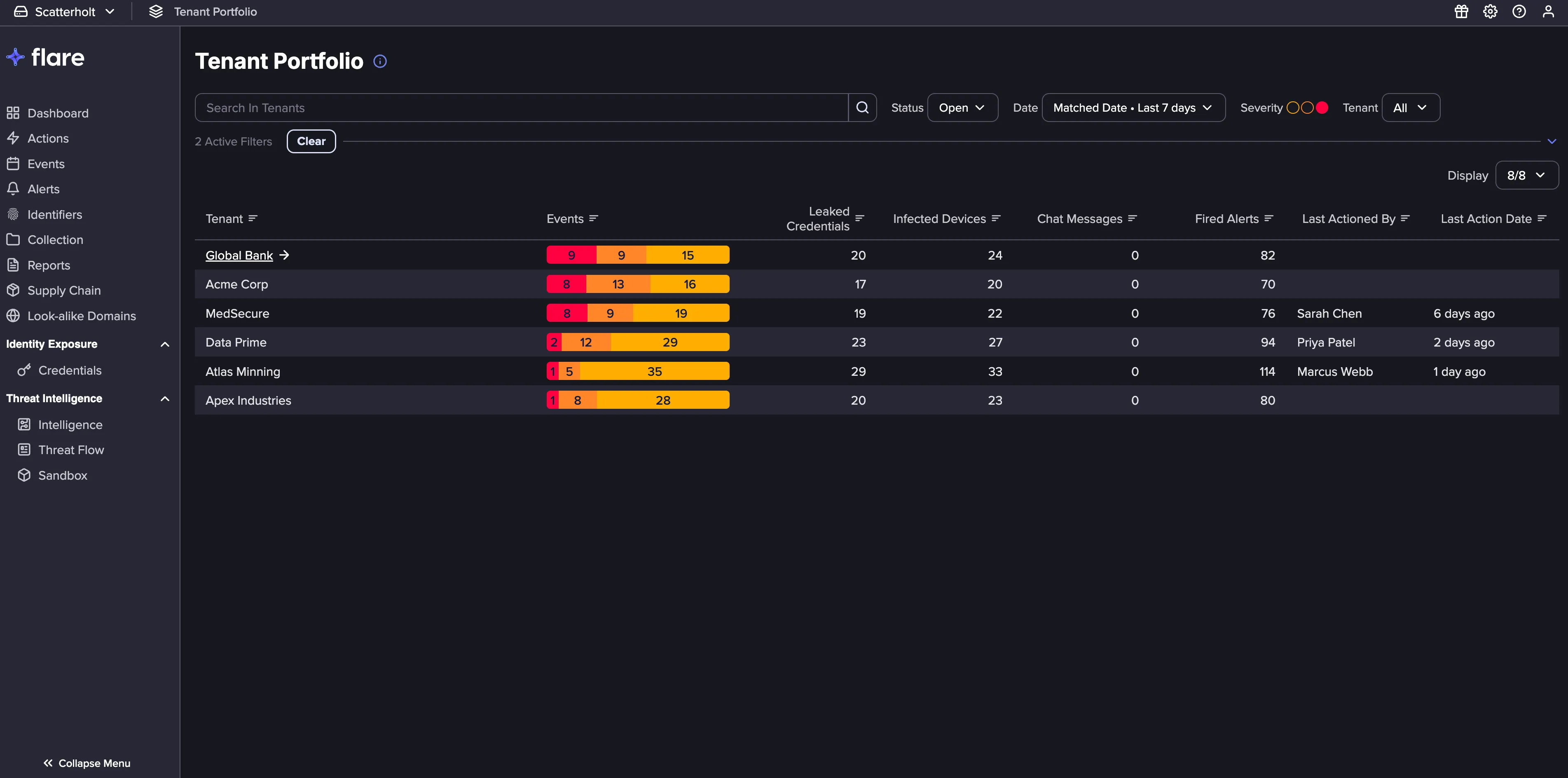
You can view all Tenants in your organization using the Tenant PortfolioTenant Portfolio accessible from the top navigation menu.
Create a Tenant
Following theses steps to create a Tenant:
Navigate to the Settings menu in the top-right corner, and then click Tenant.
Click New Tenant to create a new Tenant.
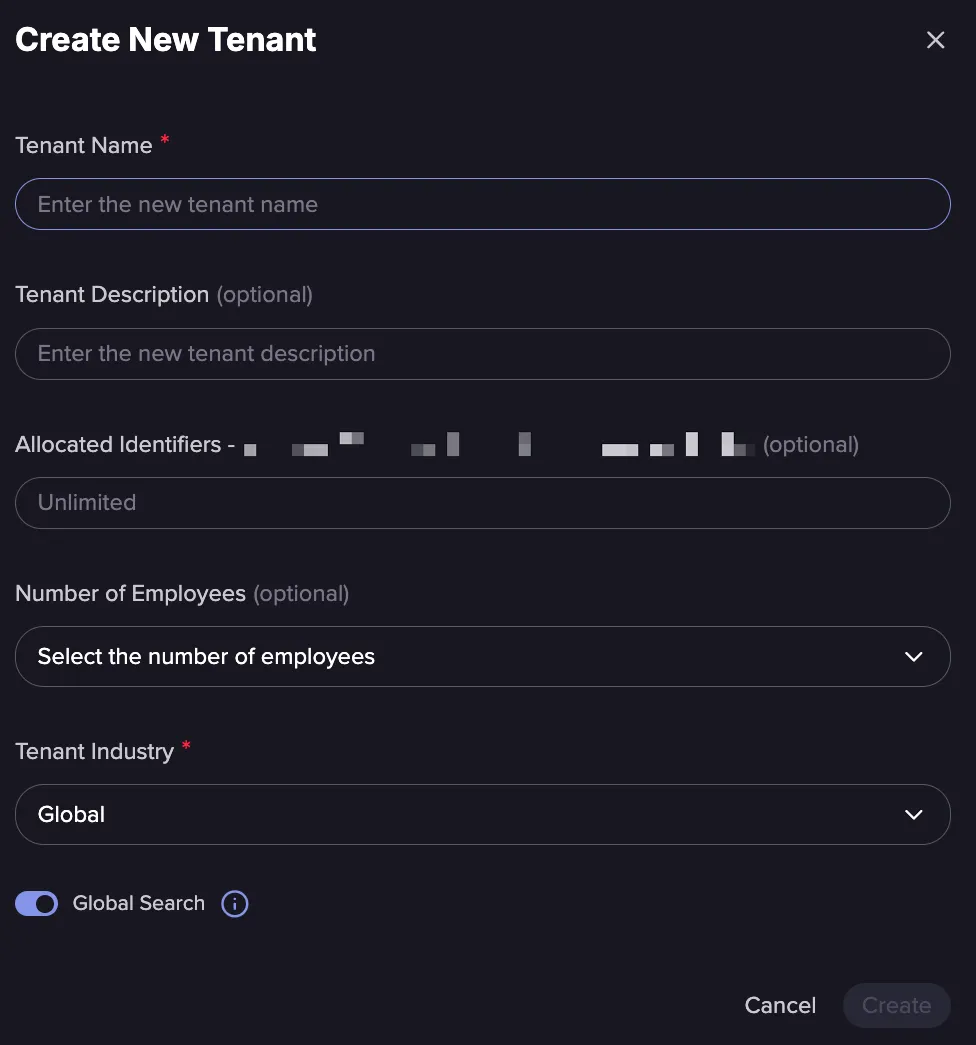
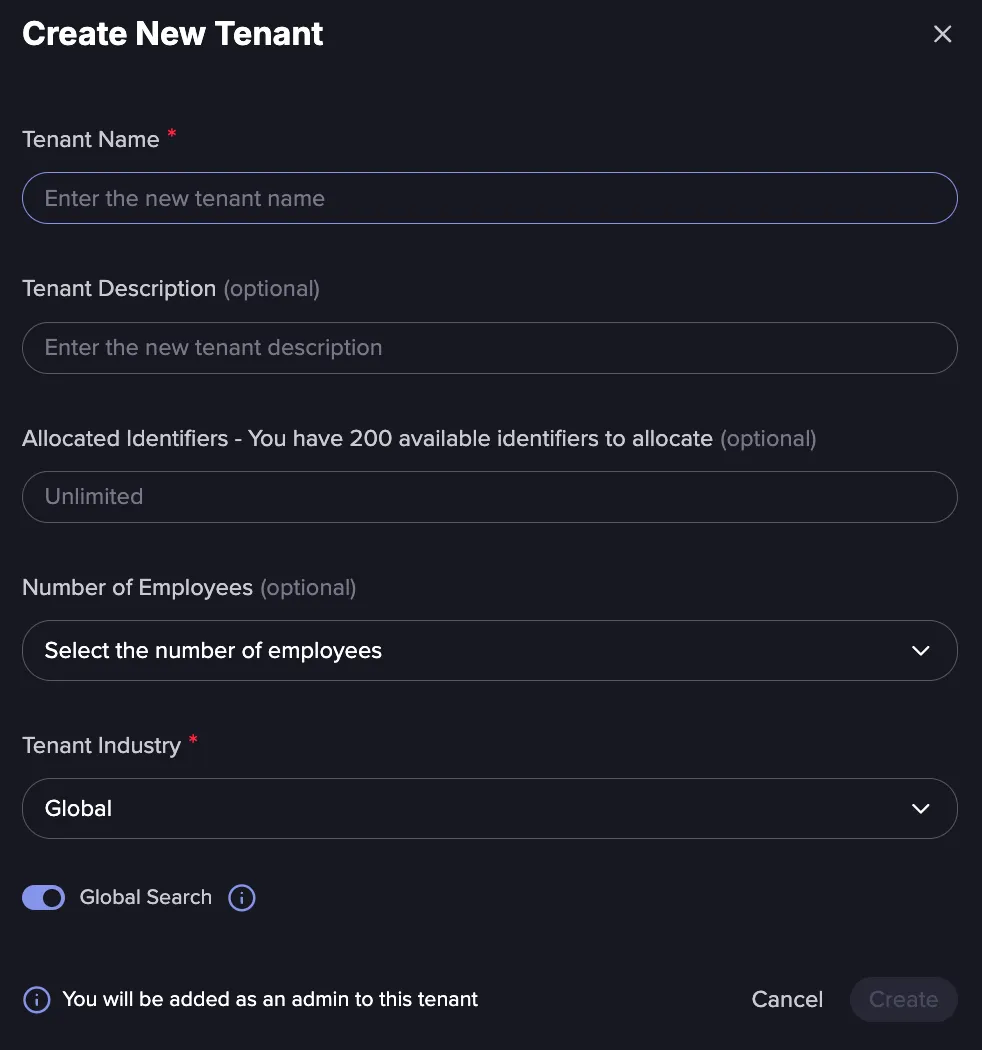
Provide the name of the Tenant and other information, and click Create.
Identifiers shared inside Tenants have no owners and no restrictions on editing or deletion.
Edit a Tenant
Follow these steps to edit a Tenant:
Navigate to the Settings menu in the top-right corner, and then click Tenant.
Search for the Tenant you want to edit.
click on the Edit Tenant to make the necessary modifications.
Edit Global Search Access by Tenant
Select the Tenant for which you want to configure global search settings.
Locate the Global Search Access toggle and enable or disable it as needed.
- Enable: Allows users within the Tenant to perform global searches.
- Disable: Prevents users from accessing global search functionality.

Search or Switch between Tenants
Follow these steps to search or switch between Tenants:
Access the Tenant navigator from the top-left of the screen.
Click on the current Tenant's dropdown menu, and choose a different Tenant.
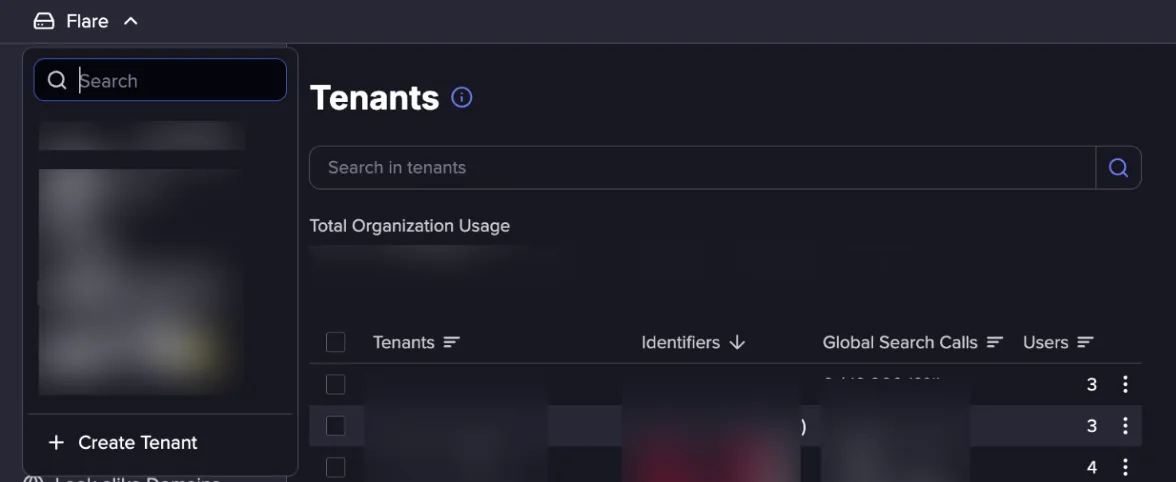
You can also use the Search bar to search for a Tenant.
To create a new Tenant, click the Create Tenant option.
Delete a Tenant
Follow these steps to delete a Tenant:
Navigate to the Settings menu in the top-right corner, and then click Tenant.
Click on the 3 dots menu for the Tenant you want to delete and Confirm the action.
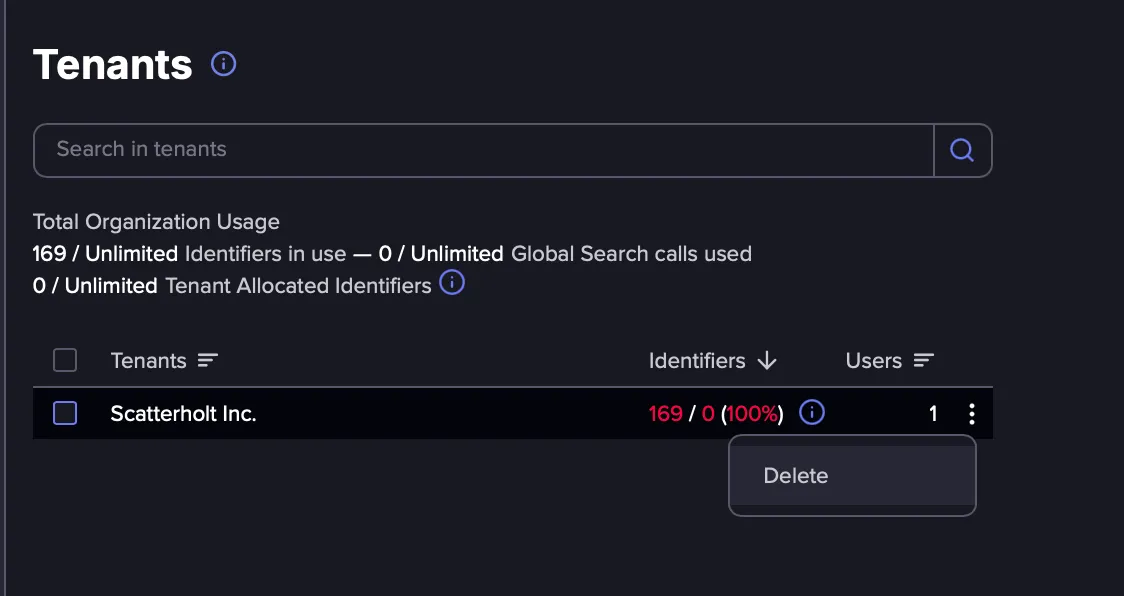
Allocated vs Used Identifiers
Allocated identifiers represent the number of identifiers an organization has assigned or reserved for its Tenants. They’re used for planning and distribution purposes and can exceed the organization’s total limit. However, allocating identifiers does not allow additional identifiers to be created or activated beyond the organization’s usage limit.
Tenants with no assigned allocation will automatically use the available identifiers assigned to your organization as a whole. To allocate identifiers, you can create a new Tenant or edit an existing one and adjust its allocation.
Used identifiers, on the other hand, represent the number of identifiers that have actually been created and are active within the platform. This count reflects real consumption of the organization’s quota and is strictly governed by the organization’s plan limit. Once the number of used identifiers reaches the organization’s limit, you can always reach out to your Customer Succes Manager