Matching Policies to Filter Events
Identifier Matching Policies control which events appear in an Identifier's feed and which are filtered out. There are four policy types for filtering events:
- Included Keyword: Shows only events that contain at least one of the specified keywords.
- Excluded Keyword: Removes events that contain at least one of the specified keywords.
- Lucene Query: Shows only events that match a Lucene search query.
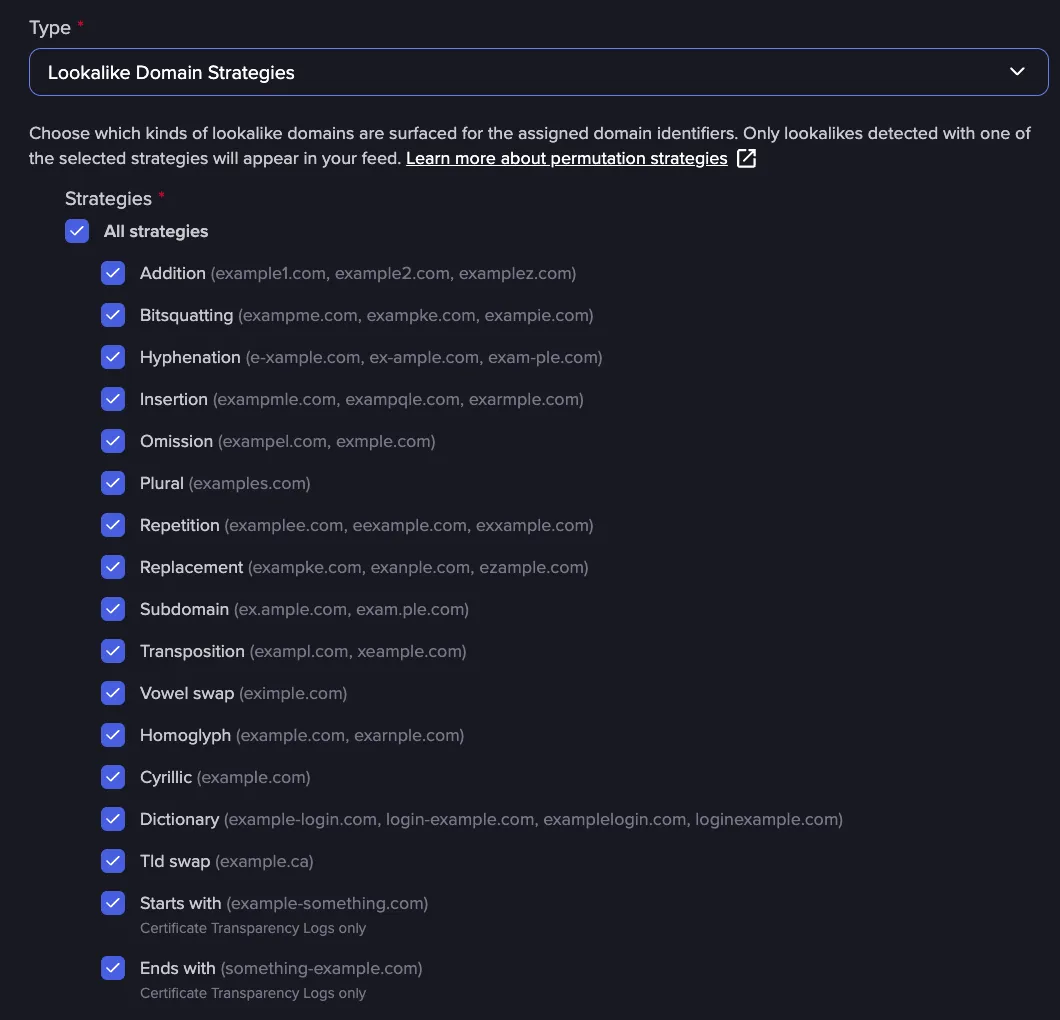
- Lookalike Domain Strategies: Shows only lookalike domains detected with the selected permutation strategies. (Coming soon)
Combine policies on an Identifier to keep its feed focused on the events relevant to you.
Up to 10 Matching Policies can be assigned to an Identifier.
An Included Keyword policy ensures that only events containing at least one of the specified keywords appear in the identifier's feed.
How it works: When you use an Included Keyword policy with keywords like product-x and product-y, the Identifier's feed will only return events that mention at least one of those terms. Everything else is filtered out.
In Lucene query terms, this is equivalent to: AND (product-x OR product-y)
Configuration: Add one or more keywords when creating the policy. Each policy supports multiple comma-separated keywords, up to a maximum of 50.
When to use:
- You monitor a broad domain identifier but only care about events that mention a specific product name, geography, or business unit
- Your identifier for a company name matches many unrelated mentions; adding included keywords like a product name or executive name narrows the results to what is relevant
Important: An Included Keyword policy is restrictive by design. If none of the specified keywords appear in an event, that event will not show in the feed. Be deliberate about which keywords you include to avoid filtering out legitimate results.
Matching Policies and Subdomains
- Matching Policies assigned to a domain Identifier do not inherit down to its subdomain Identifiers. Each subdomain Identifier must have its own policies configured.
- A Matching Policy can be assigned to one or multiple subdomain Identifiers, either when editing an Identifier directly or from the Matching Policies list view.
Create a Matching Policy
There are two ways to create a Matching Policy for an Identifier:
- Create the policy from the Policies menu.
- Create the Matching Policy from an Identifier's configuration.
Click-through the following product demo to learn how to create a Matching Policy.
Apply a Matching Policy to Past Events
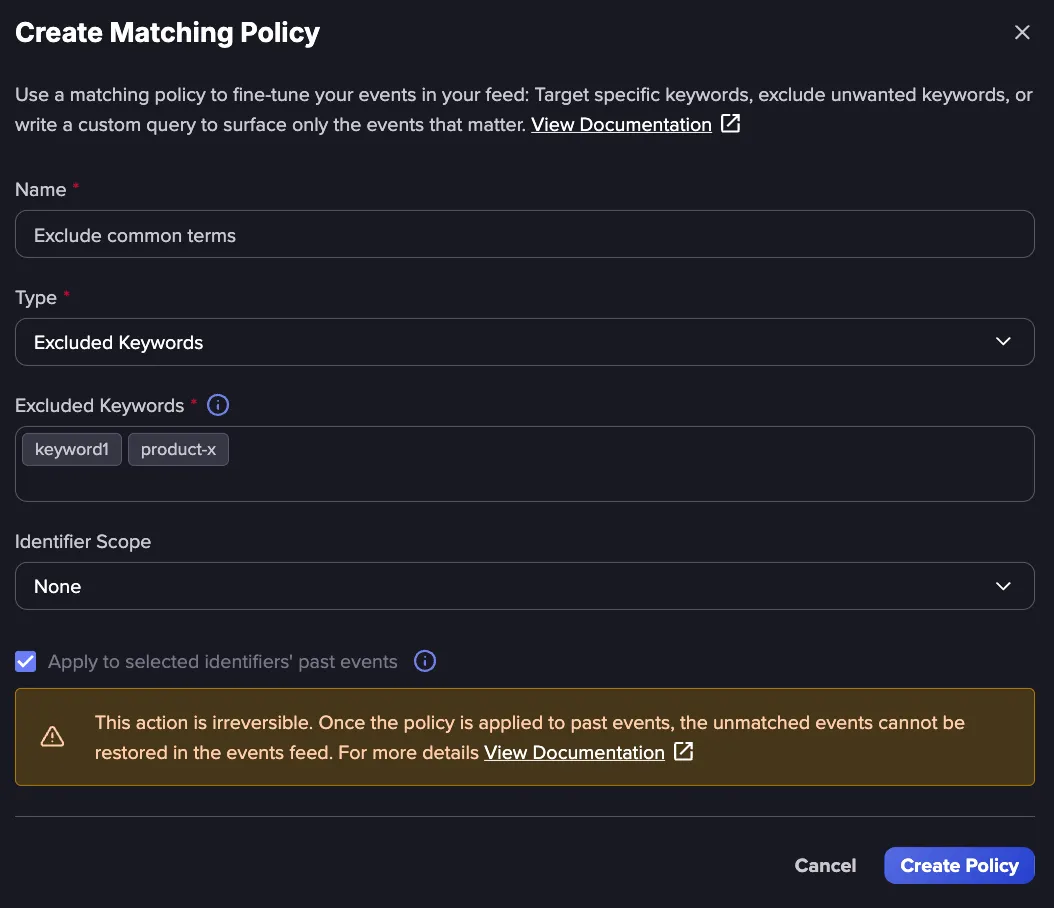
By default, a new Matching Policy applies only to events detected after it is assigned to an Identifier. To apply it to past events as well, select Apply to selected identifiers' past events when you create or edit a policy.
Processing time depends on the number of past events. Most policies are applied to past events in under an hour, but Identifiers with a large number of past events can take longer. If processing is not complete after 24 hours, please contact our Support team.
Caution: This action is irreversible. Once a policy is applied to past events, any events it filters out are removed from the Identifier's feed and cannot be restored.
Modify a Matching Policy
When you change the content of an existing Matching Policy:
- Existing events are re-evaluated. Only events that still match the updated policy are kept in the feed. Events that no longer match are discarded
- Future events are evaluated against the updated policy. New events collected going forward will be filtered according to the modified rules
This means changes take effect both retroactively (for events already in the feed) and prospectively (for new events).
Building Lucene Query Policies
The Lucene Query Policy type unlocks the full power of Flare's search syntax for Identifier-level filtering. Here are some examples showing how to construct queries for common filtering scenarios.
Best Practices for Building Lucene Query Policies
- Start broad, then refine. Begin with basic terms and add filters (date ranges, excluded terms, field-specific searches) incrementally to narrow results
- Use parentheses to group related terms and operators clearly
- Leverage date filters such as metadata.estimated_created_at and metadata.first_crawled_at to focus on relevant time windows
- Escape special characters. If searching for symbols like +, -, (, ), {, }, [, ], ^, ", ~, *, ?, :, or \, remember to escape them with \
- Be cautious with wildcards. Broad wildcards (*) can return very large result sets. Combine them with other terms to keep results manageable
- Test queries in the search bar first. Before applying a query as a Matching Policy, run it in Flare's tenant search to preview the results and confirm it returns the expected data