Infected Devices
This Infected Devices Event Category covers data from infostealer malware infections on end-user machines, appearing in two forms:
- Marketplace listings advertising access to compromised devices.
- Fully parsed stealer logs containing credentials, session tokens, cookies, and detailed device information.
It is one of the highest-signal sources in Flare for detecting compromised employees, customers, or corporate systems.
Infected Devices on Stealer Logs
Stealer logs are collections of data exfiltrated from a device infected with infostealer malware. A single stealer log can contain saved credentials, browser cookies, autofill data, and details about the infected device and the malware that compromised it. Each stealer log is ingested as an Infected Device event and appears in the Events feed under the Infected Devices category.
Viewing a Stealer Log
- From the left navigation menu, click Events.
- Filter on the Infected Devices sub-category to view all stealer logs that matched to your Identifiers.
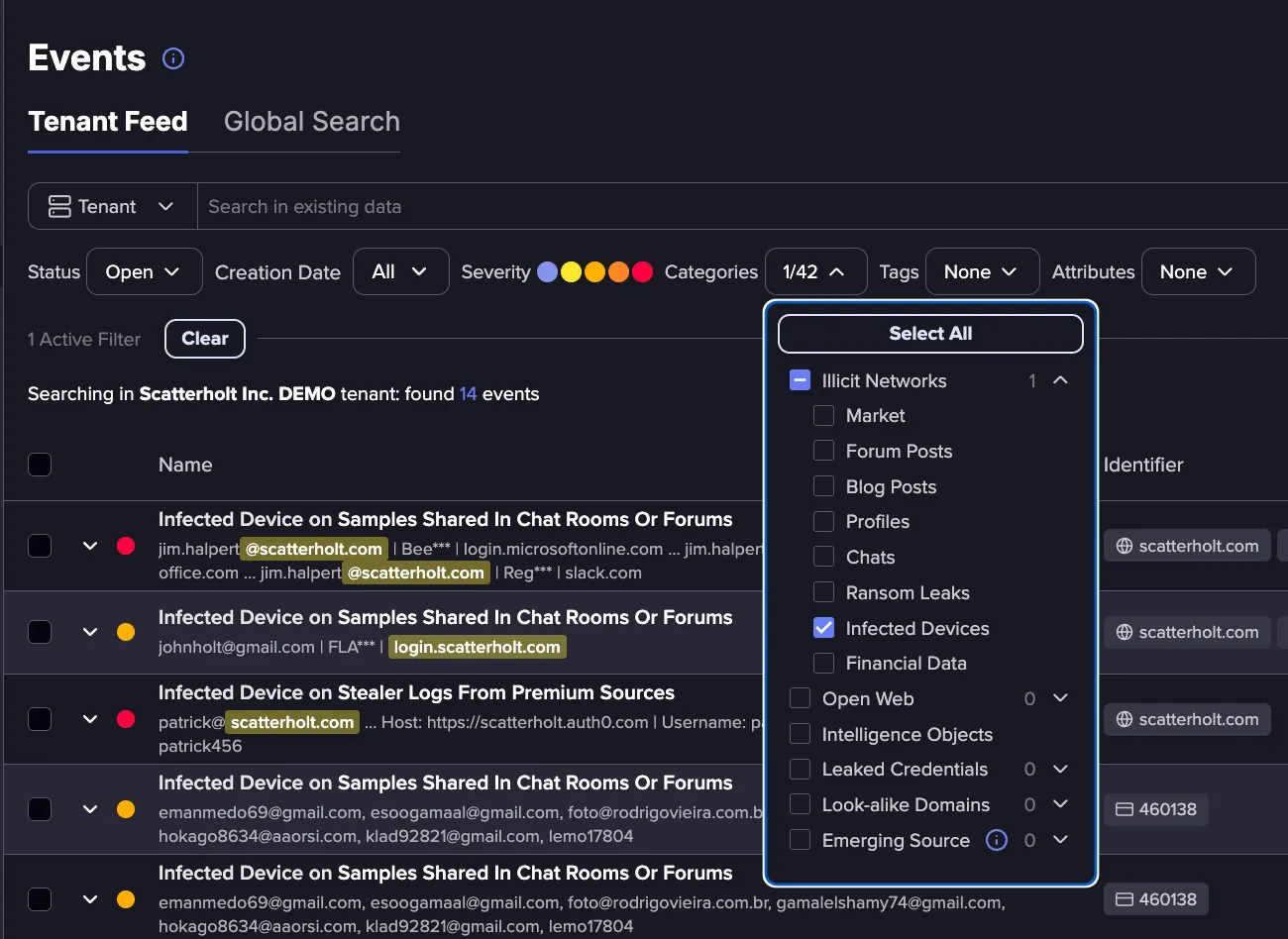
- Click a stealer log event to open the details panel.
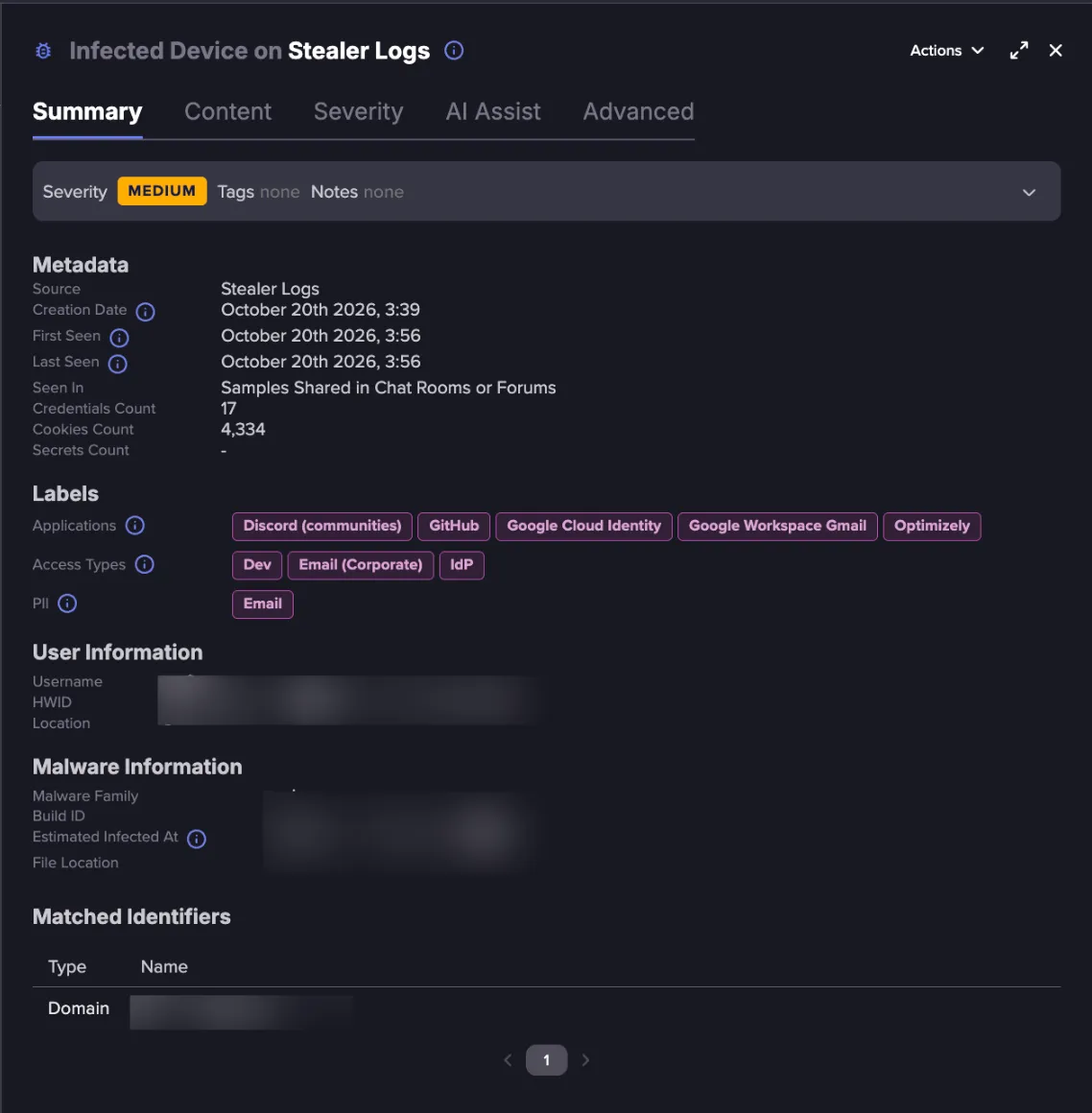
The Summary tab is organized into the following sections:
- Metadata: The Source, Creation Date, First Seen, and Last Seen dates, the source collection the log was found in (Seen In), and the Credentials Count, Cookies Count, and Secrets Count for the log.
- Labels: The labels detected in the log, grouped by category. See Labels below.
- User Information: The Username, hardware ID (HWID), and Location reported by the infected device.
- Malware Information: The Malware Family, Build ID, Estimated Infected At timestamp, and the File Location of the malware on the device.
- Matched Identifiers: The Identifiers that matched this event.
Labels
A single stealer log can contain hundreds of credentials and thousands of cookies. To help you triage faster, Flare analyzes the content of each stealer log and applies labels that summarize the applications, access types, and personal information it contains.
This includes the applications that credentials and cookies were found for, the type of access those applications grant, the types of personally identifiable information (PII) present, and facts and findings about the infected device.
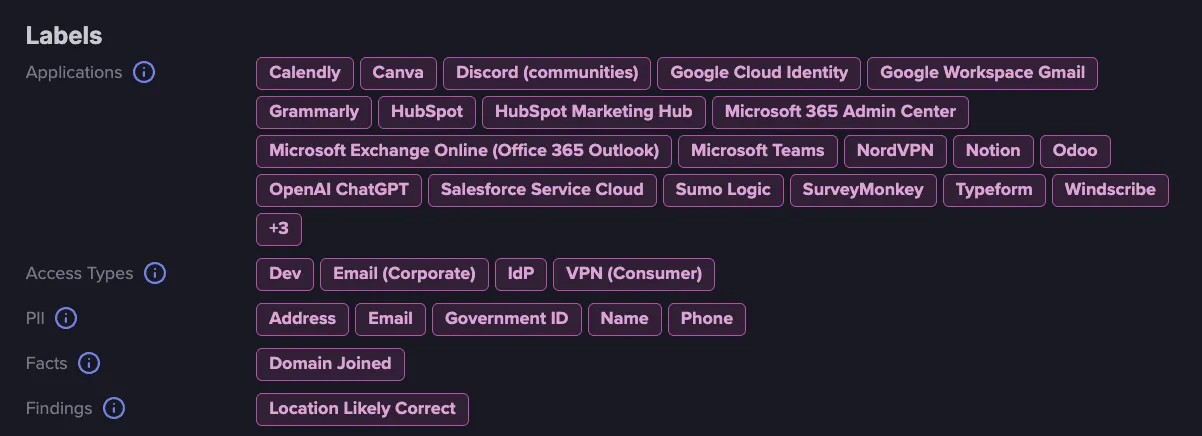
Labels let you filter, search, and build Matching Policies around stealer log content without opening each event individually. For example, you can narrow your triage to stealer logs that include corporate email or Identity Provider (IdP) access, or report on how many stealer logs contained PII over a given period. Labels on an Infected Device event are grouped into five categories:
- Applications: Applications are the services Flare detected from the credential and cookie URLs in the stealer log, such as Google Workspace Gmail, Microsoft Teams, or GitHub. You can see at a glance which of your organization’s tools may be exposed.
- Access Types: Access Types shows the categories of access exposed by the credentials and cookies in the log, such as corporate email, developer tooling, identity providers, cloud platforms, or VPNs. These categories help you spot higher-risk exposures, like identity provider or corporate VPN access.
- PII: PII indicates which types of personal information appear in the stealer log, such as names, addresses, phone numbers, or payment card data.
- Facts: Facts surfaces additional details about the infected device, such as whether it is Domain Joined.
- Findings: Findings are conclusions drawn from analysis of the log, such as whether its data is consistent with a genuine infection.
List of Labels for Stealer Logs
for a complete list of available Labels on Stealer Log Events.
Labels in Global Search
Labels are also available in Global SearchGlobal Search, so you can search stealer logs across all Flare’s data, not only the events in your Tenant Feed.
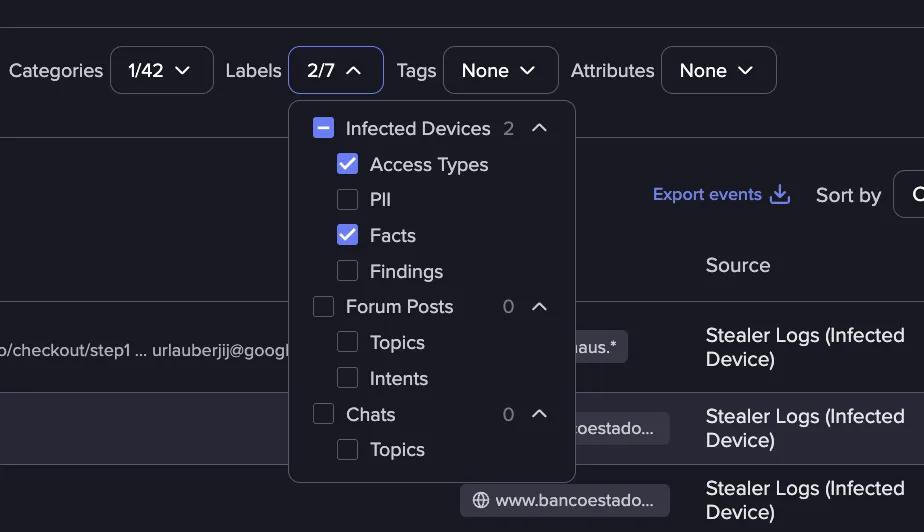
Filtering Events by Labels
Use the Labels filter in the Tenant Feed to show stealer logs that contain a specific Label. For example, select PII to show every stealer log that contains any type of personal information.
Searching for a Specific Label
Use the search bar to target a specific label, such as Payment Card, or to combine labels across categories. In the search bar, enter a label field followed by a colon, for example pii_type:payment_card.
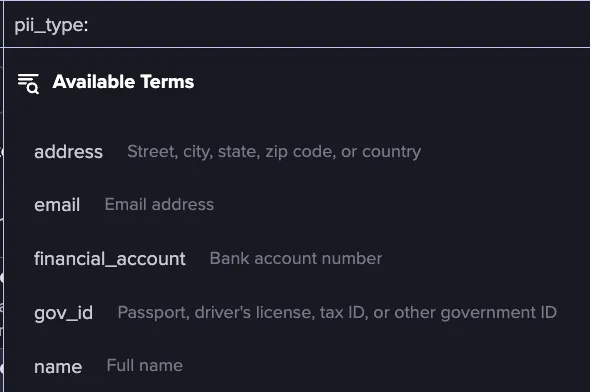
You can also combine search queries with AND, OR, and NOT. For example:
- access_types:idp OR access_types:email_corporate
- access_types:vpn_corporate AND user_information.domain:?*
- access_types:cloud AND NOT analysis.is_fake_infected_device:true
For more on query syntax, see Search in Existing DataSearch in Existing Data.
Creating a Matching Policy Using Labels
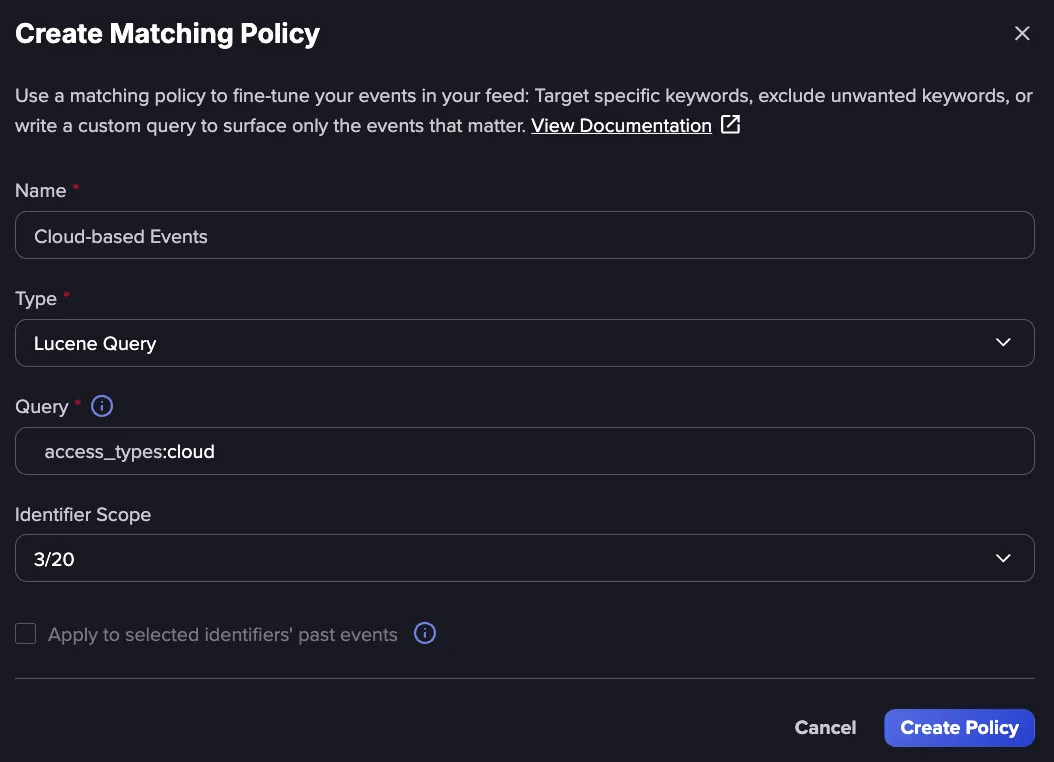
Labels can be used in a Lucene Query Matching Policy to limit an Identifier's events to stealer logs that meet specific criteria, for example only stealer logs that include cloud access. Alerts can then be set up for that Identifier so that only the stealer logs you consider high risk generate notifications.
For more information on configuring Matching Policies, see Lucene Query Matching Policies.